Participating Frequently
April 6, 2020
Question

Paper swatch, Indesign

  • April 6, 2020
  • 3 replies
  • 3400 views

Is it possible to modify the tint of the 'paper swatch' in Indesign? 

So to make it 25% for example?

Is it possible to make it in the swatch tab?

This topic has been closed for replies.

3 replies

Peter Villevoye
Community Expert
Community Expert
April 26, 2020

Just wanted to mention that I adore this question !

"How can I have a quarter of the color of nothing ?"

It's almost philosophical... 🙂

rob day
Community Expert
Community Expert
April 8, 2020

Is it possible to modify the tint of the 'paper swatch' in Indesign?

So to make it 25% for example?


No.

The default [Paper] swatch represents the color of the paper stock with no ink applied. The [Paper] color can be defined as something other than white, but a tint can’t be applied because there is no ink in the output when an object is filled with [Paper].


For example you are printing 100% process yellow on pink paper—process inks are normally somewhat transparent, which Overprint preview shows:


BelaZAuthor
Participating Frequently
April 8, 2020

Thanks for your extensive replies, Laubender and rob_day!

I knew it for sure, as I work with Indesign since the begining, but it's good to hear that I didn't get crazy.

I Allways use the paper swatch at printwork as white. When I used another color (For example magenta with 25 % tint) and I changed it to paper, it allways jumped to 100%. Ther was never the option to change the tint of paper.

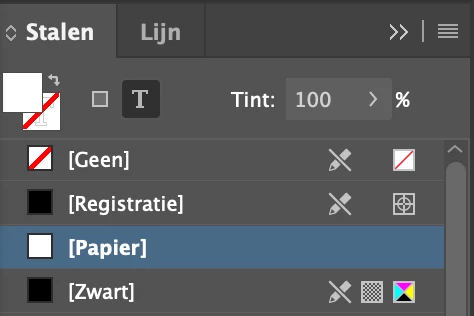
But recently I faced a real strange issue.... Look at the screenshot!

The paper color looks white, but it is on 25%!!! Something went wrong when we changed a color to paper. I guess.

It took the procent over!! That should not be possible I thought.

This looks like a bug (recently I face more issues at Indesign and Illustrator + Catalina.)

Did you ever see this with the paper swatch? 

Kind regards

Bela

rob day
Community Expert
Community Expert
April 8, 2020

That might happen if you delete a color that has a Tint applied and replace with [Paper]:


Community Expert
April 8, 2020

Hi BelaZ,

if you need an ink that resembles a White with a tint of 25%, do a custom spot color with a tint.

Set the fill and/or stroke of the object where you applied the spot color to to overprint.


You cannot simulate this with overprint preview, but you can check the numbers with the Separation Preview panel:

This all is possible without using transparency. CMYK + Spot Color "White".

InDesign cannot simulate the result in color. Even if I set the spot color to "Opaque" in the Ink Manager.


Viewing spot color "White" alone with the Separation Panel will also show the 25% of the spot color.

But this time in gray:


If you do all your work for CMYK printing set the fill or the stroke that has [Papier] applied to a blend of 25% with the Effects panel. In the example below I filled the rectangle with color [Papier] and set the blending of the fill to 25%:


Regards,
Uwe Laubender

( ACP )