

Mr. Met
Inspiring
December 15, 2018
Answered

Photoshop file changes color in InDesign

  • December 15, 2018
  • 6 replies
  • 6665 views

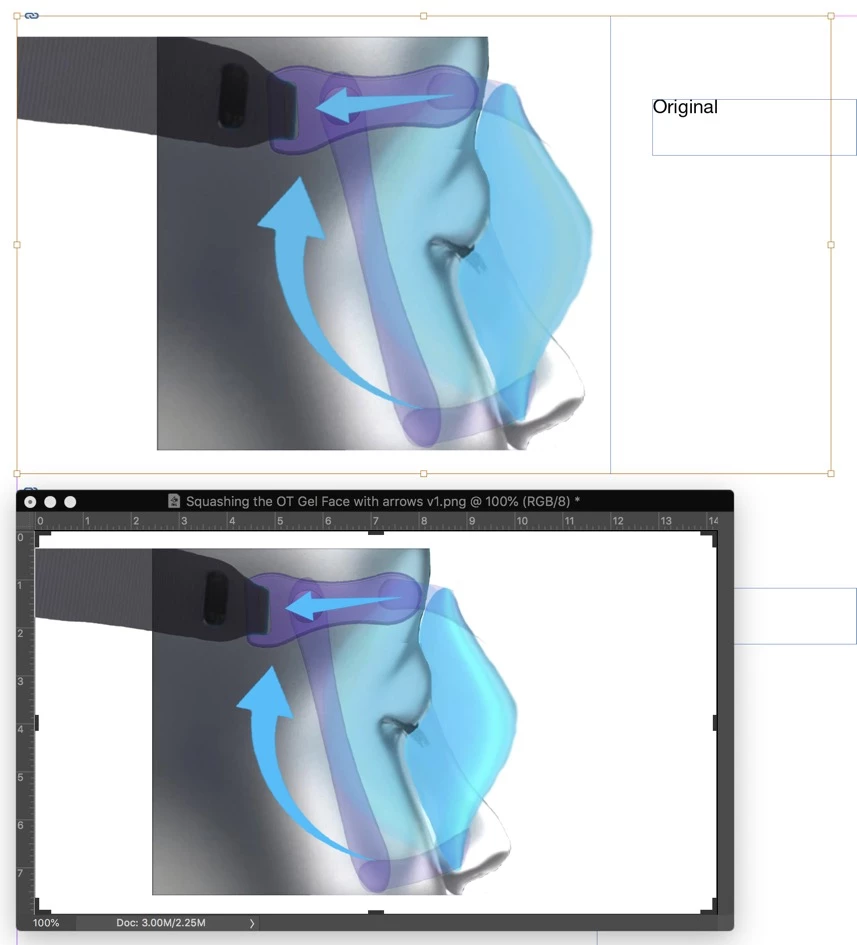
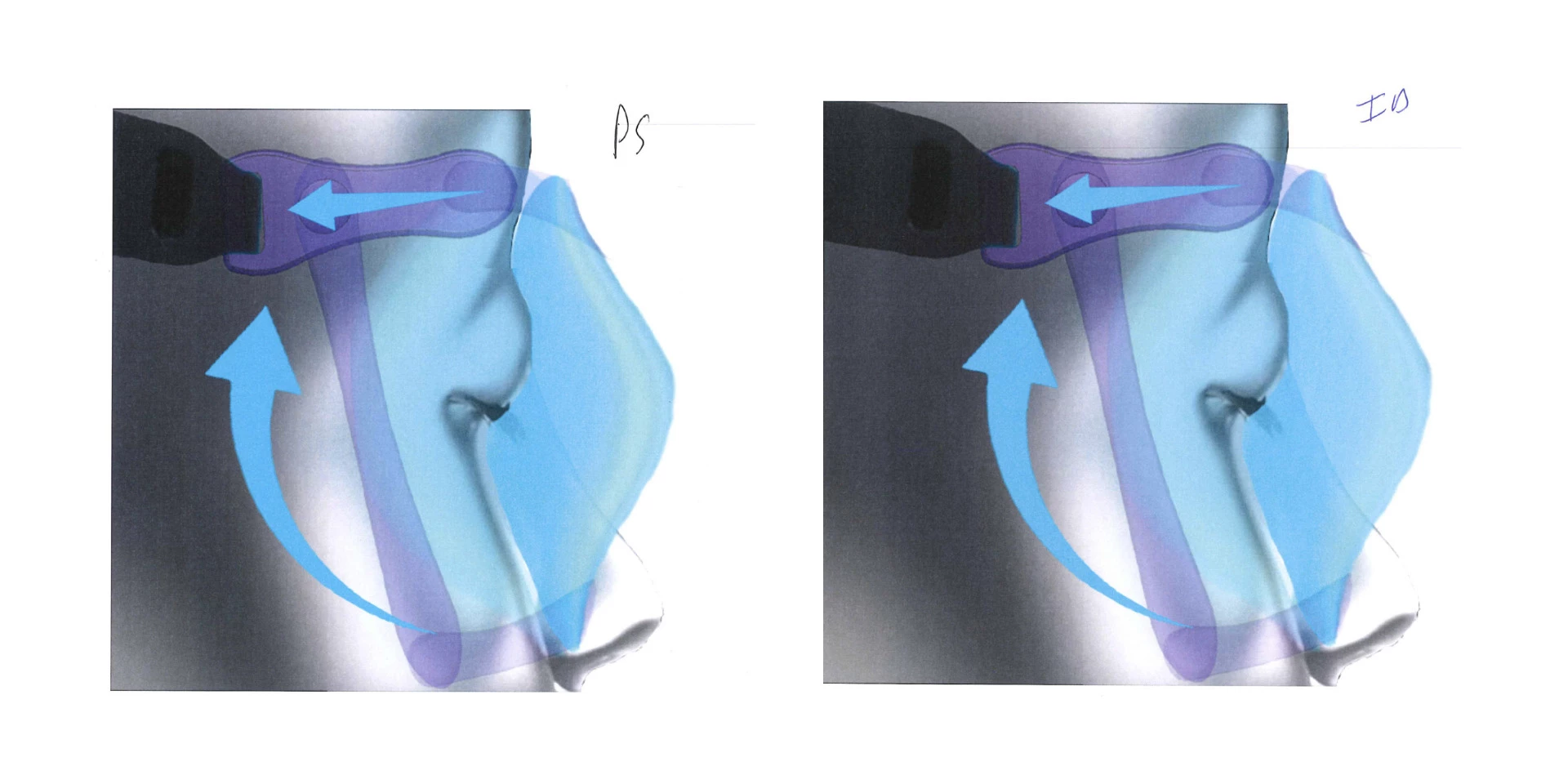
I have an RGB PNG of a product. In Photoshop, the image looks vibrant (bottom screen shot in Attachment_1). When I place into ID, the colors are very muted (top screen shot in Attachment_1) and print that way. I believe ID automatically creates CMYK preview/conversion. The reason I think this is that when I converted to CMYK in PS it looked identical to the placed RGB file in ID. Additionally, when I print directly from PS the image prints better but still isn't vibrant (Attachment_2). It's critical that the cyan glow on the right in image is very apparent in the printed piece. Any advice appreciated on getting the photo to print better from ID or exported PDF out of ID.
This topic has been closed for replies.
Correct answer rob day

But that wouldn’t fix the RGB out-of-gamut problem. If the document is going to be printed you would want to turn on Overprint Preview, which will preview the RGB color in the CMYK space.

6 replies

Mohit Goyal
Community Manager
Community Manager
July 18, 2022

Hi,


Please take a look at the following article to resolve the color mismatch issues between Photoshop and InDesign: https://helpx.adobe.com/photoshop/using/photoshop-assets-in-indesign.html


Hope it helps.

Thanks,

Mohit

workbenchg7914701
Participant
March 6, 2020

This is probably way too late but I had a similar issue not long ago and was able to resolve it by placing in InDesign a flattened image with zero transparency.

rob day
Community Expert
rob dayCommunity ExpertCorrect answer
Community Expert
March 7, 2020

But that wouldn’t fix the RGB out-of-gamut problem. If the document is going to be printed you would want to turn on Overprint Preview, which will preview the RGB color in the CMYK space.

Eugenio.NYC
Participating Frequently
December 17, 2018

Hi there,

Could you tell me your printer model?

in addition could you go to InDesign and go to the menu edit and select color setting and take a snapshot and do the same in Photoshop.

An also what monitor do you have?

Color management is not simple but here you can read good answers about the process

In my workflow I use a graphic monitor, I calibrate my monitor, my printer and I use color profiles, and I understand color management. just then I can see more accurate colors

I hope we can help you

Thanks

E

rob day
Community Expert
Community Expert
December 17, 2018

It's critical that the cyan glow on the right in image is very apparent in the printed piece.

Could you tell me your printer model?

I was assuming the illustration’s final destination will be a CMYK offset press.

Mr. Met
Mr. MetAuthor
Inspiring
December 17, 2018

We will print the proofs and short run brochures on a digital press (Ricoh 7100). The large print run will be offset. After consulting with client, he is having his retoucher convert to CMYK in PS and adjust colors there so there is no conversion in the print stream.

Willi Adelberger
Community Expert
Community Expert
December 17, 2018
  1. When you have images from Photoshop save them as PSD and not as PNG and place the PSD directly.
  2. The RGB mode is much wider than the CMYK mode.
  3. If you have to print anything you will always end up with a CMYK at the printed product, so you cannot expect vibrant Colors anyway.
macpawel
Participating Frequently
December 15, 2018

Just save as Photoshop PSD file without any options and try to place it in InDesign

Mr. Met
Mr. MetAuthor
Inspiring
December 15, 2018

I changed transparency blend space to RGB and it displayed properly. Printed better as well but the cyan glow isn't prominent at all.

Mr. Met
Mr. MetAuthor
Inspiring
December 15, 2018

The top photo is printing with transparency blend set to RGB in ID a few moments ago.

Steve Werner
Community Expert
Community Expert
December 15, 2018

The PNG file probably was saved as transparent PNG.

Placing transparency of any kind will force all of the colors into the current blend color space. Look at Edit > Transparency Blend Space and it's probably Document CMYK.

Mr. Met
Mr. MetAuthor
Inspiring
December 15, 2018

So how should I save this out of PS? I opened in PS and didn't see any options to save with or without transparency.