
Known Participant
May 3, 2012
Question

Question about reducing PDF file size on export

  • May 3, 2012
  • 4 replies
  • 94044 views

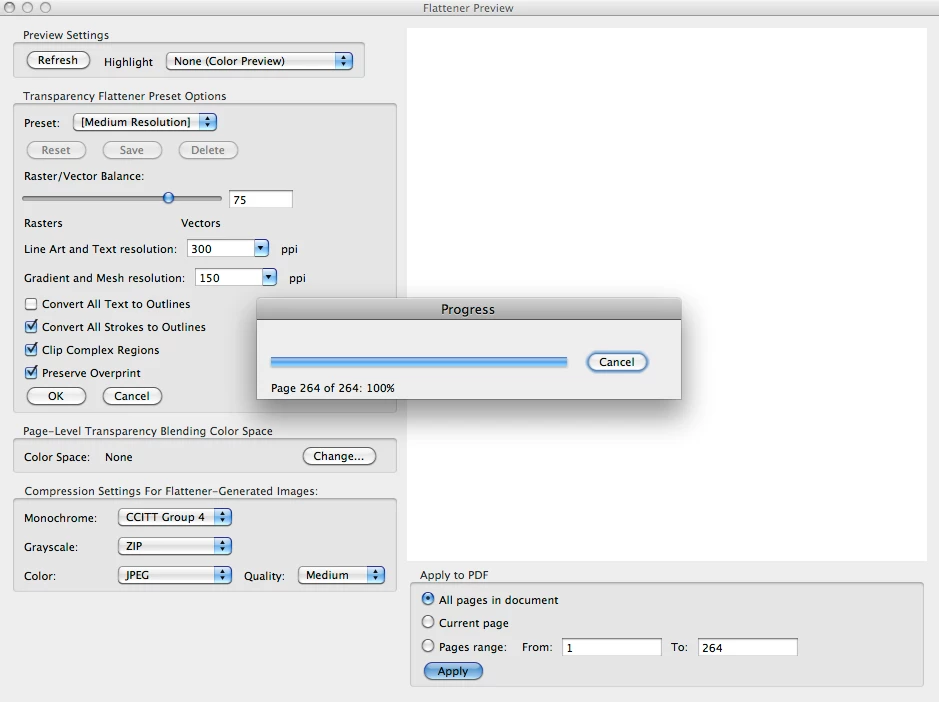
I have a large file that is generates a PDF about 75MB when exported with the "[High Quality Print]" preset. However, I can reduce the size down to to under 5MG in Acrobat if I use the Tools>Flattener Preview>[Medium Resolution] setting (image attached). Is there a way to generate this smaller file directly from InDesign? I couldn't figure out how to do this with InDesign's Flattener Preview or Export options, but it is very likely that I missed something.
    This topic has been closed for replies.

    4 replies

    Participating Frequently
    May 13, 2013

    I have the same problem, but using flattener preview doesn't reduce my pdf (in fact it increases). This pdf doesn't have any rasterized image, just complex .ai vectors with many lines.

    My file size is 14 Mb and if y use Save as >>> Optimized pdf it doesn't help.

    Any idea?

    BobLevine
    Community Expert
    Community Expert
    May 13, 2013

    Complex vectors are what they are. Sometimes rasterizing them will actually shrink the PDF file size with the obvious drawback that it's no longer vector.

    Bob

    March 12, 2013

    http://forums.adobe.com/thread/708537

    This thread explains how to delete the XMP data that is making your PDFs huge. If you have a file that has been worked on over a long period of time and been saved many times, all of this will be embedded in the PDF. Follow the instructions to create a script for Bridge using Extendscript Toolkit (it leaves out the simple step of saving the script into the folder with a descriptive name). It works.

    100 DPI proof PDF before deleting XMP: 4.9MB

    100 DPI proof PDF after deleting XMP: 106KB

    Saki HAuthor
    Known Participant
    March 13, 2013

    Thanks for the suggestion. Unfortunately, that didn't reduce the file size. 5.9MB before and after. I don't think the issue is metadata because these are new files (not saved many times), (2) I exported them to IDML and reserved, and (3) the files are only text and imported AI files, no photos. Using the flattener preview in Acrobat still seems the best option. Nevertheless, your help is much appreciated.

    Peter Spier
    Community Expert
    Community Expert
    March 13, 2013

    Neil Weinberg wrote:

    (3) the files are only text and imported AI files, no photos.

    Vectors don't compress the way photos do, so lots of .ai files or native vector objects will make the PDF larger.

    Community Expert
    May 4, 2012

    When you choose Smallest File size, it is still using the PDF 1.6 setting.

    Change this to Acrobat 4 (PDF 1.3) this will automagically flatten the PDF - which means you shouldn't have to do it in Acrobat.

    That should get you a nice small file size, I believe.

    Saki HAuthor
    Known Participant
    May 7, 2012

    Thanks very much for the suggestion. I tried using the Smallest File size, Acrobat 4 (PDF 1.3), but, unfortunately, the file still exports at ~75MB. I got the same result when I tried the same thing with PDF/X-1a:2001. In case I am not explaining this well, attached are two screen shots of the settings I used.

    Saki HAuthor
    Known Participant
    May 3, 2012

    Sorry about the blurry image. It looks fine when I open it with Preview (I am on Mac, OS 10.6.8).

    Steve Werner
    Community Expert
    Community Expert
    May 3, 2012

    Did you try the Smallest File Size PDF preset? You can also customize it to further reduce the resolution on the Compression panel to 72 ppi. Are you going to use this image on the Web?

    Saki HAuthor
    Known Participant
    May 3, 2012

    I should have mentioned that I tried Smallest File Size present, but it didn't help. I don't want to compress to 72dpi because the client reviews the PDF in print (using office laser printer).