kyriosity
Inspiring
April 21, 2018
解決済み

Running Header Glitch

  • April 21, 2018
  • 返信数 3.
  • 1729 ビュー

Here's a problem I've never seen before. I've got running headers set up in a book -- book title on the left, chapter title on the right. All runs smoothly until chapter 7, when the chapter 6 header starts randomly appearing on the right. Not on every spread, but sporadically. So, for instance, pages 83, 85, and 87 say "CHAPTER 7" just as they ought. Then pages 89, 91, 93, 95, 97, 99, 101, and 103 say "CHAPTER 6." Then pages 105 and 107 are back to "CHAPTER 7."  This recurs throughout the rest of the book -- "CHAPTER 6" shows up seemingly randomly. 'Tis a puzzlement. Any ideas on a fix?

Here's what I've tried so far:

  • Reapplied the master -- no effect.
  • Deleted "CHAPTER 6" at the beginning of chapter 6 -- "CHAPTER 5" showed up in the random spots, instead.
  • Deleted and replaced the Chapter Title paragraph style -- no effect.

I'm running InDesign CC 13.1 x 64 on Windows 10.

Thanks!

~Valerie

    このトピックへの返信は締め切られました。
    解決に役立った回答 Barb Binder

    Good morning, Valerie:

    It comes down to some odd text threading—nothing you can't fix with copy/paste.

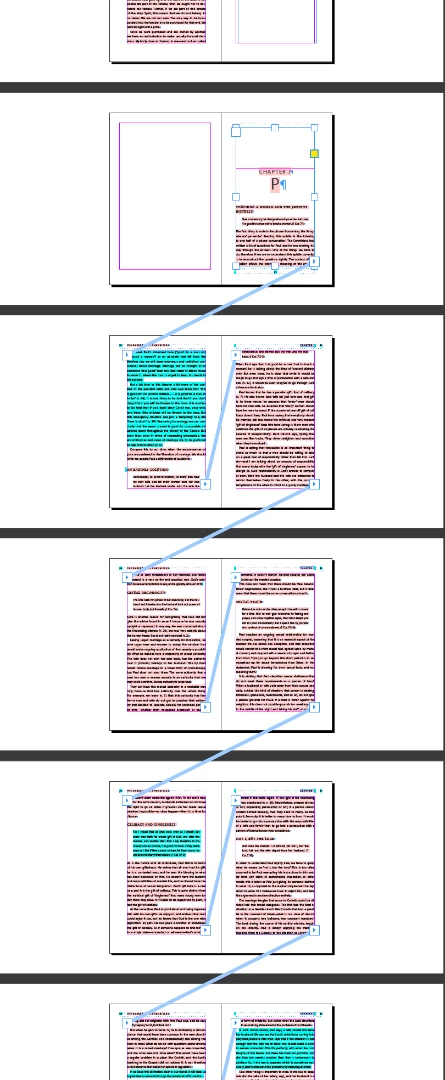
    The page where things become weird is page 89—that's the first time the running head decides to switch to chapter 6 in the middle of chapter 7. When I zoomed way out and enabled show text threads, you can see that the final frame of chapter 6 links to page 89 (left screen shot). Now oddly, when I show text threads for chapter 7, they all link correctly (right screen shot). It seems as if there should be a second frame on page 89, but I don't see it—which seems buggy to me—two threads link to the same frame.


    I also see that some of the chapters are stand-alone (chapter 1) and others are threaded (chapters 2-6). I would make a decision here—run them all as separate stories, or all as one long threaded story—using cut/paste on a copy.

    I think the quickest fix is to paste chapter 7 into a new document as a temporary holding place, then repeat for chapter 8–end. Delete the now-blank pages in InDesign. Check the threading to make sure there is nothing odd going on—if so repeat for those final back matter sections. Then add new body pages in InDesign and paste chapter 7 back in. Check the threading, and continue for the remainder of the book.

    ~Barb

    返信数 3

    Barb Binder
    Community Expert
    Barb BinderCommunity Expert解決!
    Community Expert
    April 22, 2018

    Good morning, Valerie:

    It comes down to some odd text threading—nothing you can't fix with copy/paste.

    The page where things become weird is page 89—that's the first time the running head decides to switch to chapter 6 in the middle of chapter 7. When I zoomed way out and enabled show text threads, you can see that the final frame of chapter 6 links to page 89 (left screen shot). Now oddly, when I show text threads for chapter 7, they all link correctly (right screen shot). It seems as if there should be a second frame on page 89, but I don't see it—which seems buggy to me—two threads link to the same frame.


    I also see that some of the chapters are stand-alone (chapter 1) and others are threaded (chapters 2-6). I would make a decision here—run them all as separate stories, or all as one long threaded story—using cut/paste on a copy.

    I think the quickest fix is to paste chapter 7 into a new document as a temporary holding place, then repeat for chapter 8–end. Delete the now-blank pages in InDesign. Check the threading to make sure there is nothing odd going on—if so repeat for those final back matter sections. Then add new body pages in InDesign and paste chapter 7 back in. Check the threading, and continue for the remainder of the book.

    ~Barb

    ~Barb at Rocky Mountain Training
    happie_97
    Community Expert
    Community Expert
    April 22, 2018

    I agree with Barb.

    I haven't experienced this issue, I think because I create separate documents for each chapter and then use the book panel to stitch it all together.

    Have you tried separating the chapters into separate documents and then using the book panel to put it all together?

    kyriosity
    kyriosity作成者
    Inspiring
    April 21, 2018

    No hidden instances of the style. Will message you. Thanks!

    ~Valerie

    Barb Binder
    Community Expert
    Community Expert
    April 21, 2018

    Hi Valerie:

    Let's start by looking at your setup:

    • How did you add the chapter number to the right running head? Did you use the Chapter Number text variable?
    • How is your book set up? Is each chapter its own file, listed sequentially in the book window?
    • How are your master pages set up? Are you just using A or are you using custom masters?

    I know you are an experienced user, but screen shots would be helpful as you answer those questions.

    ~Barb

    ~Barb at Rocky Mountain Training
    Derek Cross
    Community Expert
    Community Expert
    April 21, 2018

    Have I not ordered these?

    Please advise.

    Regards

    Derek Cross

    Sent from my iPad

    kyriosity
    kyriosity作成者
    Inspiring
    April 21, 2018

    Is this where you meant to post this, Derek?