

Script for enabling Harfbuzz workflow in InDesign
InDesign will use the legacy composer for Indic scripts by default. Please use the following instructions to enable the new Harfbuzz based workflow and test the new solution:
- Copy the below script to a new js file with name "HarfbuzzOverride.js":
To set Harfbuzz as the shaping engine for Latin & Indic script:
app.textPreferences.shapeIndicAndLatinWithHarbuzz = true;
Similarly, to set Lipika as the shaping engine for Latin & Indic script:
app.textPreferences.shapeIndicAndLatinWithHarbuzz = false;
2. Now place it the following location inside the InDesign root folder: ../Scripts/Scripts Panel
3. Launch InDesign.
4. Go to Windows> Utilities> Scripts
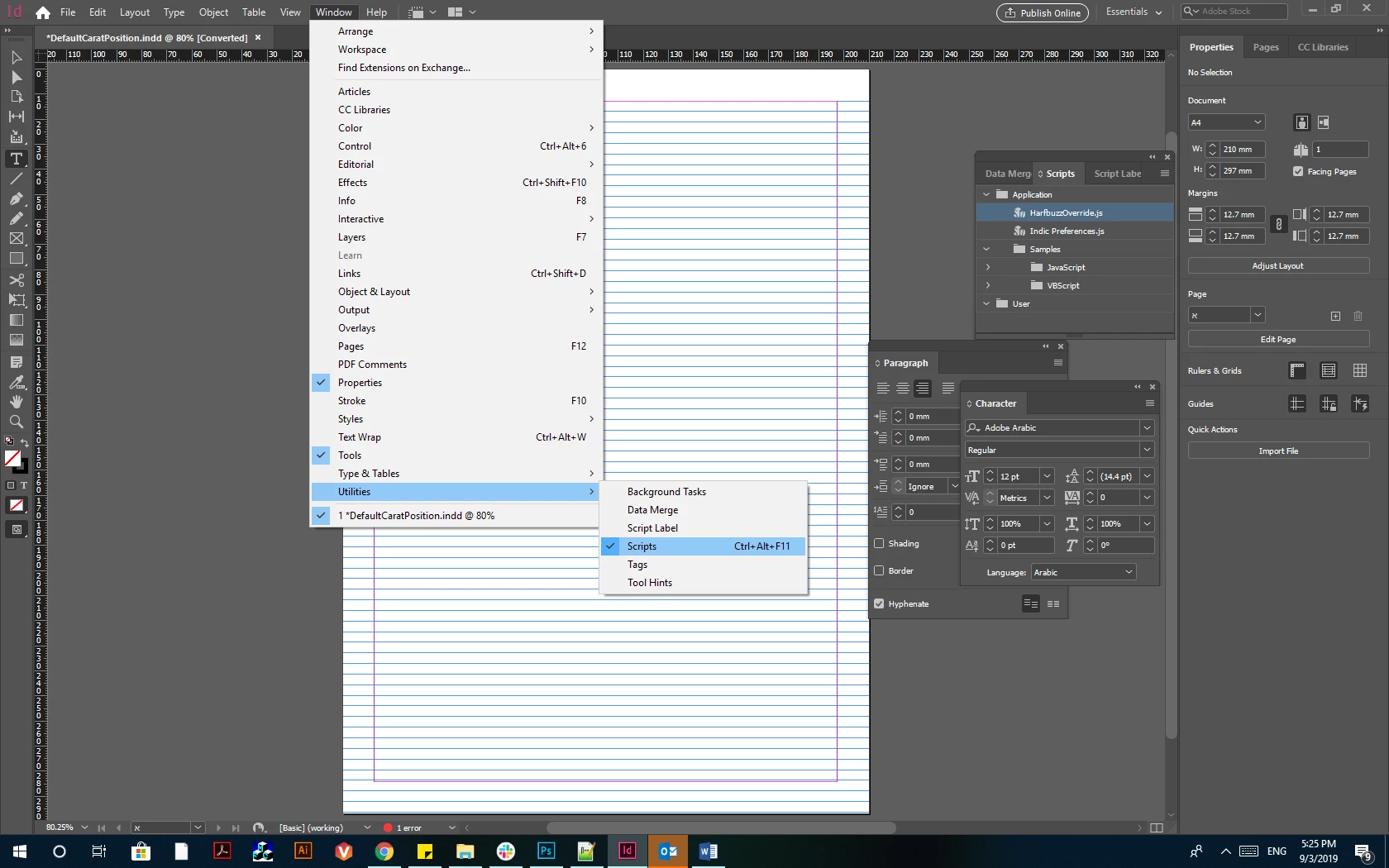
5. This will open the Scripts Panel. In case you do not HarfbuzzOverride.js in this panel, please review step-1 above.
6. Double click on HarfbuzzOverride.js on the scripts panel. This will activate the Harfbuzz workflow.
We hope this workflow will help you!
Let us know if you run into trouble.
Regards,
Sheena


 AdChoices