
InaLandCalledHonahlee
Known Participant
May 4, 2017
Answered

Select two objects at the same time when one covers the other.

  • May 4, 2017
  • 4 replies
  • 639 views

I have a series of photos in circular frames, and a series of transparent colored circles of the exact same size like so...
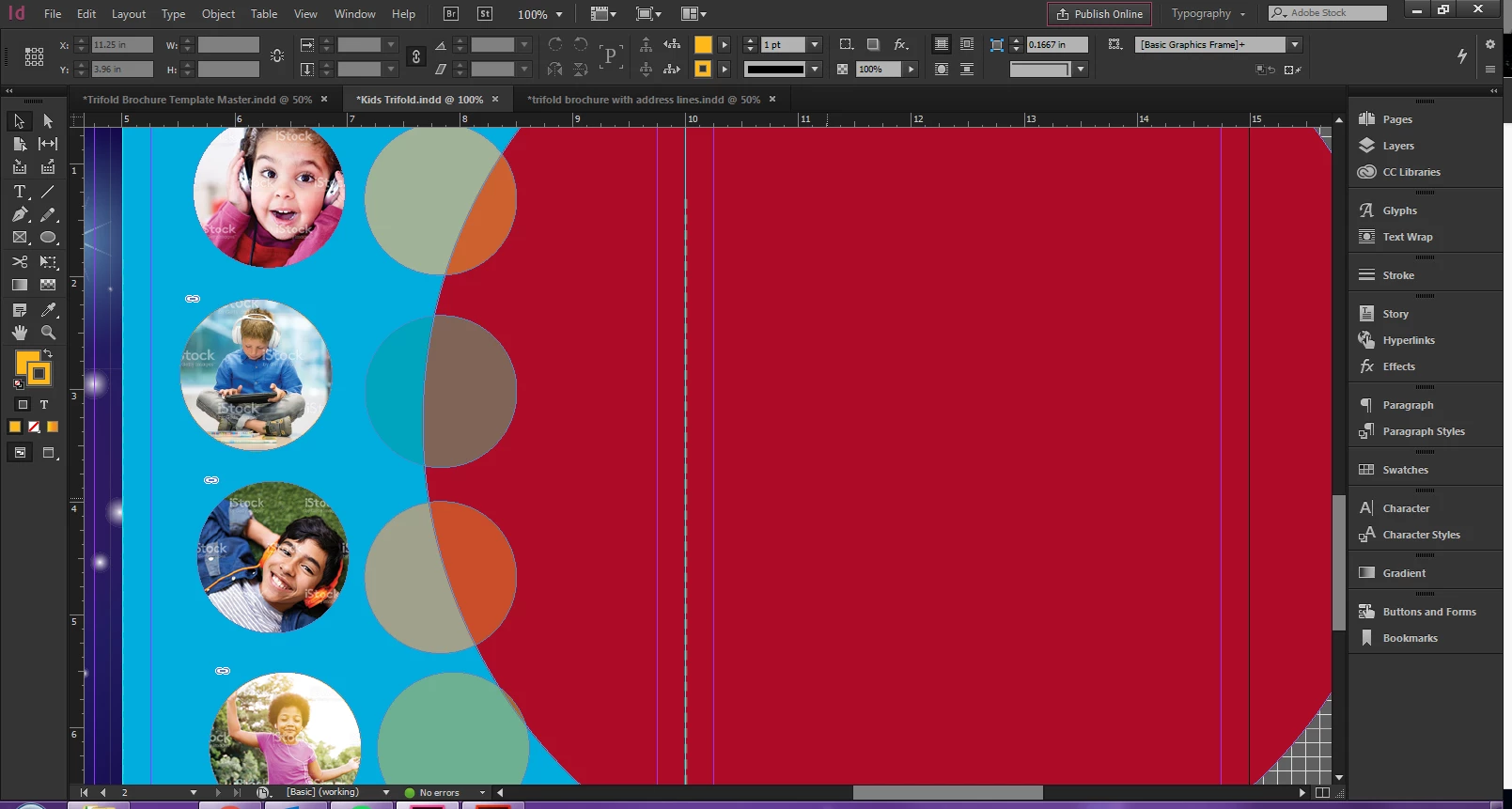
My goal is to place the transparent circles over the photo circles to create a color wash over the photo, then group the two objects together so that I can move them around as I please without having to realign the circles...
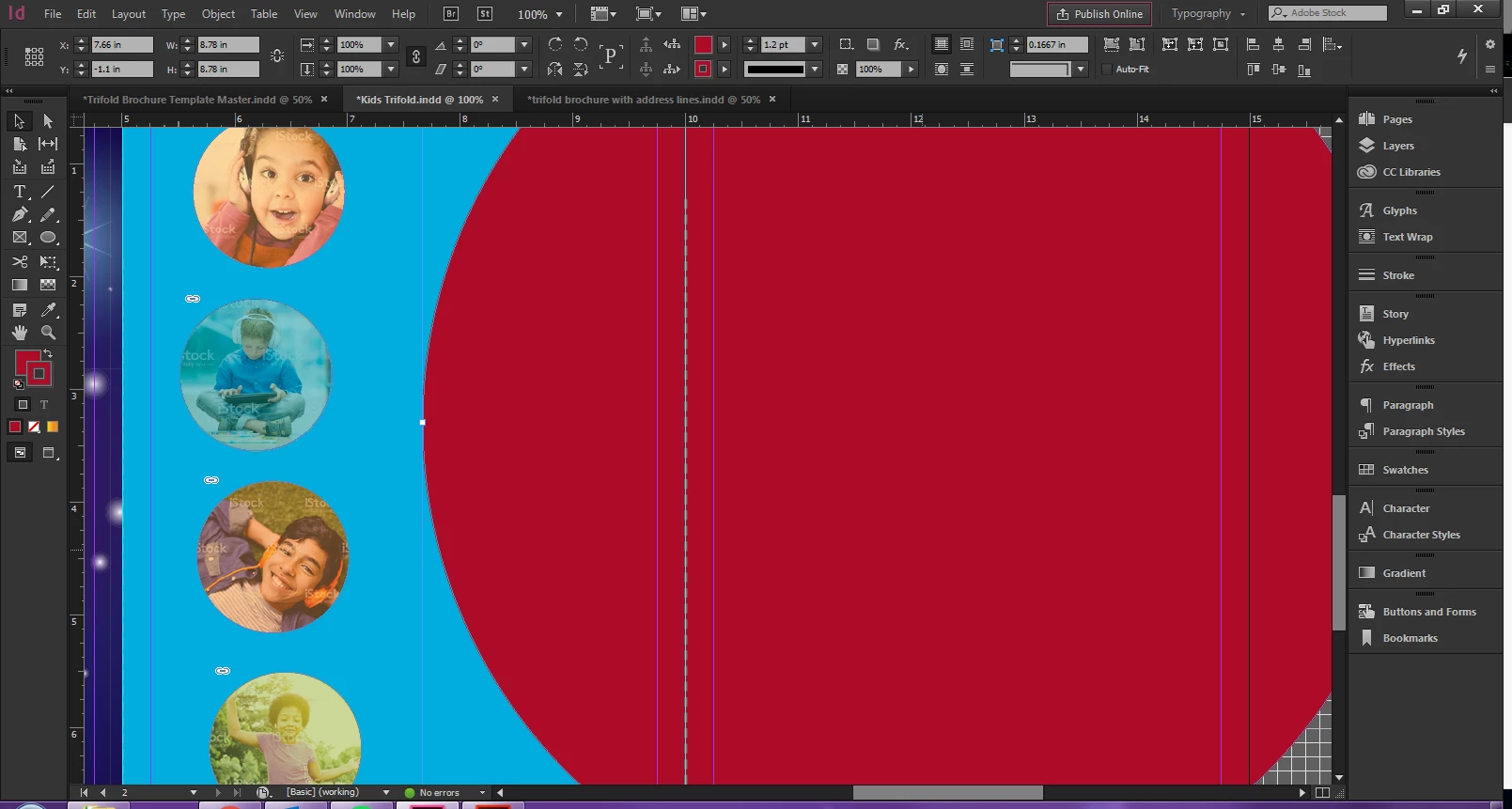
The problem is that I don't know how to select both circles at once without exposing the circle underneath. I can select either the top circle by clicking it, or the bottom circle by selecting the top one, then using select next object below, but I cannot shift select both circles to group them while one is covering the other. Am I missing something obvious? Am I going about it the wrong way? Please help!
This topic has been closed for replies.
Correct answer Steve Werner

Select them a different way: Use the Layers panel.

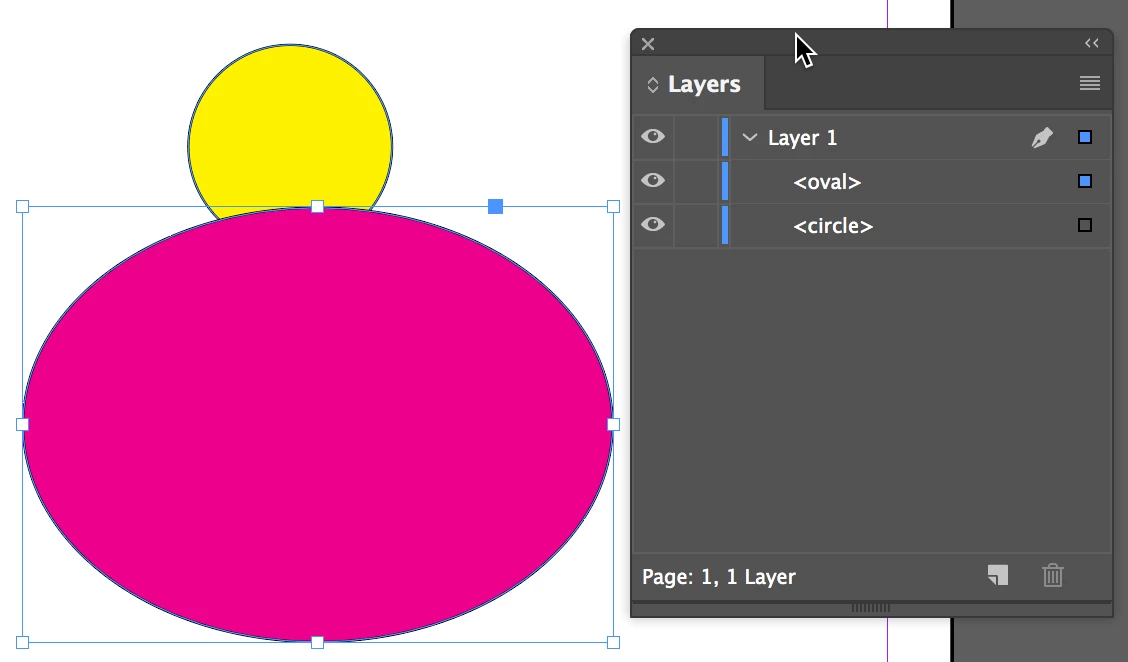
A yellow circle is moved behind a magenta ellipse:

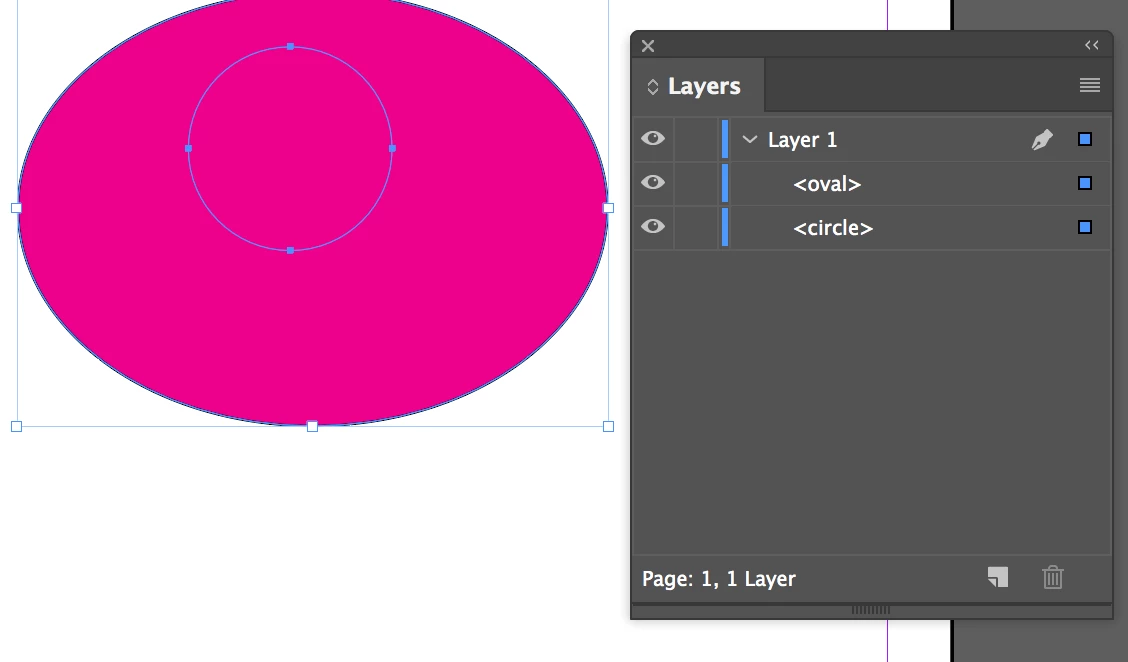
On the Layers panel, Shift-select the selection squares on the right to select both of them:

4 replies

InaLandCalledHonahlee
Known Participant
May 4, 2017

Thank you everyone! I did not know about the layers panel (at least I have never used it before) or the cntrl click method, I feel silly though because I did know about the marquee select... it was late lol.

Legend
May 4, 2017

InaLandCalledHonahlee  wrote

…but I cannot shift select both circles to group them while one is covering the other.

If you have an object that covers another, and we call them top (the one covering) and bottom (the one being covered), click on the top to select it, Command-click to deselect the top and select the bottom (think of it as clicking through the top in two steps). That's how you get to the bottom object through the top. Once the bottom object is selected, you can Shift-click on the top object, the way you can shift-click any number of objects to include them in a selection. When they are both selected, you can move, group or do what ever you need.

Zaid Al Hilali
Community Expert
Community Expert
May 4, 2017

Another way is to lock blue background, then with the Selection tool drag a marquee around any number of objects to select them at once.

Steve Werner
Community Expert
Steve WernerCommunity ExpertCorrect answer
Community Expert
May 4, 2017

Select them a different way: Use the Layers panel.

A yellow circle is moved behind a magenta ellipse:

On the Layers panel, Shift-select the selection squares on the right to select both of them: