koinegreek
Known Participant
February 26, 2020
Answered

Shift all content on every page down 5mm OR adjust bleed settings?

  • February 26, 2020
  • 3 replies
  • 15000 views

I am working on a 5" x 8" book that has a 5.125" x 8.25" trim size with the printer.


For bleed settings, then, I have 0.125" (3.175mm) on the top, bottom, and outside, and 0.0" bleed on the inside.


My book has some special circumstances (replicating something that needs to remain a certain size because it is "real" size), so I don't have flexibility really in terms of the total size my content takes up. Including my page numbers, I currently have about 5mm of space at the top above the page numbers and 13mm of space at the bottom below the text. However, after a couple draft prints, I realized that there is some fluctuation in the cut so that in some prints I get 1mm of space at the top and then about 18mm of space at the bottom.


I am trying to figure out what the easiest way would be to basically move all the content of every single page (images/text/etc.) down about 3-4mm so then I can have around 8-9mm at the top and then 10mm at the bottom.


I thought maybe I should just set the bleed at the bottom to 0mm and set the bleed at the top to 6.35mm, but that seems like a not ideal way to do it.


So my question is: Is there an easy wa
This topic has been closed for replies.
Correct answer Laubender

Hi,

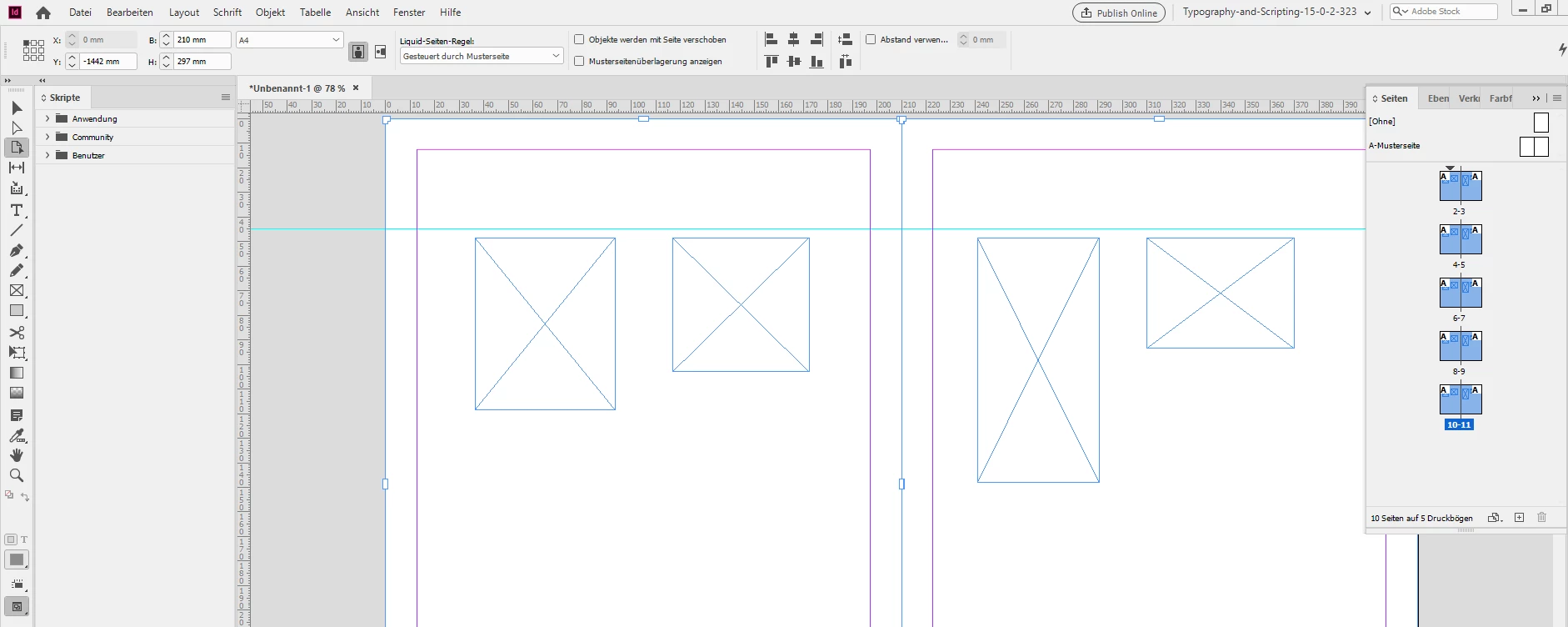
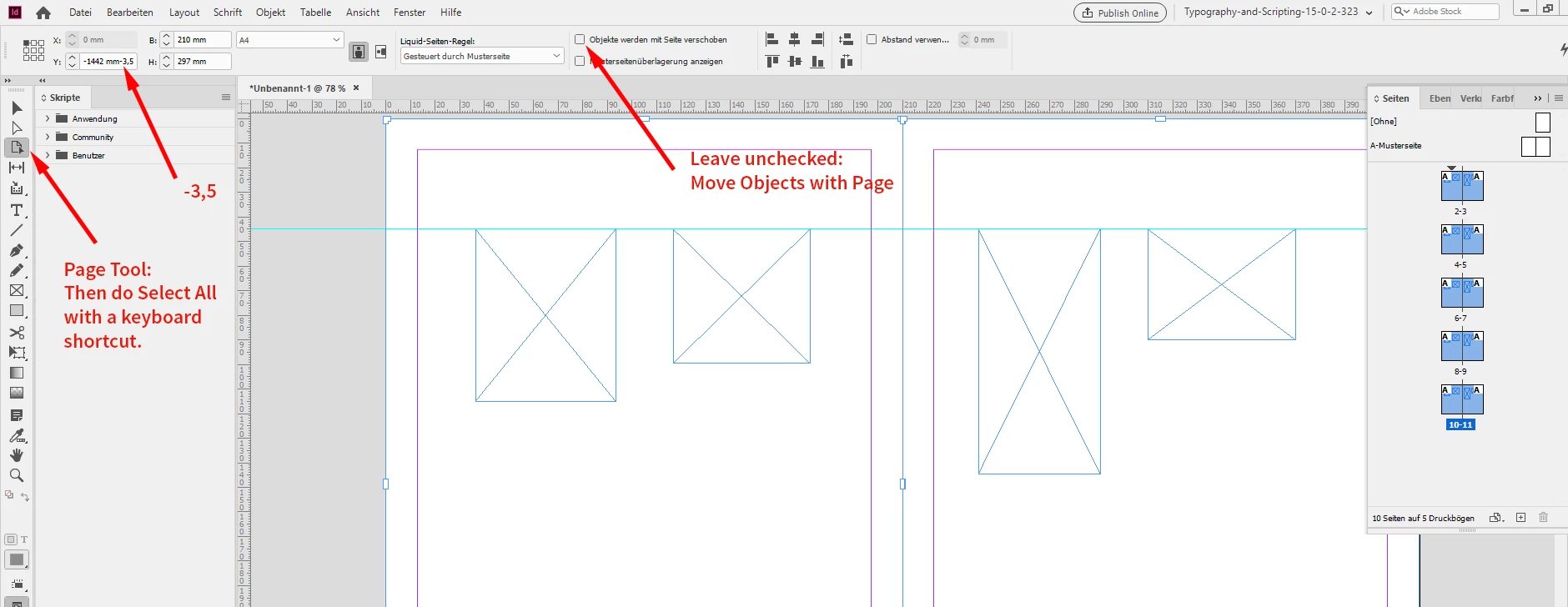
the fastest way to move everything on document pages down by e.g. 3.5 mm is to move the document pages up without moving objects with the pages. To select all pages switch to the Page Tool and do Select All with the keyboard shortcut. Then add -3.5 to the existing value in the input field of Y of the Control Panel.


From my German InDesign 2020 where the Control Panel is visible.


Result:


The other way is to use a script that moves every item down. Also items off pages and items on the master.

ExtendScript (JavaScript) code:


app.documents[0].pageItems.everyItem().move( undefined , [ "0 mm" , "3.5 mm"] );


Regards,
Uwe Laubender

( ACP )


EDITED: Changed "down" to "up"

3 replies

koinegreek
Known Participant
February 26, 2020

Thank you!

Colin Flashman
Community Expert
Community Expert
February 26, 2020

In addition to the script shared by Uwe, there is also a script that ships with InDesign called AdjustLayout.jsx that can adjust all items on a page en masse.

If the answer wasn't in my post, perhaps it might be on my blog at colecandoo!
Dan Greyhound
Inspiring
April 8, 2022

Re. AdjustLayout.jsx, be aware that odd = even and even = odd. Took me a while to figure out what was going wrong!

LaubenderCommunity ExpertCorrect answer
Community Expert
February 26, 2020

Hi,

the fastest way to move everything on document pages down by e.g. 3.5 mm is to move the document pages up without moving objects with the pages. To select all pages switch to the Page Tool and do Select All with the keyboard shortcut. Then add -3.5 to the existing value in the input field of Y of the Control Panel.


From my German InDesign 2020 where the Control Panel is visible.


Result:


The other way is to use a script that moves every item down. Also items off pages and items on the master.

ExtendScript (JavaScript) code:


app.documents[0].pageItems.everyItem().move( undefined , [ "0 mm" , "3.5 mm"] );


Regards,
Uwe Laubender

( ACP )


EDITED: Changed "down" to "up"

Dan Greyhound
Inspiring
April 8, 2022

This is great, but why can you only move things vertically and not horizontally using the Page Tool?

Community Expert
April 8, 2022

Hi Dan,

that's the way it works with facing-pages documents.

With non-facing-pages documents you can move a page with the Page tool in both directions.

You even can overlap pages with other pages.


Regards,
Uwe Laubender

( ACP )