Inspiring
April 27, 2017
Answered

Single Page Master with Outward Page Numbers?

  • April 27, 2017
  • 2 replies
  • 589 views

Would one of you please show me how to arrange a page master (if possible) that allows page numbers to be placed on 'outside' lower corners of the page.

Reason: I am creating a short index for my document, which is expected to require at most two 3-col. pages, the first with an odd, second with an even page number. The second page will have a facing page with an image, again with an outward page number.


With thanks in advance,

Jack
    This topic has been closed for replies.
    Correct answer Barb Binder

    Sure.

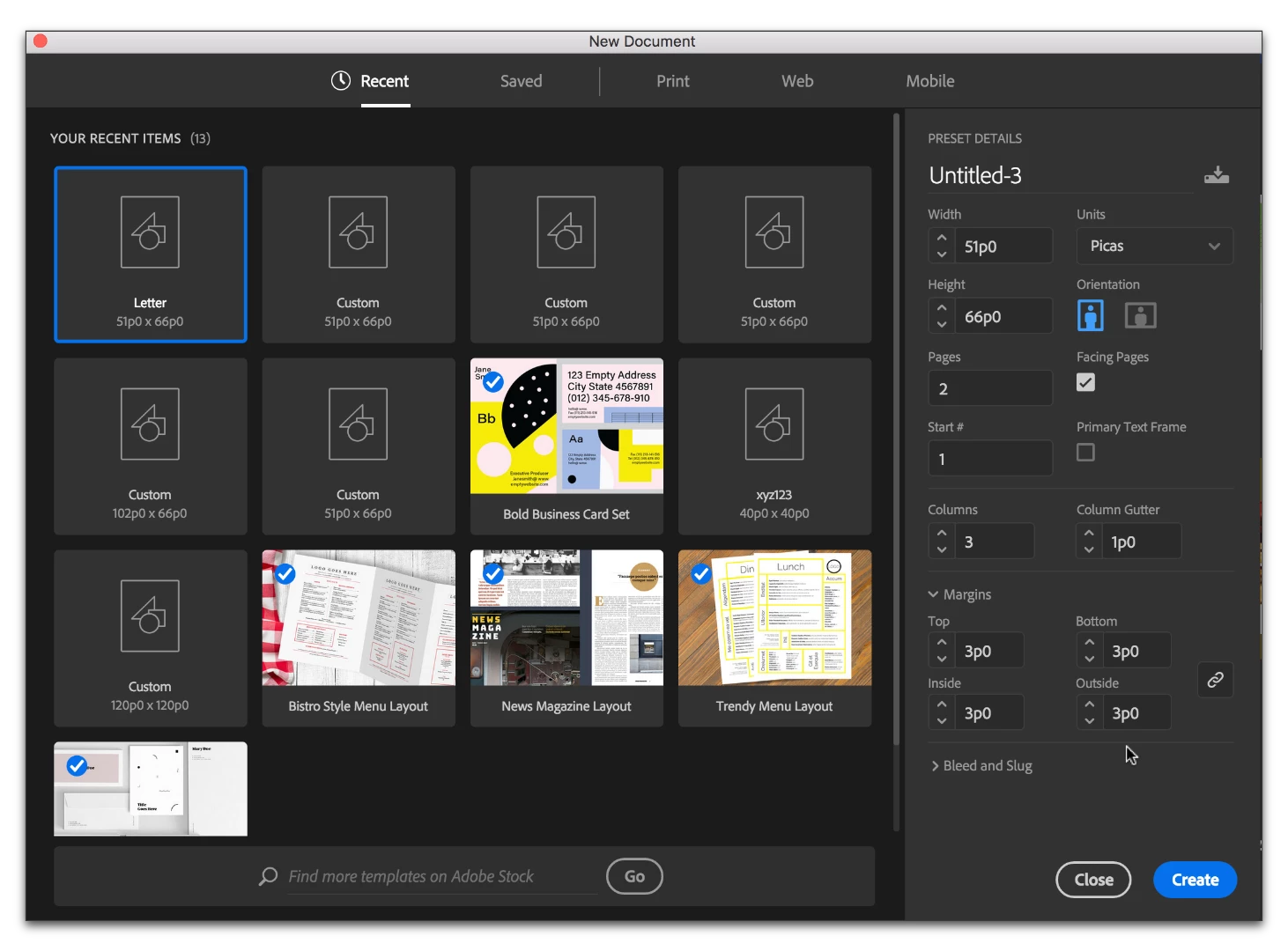
    Make a new document: 2 pages, 3 columns.

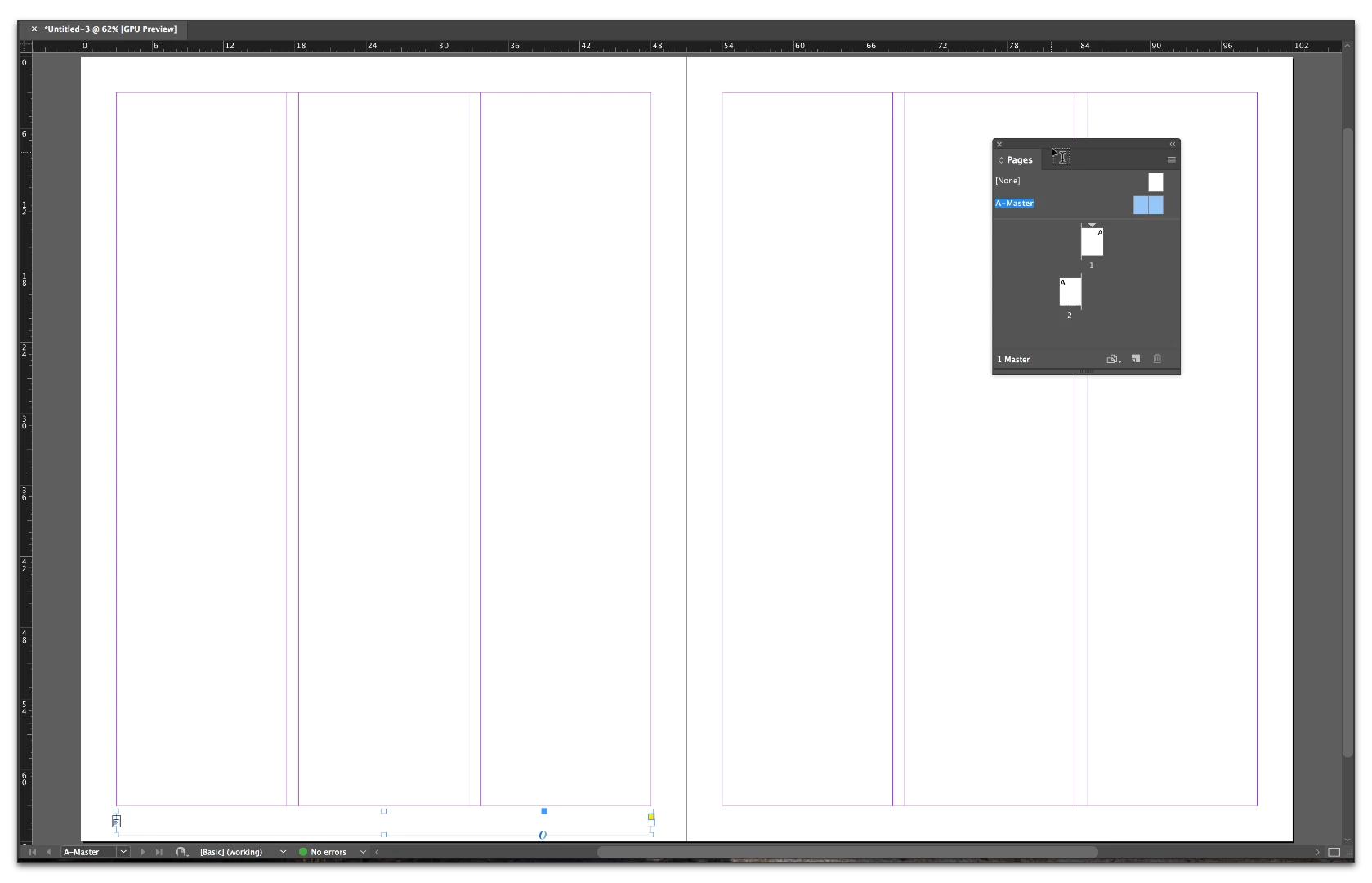
    Double click A-Master to navigate to the master pages. Use the Type tool to draw a text frame in the bottom margin of the left hand page.

    Add the page number with Type > Insert Special Character > Markers > Current Page Number. An "A" will appear because you are on the A-Master. Format as desired, set the Alignment to Left. Select the frame and Alt/Opt+Sh+drag the frame to the facing page. (Alt/Opt will duplicate the original frame, Shift maintains the same horizontal plane.) Change the Alignment of the "A" in the right page frame to Align Right.

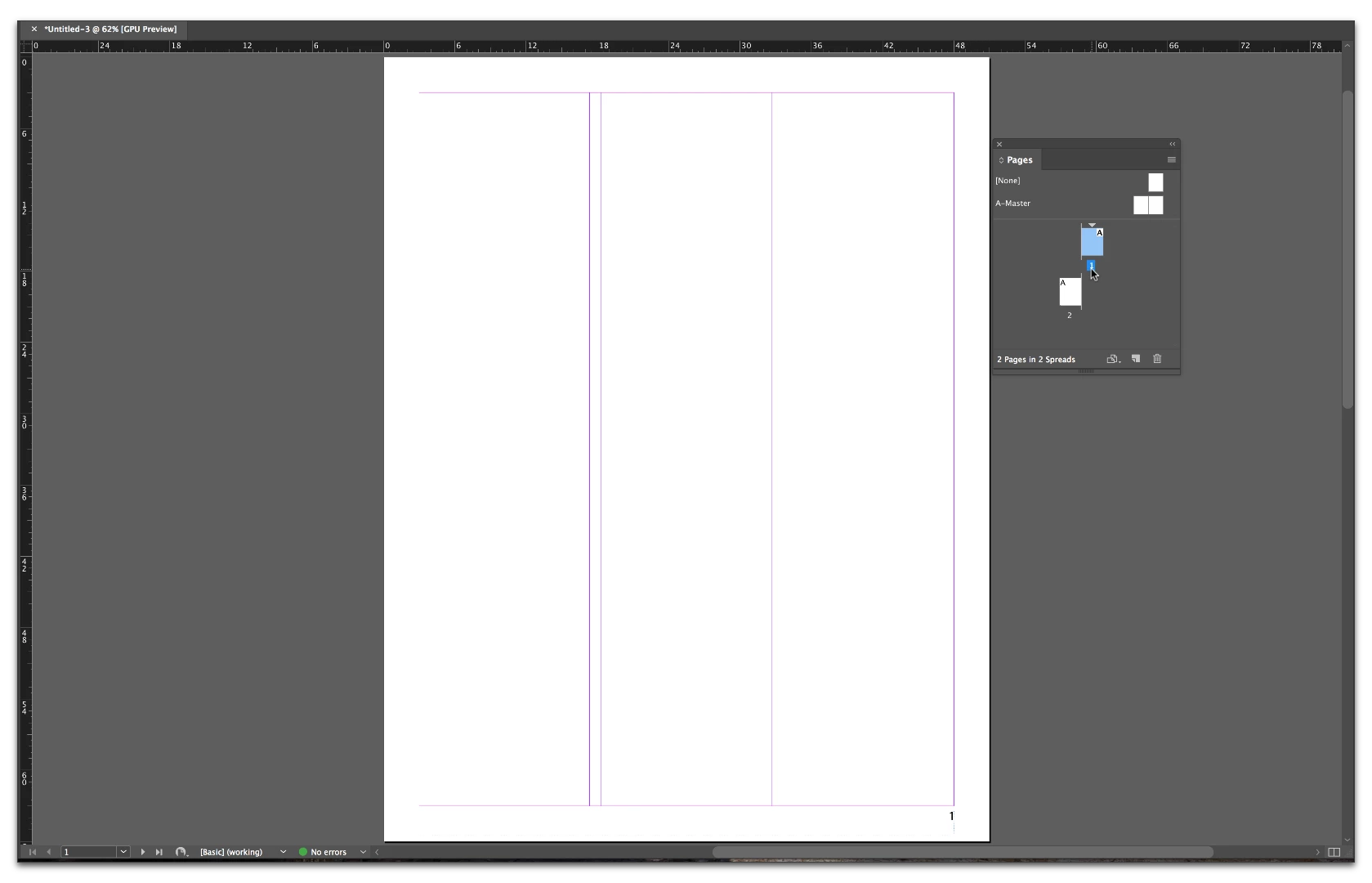
    Check page 1.

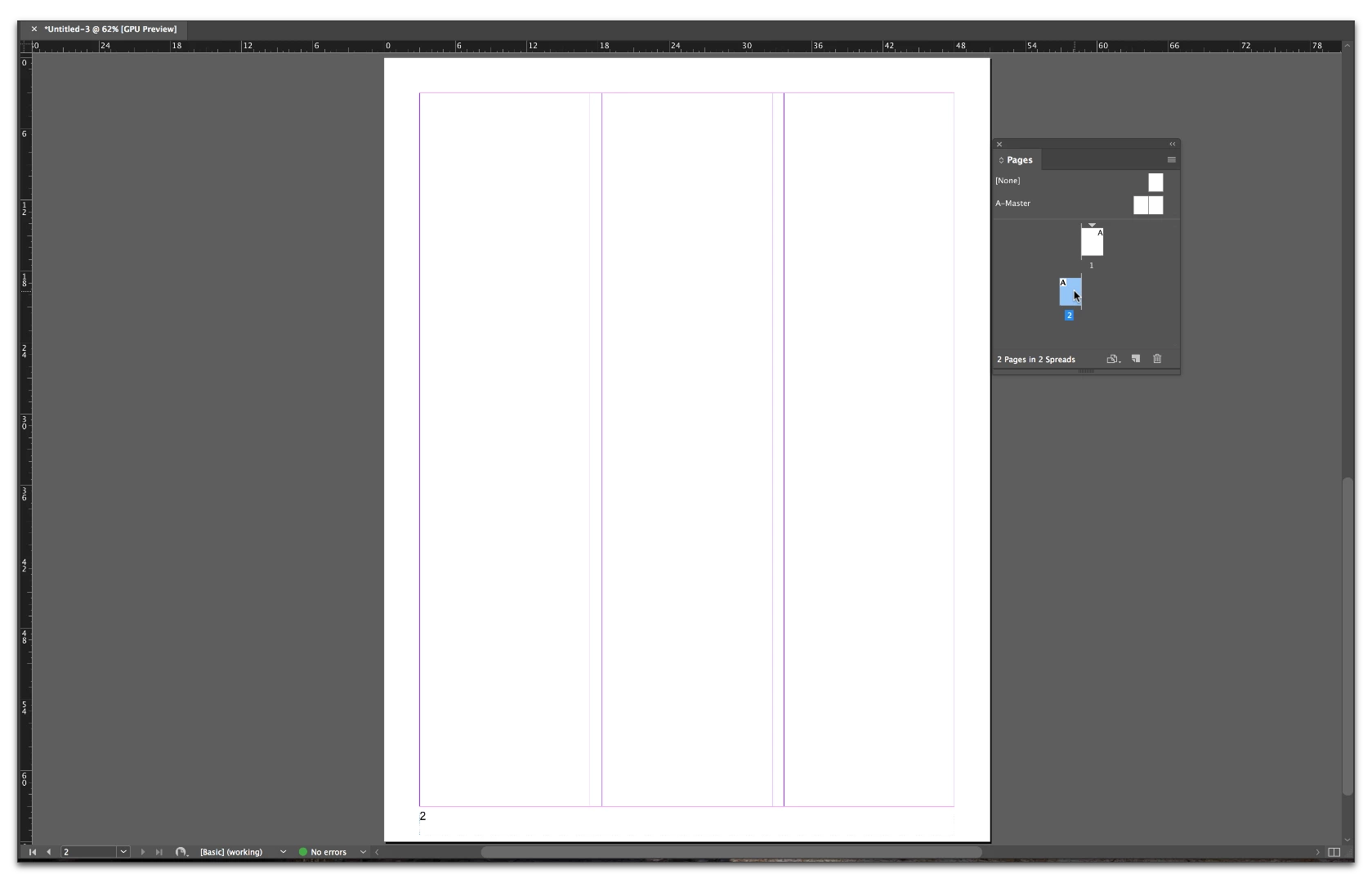
    Check page 2.

    All set.

    2 replies

    JackAuthor
    Inspiring
    April 27, 2017

    Thanks Barb.

    Can I just align the page number away from the spine, thus keeping to one, 3-col page for my index??

    Best,

    jwc

    Barb Binder
    Community Expert
    Community Expert
    April 27, 2017

    Yes.

    I used a left alignment on the left page and a right alignment on the right page to align them away from the spine, but of course there is a button in the ¶ view of the Control panel that would do it automatically.

    ~Barb at Rocky Mountain Training
    JackAuthor
    Inspiring
    April 27, 2017

    Perfect, thank you, Barb.

    jwc

    Barb Binder
    Community Expert
    Barb BinderCommunity ExpertCorrect answer
    Community Expert
    April 27, 2017

    Sure.

    Make a new document: 2 pages, 3 columns.

    Double click A-Master to navigate to the master pages. Use the Type tool to draw a text frame in the bottom margin of the left hand page.

    Add the page number with Type > Insert Special Character > Markers > Current Page Number. An "A" will appear because you are on the A-Master. Format as desired, set the Alignment to Left. Select the frame and Alt/Opt+Sh+drag the frame to the facing page. (Alt/Opt will duplicate the original frame, Shift maintains the same horizontal plane.) Change the Alignment of the "A" in the right page frame to Align Right.

    Check page 1.

    Check page 2.

    All set.

    ~Barb at Rocky Mountain Training
    Barb Binder
    Community Expert
    Community Expert
    April 27, 2017

    The second page will have a facing page with an image, again with an outward page number.

    This makes it sound like maybe you wanted three pages? If so, either create a 3-page document or just click the Create New Page button at the bottom of the Pages panel, the numbers will work automatically.

    ~Barb at Rocky Mountain Training