Participating Frequently
September 25, 2012
Answered

Text Colour opposite of background

  • September 25, 2012
  • 1 reply
  • 50609 views

I have a black and white checkered background in indesign, and textbox going through both black and white parts

How do I get the text to appear as paper on black background and black on white backgrounds without using create outlines and path finder.

This topic has been closed for replies.
Correct answer Peter Spier

the checkered layer is a shape, not an image
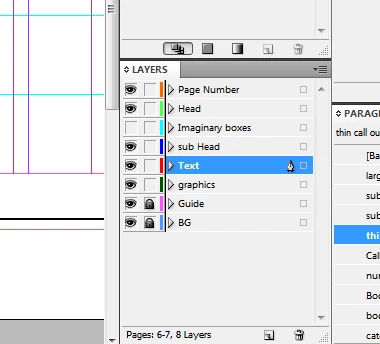
BG is the checkered back ground, and text layer is where i have the text

** and the white parts are the page itself just "paper"

thank you


I tried this, too, and found that the white areas of background must be solid, not tranparent holes letting the ID page show through. Adding a [Paper]-filled frame solved that.

However, There are other problems with this technique, in my opinion, especially if you need to print. First is I only was able to achieve a gray text over the black background which ID and Acrobat report as having the CMYK formula 100|100|100|0, and over the white background the text becomes registration color, essentially, as it now is 100|100|100|100.

I played some more, and if (and this is a big if) you can build the background as native ID shapes filed with Black and Paper, you can put the text BEHIND the background, set its fill to Paper,  and set the blend mode for the Balck objects to Screen and the white obejcts to Exclusion or Difference (doesn't seem to matter) and the text will knock out the black completely, but it unfortunately remains at 100|100|100|100 in the white areas. This would not be a problem for on-screen viewing, but it's a disaster for printing.

1 reply

sudarshan.t
Inspiring
September 25, 2012

Assuming you have your checkered background as an image, follow these steps:

  • Place your checkered image as background in InDesign
  • Create a text layer, type desired text
  • Make the text color 'Paper' (White)
  • Select the text layer, Open up Effects Panel (Window > Effects)
  • In Objects panel, you'll see Object, Stroke, Fill & Text
  • Select 'Text' under Effects panel, change the blend mode from 'Normal' to 'Difference'

Your text will now show as white on black and black on white background depending on how your checkered background looks. See screenshots below:

Participating Frequently
September 25, 2012

thank you for the reply

I tried this, and it is not working

here is a screenshot

the text colour is paper, and the background is [Black]

then i set the text into 100% difference, the part on black background turned grey, and on white background stayed invisible

sudarshan.t
Inspiring
September 25, 2012

Is your checkered layer an image background or is it a shape background? Can you take a screenshot of your layers panel and post it here?