PIET444
Participant
April 26, 2017
Question

Trap settings?

  • April 26, 2017
  • 4 replies
  • 1482 views

Help... I designed a booklet and sent a test to the printers. Something is wrong with the trap settings. That is how far I got with my reasearch on the web. Here is the problem:

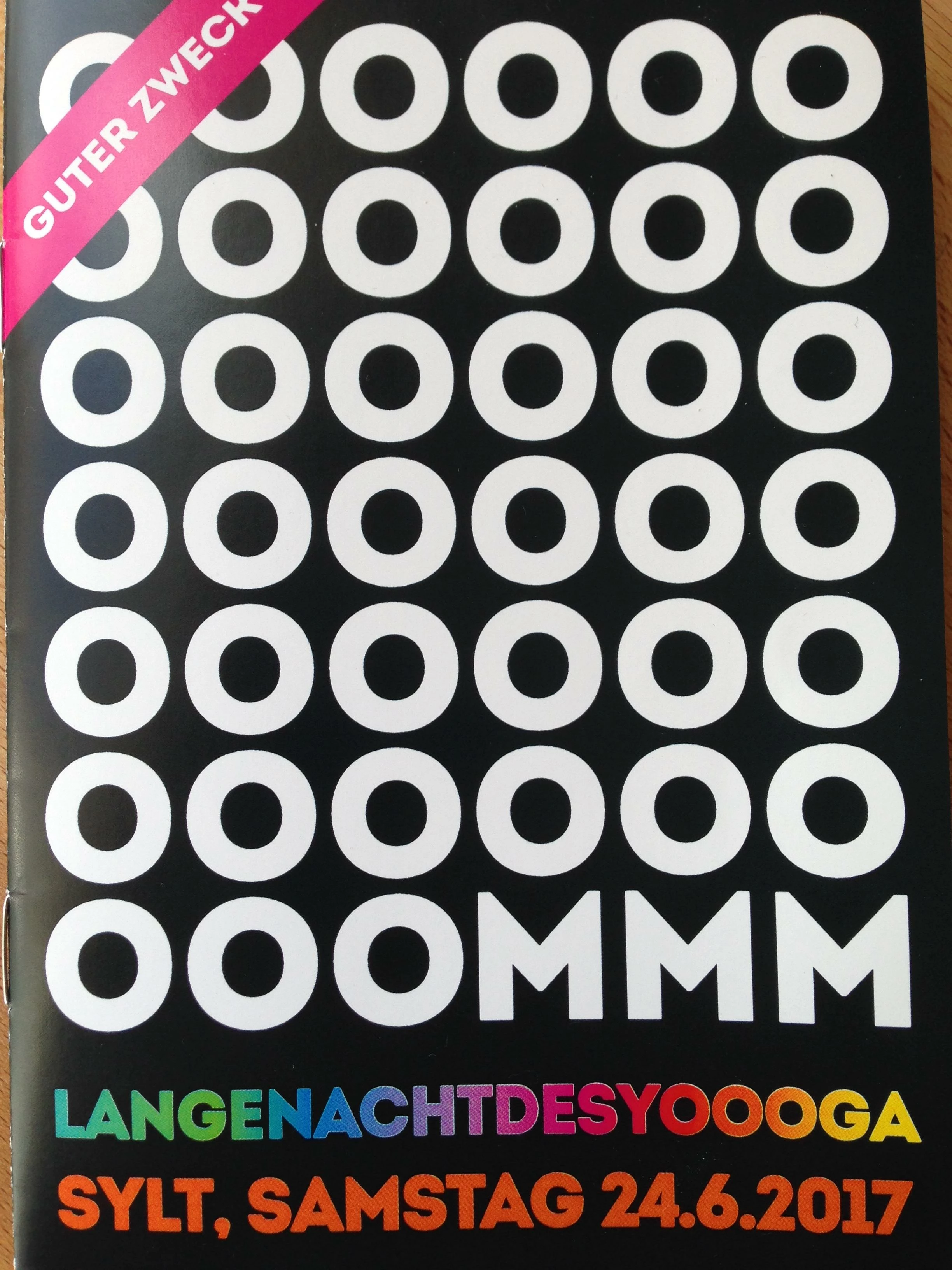
Some sample pages from the booklet. This is waht they looked like in the PDF on screen:

And here are pictures of what they looked like when the test came back from the printer:
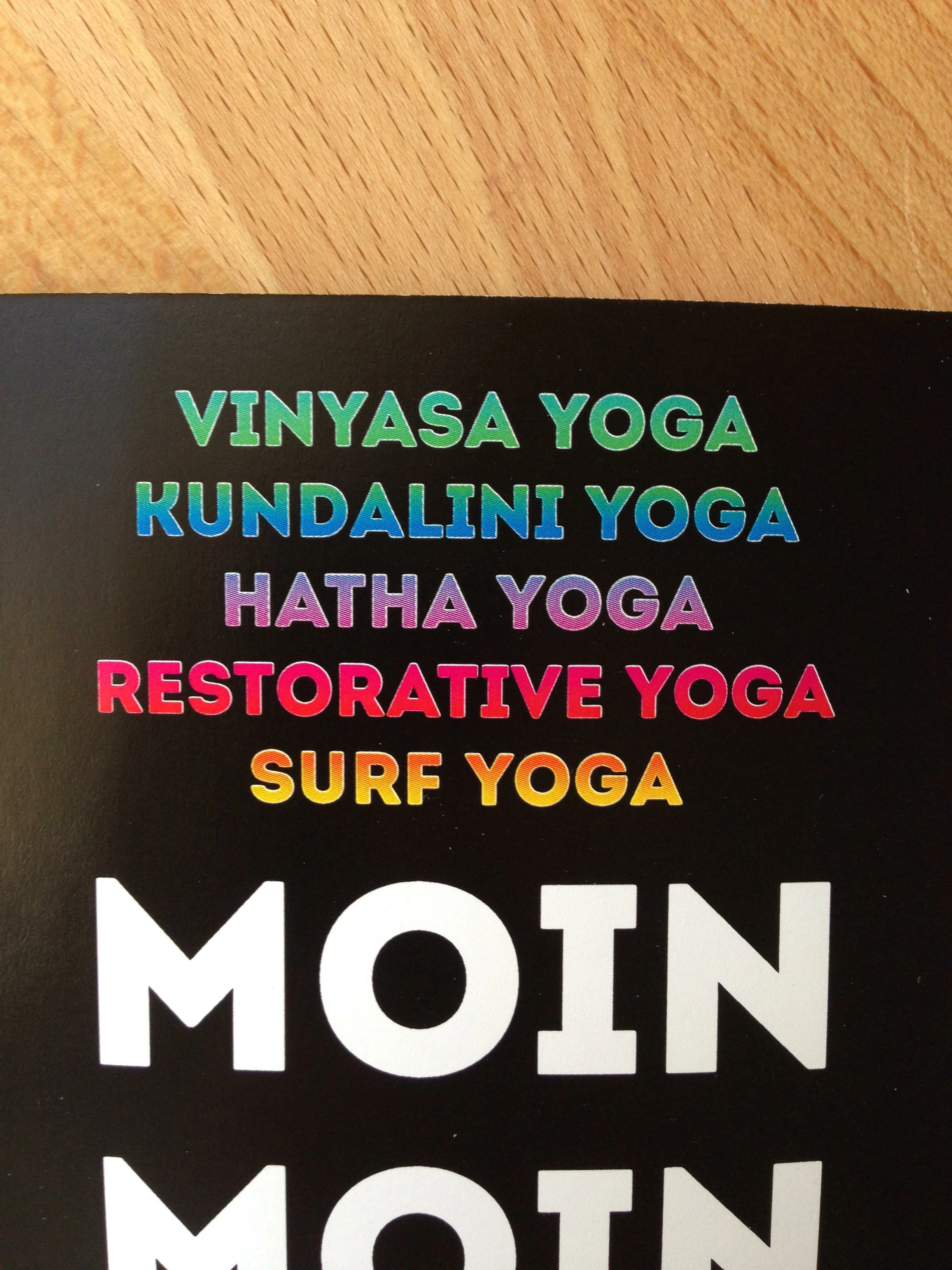
The problem is the white gaps between the colored text and the black background. Sort of like Halos. Not so attractive.

It has somethign to do with the settings in this box it seems:

But what exactly is it that needs to change so that the colored texts overlaps into the black and doesn't cause more harm?

Thanks for any answers.

Best

Petra

    This topic has been closed for replies.

    4 replies

    Dov Isaacs
    Legend
    April 26, 2017

    On behalf of Adobe, I'll repeat what others have told you — trapping is the printer's responsibility.

    For many RIPs, trapping occurs within the RIP itself (i.e., “in-RIP trapping”) and sometimes, for digital printing (toner, inkjet, etc.) the trapping occurs in the actual imaging engine. There are very important technical reasons why this is preferred especially when you get into issues of transparency and color management.

    In fact, you could cause more harm than good trying to manually trap artwork. Thus, InDesign does not support trapping in its PDF export.

    For legacy reasons with older PostScript RIPs, InDesign (and Acrobat and Illustrator) does support trapping as an option as an alternative to PostScript in-RIP Trapping (not a standard feature of PostScript). Printing to PostScript to obtain a trapped PDF file is strongly discouraged since you end up with a retrograde PDF file with no live transparency, no color management, etc.

    We also strongly discourage any workflows in which text is “outlined” for any number of reasons discussed numerous times on these forums.

    Bottom line – if you have content for which trapping is really necessary, you should find a print service provider who has the workflow that properly supports same. This is typically not the corner quick print shop or any of the super cheapo web-services that gang print your content with that of dozens of other customers.

              - Dov

    - Dov Isaacs, former Adobe Principal Scientist (April 30, 1990 - May 30, 2021)
    rob day
    Community Expert
    Community Expert
    April 27, 2017

    We also strongly discourage any workflows in which text is “outlined” for any number of reasons discussed numerous times on these forums.

    I agree the OP shouldn't have to worry about trapping, but it sounds like Petran has 3 different printers having problems the gradient filled type. InDesign's built-in trapping is showing a similar mistrap with the gradient filled type, but not when the same type is outlined, so that's why I suggested a test with the text as outlines—we have no idea what the printer's trap workflow is. If you look at print scan in #1 the problem is definitely more pronounced in the top gradient fills.

    We also don't know what the available print resources for the job are, so the suggestion to look for another printer might not really be helpful.

    rob day
    Community Expert
    Community Expert
    April 26, 2017

    I'm not sure if this relates to your problem, but it looks like InDesign's (and maybe Acrobat's) built-in trapping has a problem with gradient's applied to text. So, you can print a postscript file using Output>In-RIP Separations and distill an InDesign file that includes traps. 

    Here's what happens with text filled with a gradient using InDesign's trapping defaults—I'm setting small text so we can see the traps—seems like a bug:

    If I convert the text to outlines the trapping works as expected:

    Trapping really is the printer's responsibility, but if they can't solve the problem you could try converting the text to outlines either in InDesign or in the exported PDF

    rob day
    Community Expert
    Community Expert
    April 26, 2017

    InDesign's built in trapping only works when printing directly from InDesign–you can't export a trapped document. AcrobatPro works the same way Acrobat's trap settings are applied when the document is printed, so even if you wanted to control trapping from your end you couldn't do it via a PDF export.

    Looking at your photo it looks more like a white stroke than a missing trap—the white outline around "YOGA" is too consistent to be a trapping problem. Can you share the PDF that was sent to the printer?

    PIET444
    PIET444Author
    Participant
    April 26, 2017

    Thank you Frans and Rob. The printer says it is not their Problem. Neither is there a white stroke around the letters. It appears every time throught all the docs for all 8 Cities that I am making these booklets for. I have contacted 3 printers and they all say the same.

    The PDF versions are the first 2 pictures in my original post. As you can see there is no white stroking going on.

    : (

    rob day
    Community Expert
    Community Expert
    April 26, 2017

    The printer says it is not their Problem. Neither is there a white stroke around the letters.

    But if the PDF has no stroke, the white outline is being introduced in their output—I assume the white doesn't show in a composite proof? If the printer is using Adobe's trap engine try running a test with the text as outlines.

    You can convert to outlines either in ID via Type>Create Outlines or in AcrobatPro:

    https://indesignsecrets.com/outlining-fonts-the-2016-edition.php

    Frans v.d. Geest
    Community Expert
    Community Expert
    April 26, 2017

    You should leave trapping to the printer. If you deliver a PDF this will be done in RIP by the printer. That said: it looks like your black is a Rich Black, not only K. In that case keep away kicks in, or at least it should. I see this as the printers fault, not yours. Ask for a reprint.