

addieleman
Known Participant
February 17, 2023
Frage

Unable to copy from local folder to folder on network drive

  • February 17, 2023
  • 1 Antwort
  • 590 Ansichten

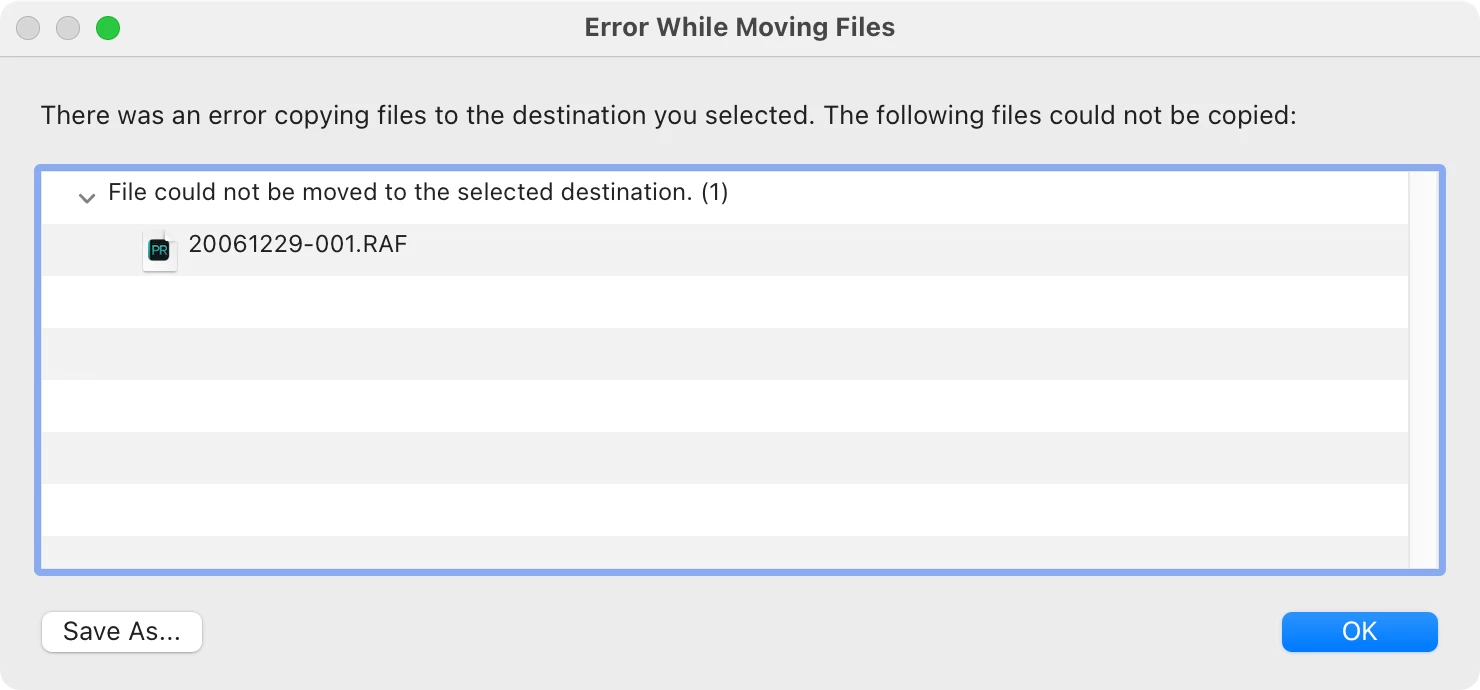
Issue: File cannot be moved from local folder to folder on network drive.

  • Lightroom Classic Version Number: 12.2
  • OS Version Number: macOS Ventura 13.2.1 (22D68)
  • Computer: Apple Mac Studio 2022 M1 Max
  • NAS (network drive): Synology DS214 running DSM 6.2.4-25556 Update 6 (latest version)
  • Connection with NAS is made with SMB protocol, AFP protocol is disabled on NAS


Steps to reproduce:

  1. Create a new catalog.
  2. Import local folder on computer
  3. Import folder from NAS
  4. Move file from local folder to folder on NAS

Expected result: file has been moved
Actual result: file will not be moved, error message:
 

Additional information:

  1. Tried moving a raw file with xmp and jpeg sidecar files as well as a single jpeg file, both of which failed.
  2. The same procedure executed on a Macbook Pro 2018 (Intel processor) running on macOS Ventura 13.2.1 works as expected: file can be moved.
Dieses Thema wurde für Antworten geschlossen.

1 Antwort

addieleman
Known Participant
February 18, 2023

On further investigation the problem appears to be related to Dropbox.

  • A file residing in a Dropbox-synched folder cannot be moved to the network drive.
  • A file from a non-Dropbox-synched folder can be moved to the network drive.
  • Once a file has been in a Dropbox-synched folder, it cannot be moved to the network drive, even if it is moved afterwards to a non-Dropbox-synched folder.

The image files on in a local folder are marked as offline available in Dropbox.

addieleman
Known Participant
February 20, 2023

I think I found the cause of the problem.


I suspect Lightroom Classic isn't able to move files that have certain extended attributes. When a file is residing in a local Dropbox-synched folder, the file is provided with a few extended attributes. Removing the extended attributes doesn't help because the Dropbox app apparently adds them again.

When a file is moved to a non-Dropbox-synched folder and the extended attributes are removed, Lightroom permits moving that file to the network drive (NAS). On the NAS the cloud synchronization (also linked to Dropbox) apparently doesn't add extended attributes, so moving them back and forth between the NAS and a local non-Dropbox-synched folder works normally.


Question: how do I proceed to maximize my chances that this bug will be fixed? Thanks.