

johnrellis
Legend
February 14, 2025

P: Update AI Settings doesn't update the Adaptive Color profile

  • February 14, 2025
  • 5 replies
  • 1332 views

The Update AI Settings command doesn't alway work correctly when the application of the Adaptive Color profile needs updating ("the red dot").  This affects those who need to delete corrupt .lrcat-data files (which still happens occasionally).  


To reproduce on LR 14.2 / Mac OS:


1. Download and open this catalog, which has one raw in it:

https://www.dropbox.com/scl/fi/r9blhcvehwwi7vw9hyg3t/update-adaptive-bug.2025.02.14.zip?rlkey=y7vm86wc0fivb00o487iy6y7t&dl=0 


2. Open the photo in Develop, set Profile to Adaptive Color, and observe the photo is much better exposed:
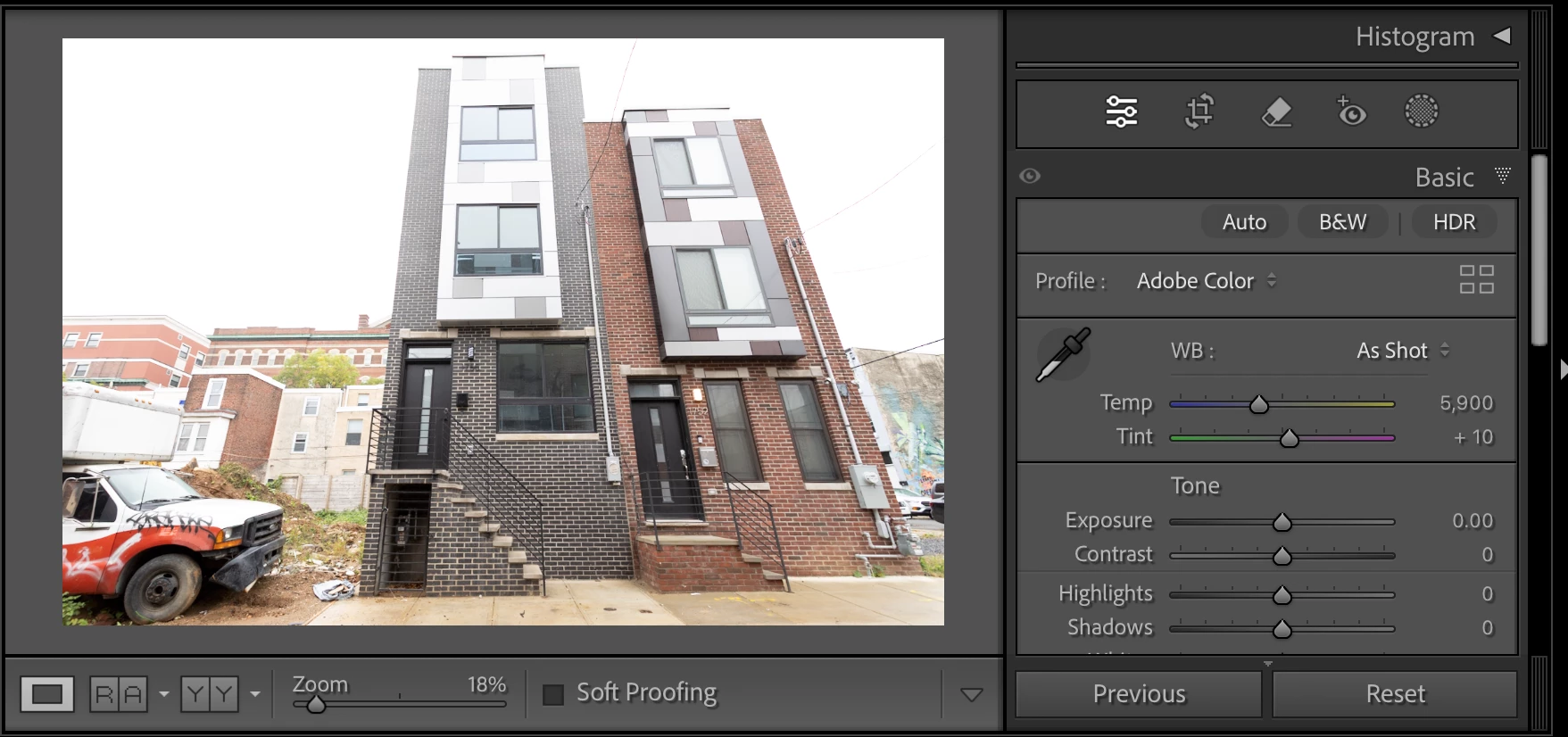
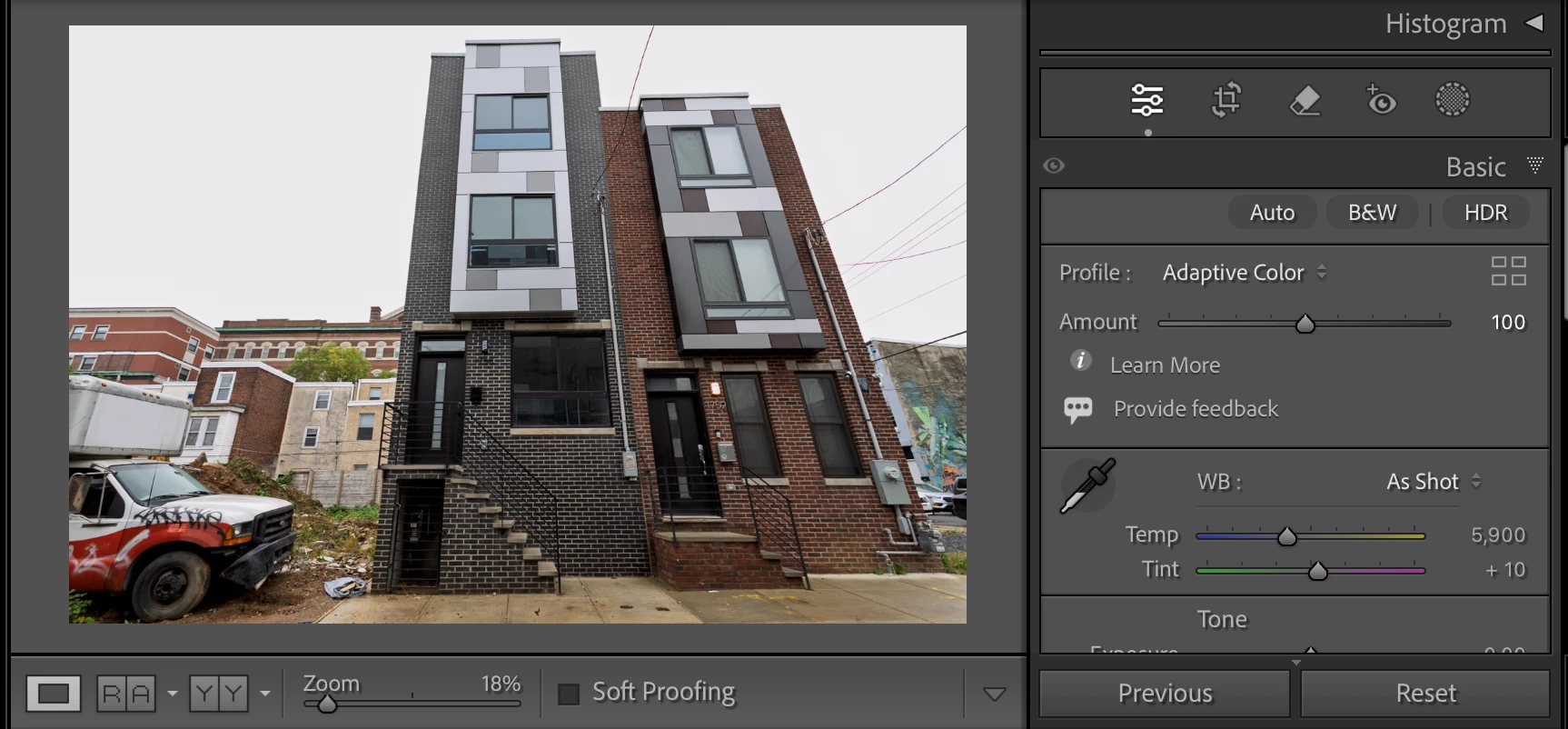
 

3. Exit LR and delete <catalog>.lrcat-data from the catalog folder.


4. Restart LR. Observer there is a red dot next to Basic, the Update button appears, and the effective of the profile is no longer visible (as expected):
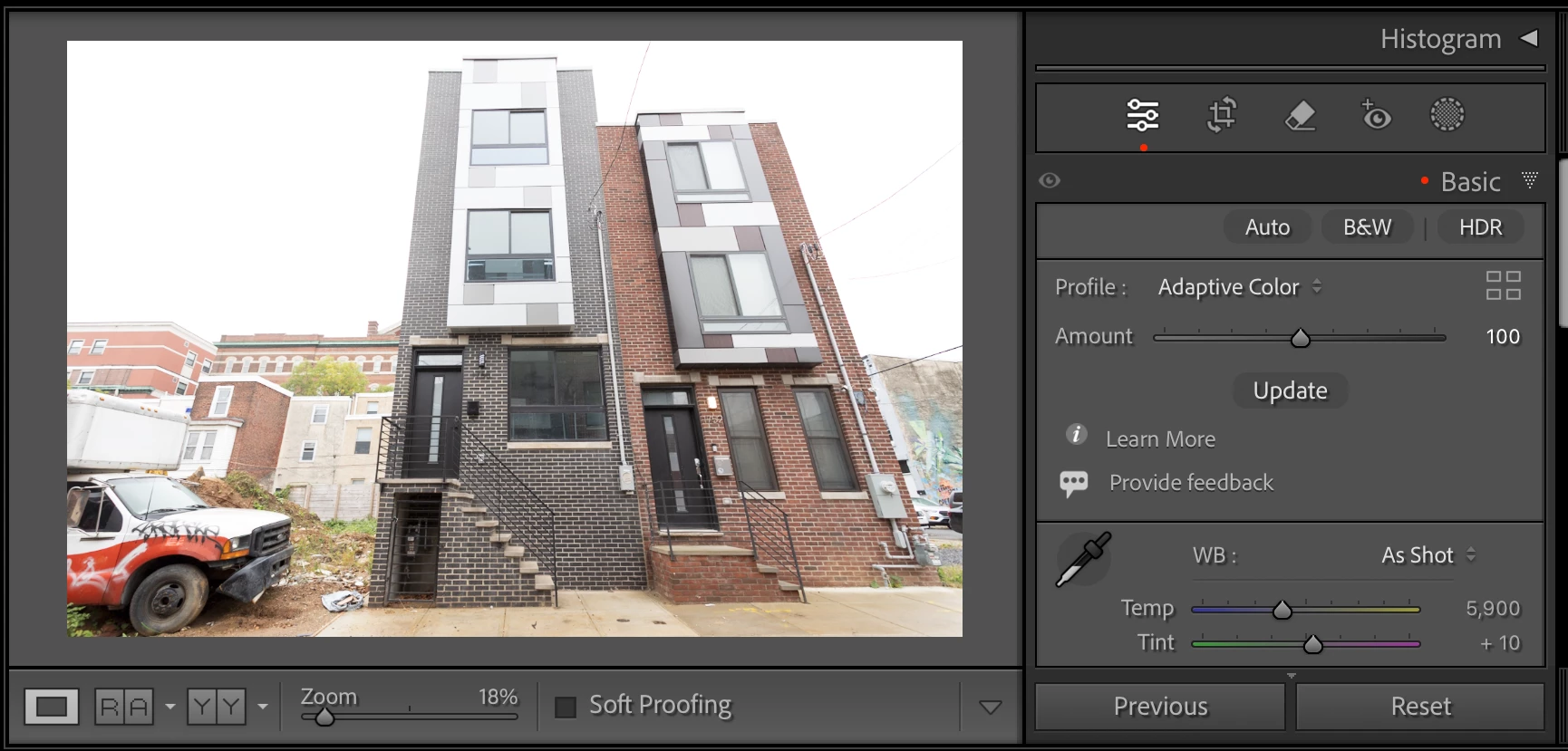
 

5. Click the Update button, see the "Analyzing" bezel briefly appear, but observe there is no change to the photo, the Update button, or the red dots (incorrect).


6. Do the menu command Settings > Update AI Settings and observe no change (incorrect).


7. Go to Library, select the photo, and do the command Photo > Develop Settings > Update AI Settings and observe no change (incorrect).


8. Go back to Develop and apply Remove > Use Generative AI to any small object in the photo. Observe that the Update button still appears and there is still a red dot next to Basic.


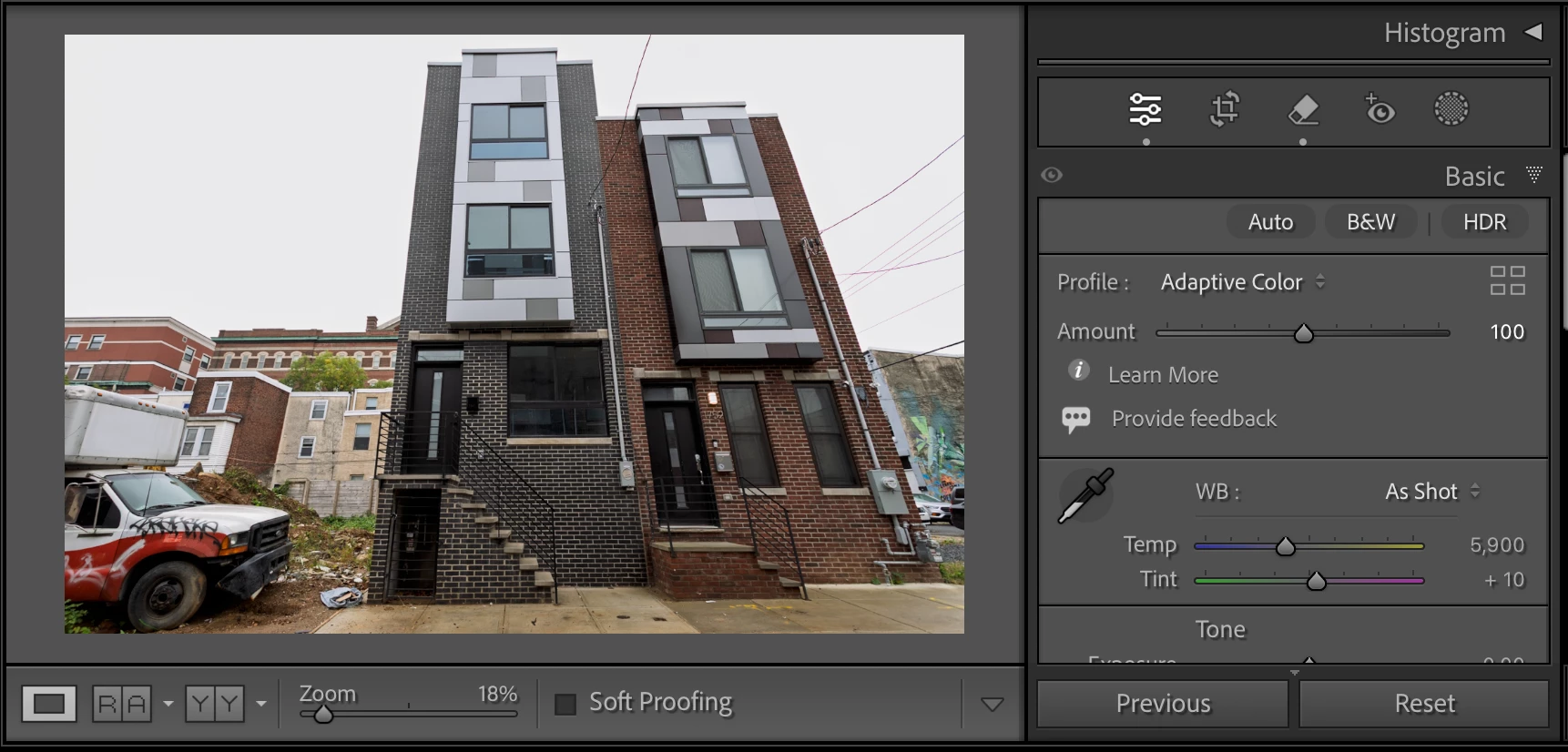
9. Click on the Basic > Update button again and observe that the profile is now reapplied to the photo and the red dots have disappeared (correct):


5 replies

johnrellis
Legend
April 27, 2025

I confirmed that the problem no longer occurs with the bug recipe, thanks.

Rikk Flohr_Photography
Community Manager
Community Manager
April 24, 2025

Greetings all, 


A new update for Adobe Photography Products has been released.  The April updates contain an update for this issue. 

If you do not see the update in your Creative Cloud Application, you can refresh it by hitting [Ctrl/Cmd]+[Alt/Opt]+[ R ].

Note: It may take up to 24 hours for your update to be available in your Creative Cloud app.


Thank you for being so patient.

Rikk Flohr: Adobe Photography Org
JohanElzenga
Community Expert
Community Expert
February 15, 2025

I have seen this too. The quickest workaround is to toggle the profile. Switch to Adobe Color (or any other non-adaptive profile), switch back to the Adaptive Color profile. That should do it.


-- Johan W. Elzenga
Rikk Flohr_Photography
Community Manager
Community Manager
February 15, 2025

I've logged a bug for the Classic team to investigate. Thanks for the report @johnrellis 

Rikk Flohr: Adobe Photography Org
johnrellis
Legend
February 14, 2025

See here for someone with a corrupted .lrcat-data who needs to apply Update AI Settings to a batch of photos with Adaptive Color:

https://community.adobe.com/t5/lightroom-classic-discussions/p-generative-remove-feedback-lr-classic-amp-lr-eco/m-p/15154095#M396379