
cliffh73876430
Inspiring
August 17, 2019
Question

A deletion problem

  • August 17, 2019
  • 8 replies
  • 508 views

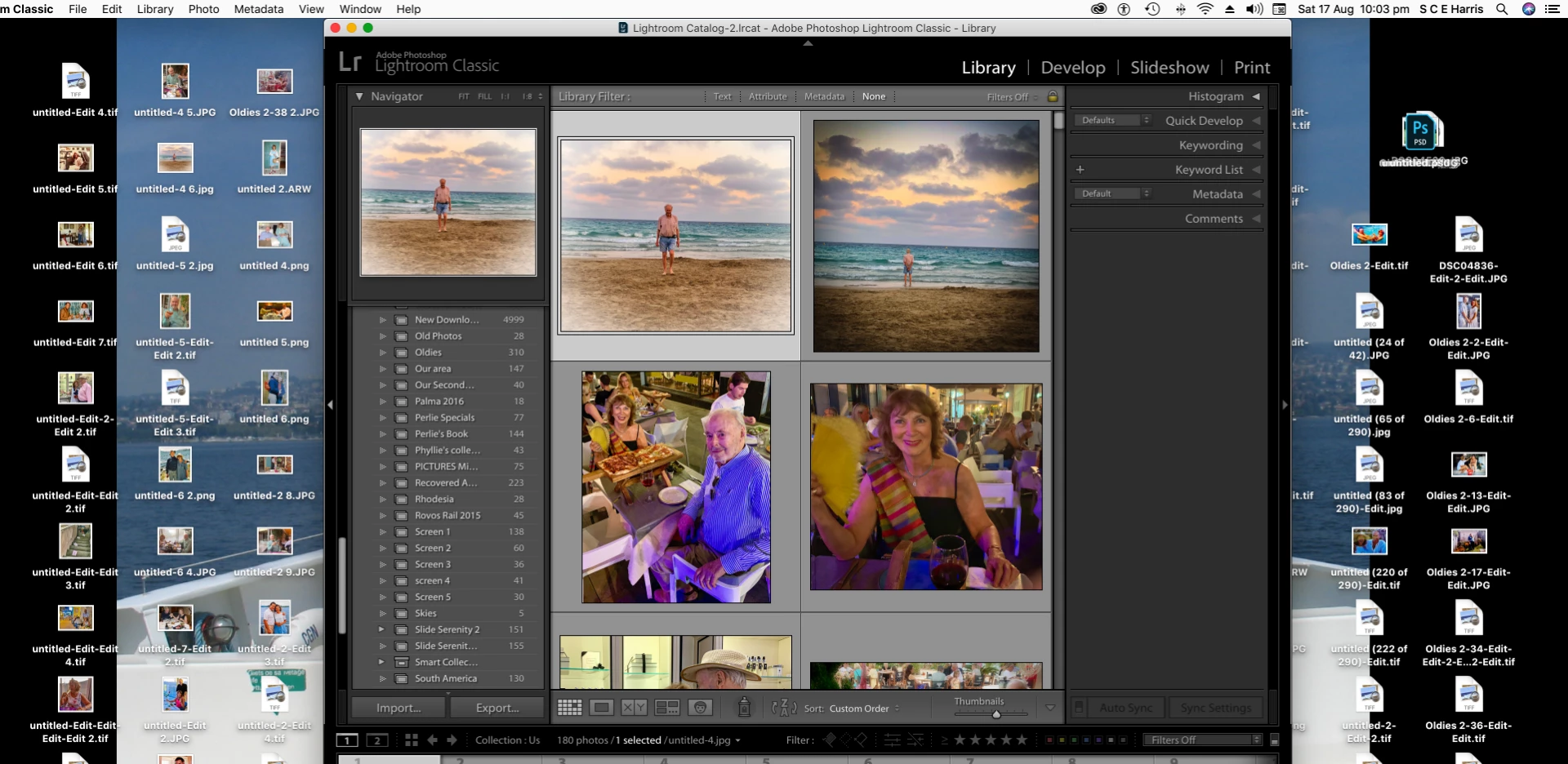
I'm not sure what I did but suddenly, while deleting a couple of pics from one of my Collections, a load of other  pics suddenly covered the entire screen.

I'm concerned that if I drag them all down to the Trash Can I'll lose them altogether. Or is it safe to do so?

Below is a screen capture
    This topic has been closed for replies.

    8 replies

    GoldingD
    Legend
    August 18, 2019

    So, perhaps another approach. Read the following link to understand how to look for and remedy missing photos and folders:

    Adobe Lightroom - Find moved or missing files and folders

    You want to resolve any issues with both missing photos and missing folders. This might result in having your desktop added as a folder in the folders panel, or might not.

    If you now see in your folders panel, these photos, move them IN LIGHTROOM to where you really want them, or, if you meant to delete them forever, select remove then delete.

    For future work, you can drag within Lightroom, for example one or more pictures to a different folder (a folder in the folder panel) you should not drag anything from Lightroom to anywhere outside of Lightroom.

    cliffh73876430
    Inspiring
    August 18, 2019

    Dj-Page.....thanks for replying but (I should have told you) I use an Apple  iMac

    Regards,

    Cliff

    dj_paige
    Legend
    August 18, 2019

    cliffh73876430  wrote

    Dj-Page.....thanks for replying but (I should have told you) I use an Apple  iMac

    Regards,

    Cliff

    everything I said applied to Mac too.

    You need to determine if the photos that are seen on your desktop are the ones that also appear somewhere in Lightroom, by examining where Lightroom thinks these photos are located.

    Jao vdl......

    Thank you for your suggestion to:

    1.     Select all the images.

    2.     Hit  the delete key (to safely delete them  from my iMac Desk Top without losing them in their respective Collections.

    I would be grateful if you would confirm my understanding of your guidance before going any further.

    I can't speak for Jao vdl, but this does not sound like what he was saying, and could cause you to lose the images so that Lightroom can't use them and (unless you have backups) the images are gone forever..

    Repeating — you need to determine if the photos that are seen on your desktop are the ones that also appear somewhere in Lightroom, by examining where Lightroom thinks these photos are located. .

    Community Expert
    August 18, 2019

    Yes first determine whether the images on your desktop are the same as in

    Lightroom. If they are you should be able to delete them from the desktop.

    The reason you see a mix of file formats is that dragging from a Lightroom

    window to anywhere in the finder will give you a export as originals

    effectively. Lightroom will simply copy all the originals to wherever you

    dragged them. This is likely what you did but do is right that you want to

    double check the images are still inside Lightroom.

    GoldingD
    Legend
    August 18, 2019

    cliffh73876430  wrote

    .

    I'm concerned that if I drag them all down to the Trash Can I'll lose them altogether. Or is it safe to do so?

    Ah, yes, I see the point made by Jan vdl

    Did you in fact drag them out of where they were in Lightroom Classic onto your desktop? Perhaps in a misguided attempt to drag them into the trash?

    How to manage photos within folders in Lightroom Classic

    .

    cliffh73876430
    Inspiring
    August 18, 2019

    I'm really not sure whether I dragged or deleted them. I think I dragged them though.

    Would the answer perhaps lie in my selecting one of the options in the menu below?

    Community Expert
    August 18, 2019

    You delete images from a collection by selecting them and hitting the delete key. I think you tried to delete them by dragging them out of Lightroom. Doing the drag will result in exporting the images as originals, so what you are seeing is extra copies of your images on the desktop. Lesson is to use the delete key. Do not try to drag them to the trash or anywhere else.

    cliffh73876430
    Inspiring
    August 18, 2019

    Jao vdl......

    Thank you for your suggestion to:

    1.     Select all the images.

    2.     Hit  the delete key (to safely delete them  from my iMac Desk Top without losing them in their respective Collections.

    I would be grateful if you would confirm my understanding of your guidance before going any further.

    With my regards,

    Cliff    (In hot, hot, hot Spain)

    GoldingD
    Legend
    August 17, 2019

    At first it looks like images got moved to your desktop.

    Minimize Lightroom, so you just see the desktop. And click somewhere on the desktop, so, that if still shown, the Lightroom menu is not shown up top.

    Are the images on your desktop?

    This, of course will lead to new questions for someone.

    cliffh73876430
    Inspiring
    August 18, 2019

    Yes they are. They're a mixture of tif, jpg, and png which confuses me even further!

    dj_paige
    Legend
    August 17, 2019

    Whatever you see on your screen in Windows is something that you did outside of Lightroom (or perhaps you had Lightroom import photos to your desktop or move them to your desktop, but even in this case ... you did it, Lightroom is just following your instructions)

    Removing photos from collections does not cause this to happen.

    You have to investigate if these photos you see in Windows are photos you have imported into Lightroom, and if these photos according to Lightroom are now on your desktop.