
Known Participant
May 11, 2024
Answered

a volume that does not support Trash.

  • May 11, 2024
  • 3 replies
  • 2551 views

I'm bitten yet again by Lightroom Classic's inability to move image files to my system trash. 


I've gone through all the solutions I could find:

Turned off Full Disk Access for Lightroom, restarted, turned Full Disk Access back on.

Created an empty folder on the affected disk and trashed it.

Created a Trash folder on the affected disk.

I've run Disk First Aid on the disk.


I still cannot move image files to my Mac's trash. I'm only allowed to permanently delete them.


Are there any new solutions?


Thanks for any help.


MacOS Sonoma 14.4.1

Mac Studio with Apple M2 Max
Correct answer John28159584lmnr

I've just come across this infuriating bug within the last hour. Toggling Full Disk Access off and on (with reboots) hasn't solved the issue. MacOS and Lightroom Classic versions unchanged for several days.

Anything else to try?

Thanks


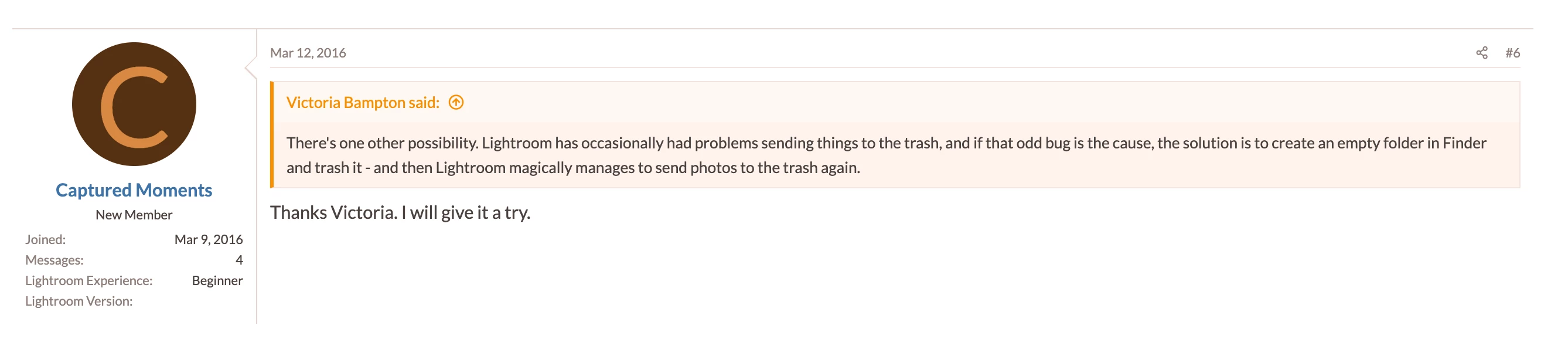
Just found the soulution from a 2016 discussion!


3 replies

Herinto
Participating Frequently
October 30, 2025

I had this, and went through a whole bunch of procedures but none worked. I was tempted to go through a re-format process.  But then I found a very simple solution care of Victoria Bamption below. It worked like a charm!


1) In Lightroom, create a folder, any folder, with nothing in it.  

2) Delete that folder.

3) Presto, now the trash feature will work on the external drive


Thank you Victoria Bampton!


kdeng8013
Participant
December 13, 2024

Suddenly I got the same msg in LRC as shown:

Looks like it happens only when I edit the images located in a SSD drive (Samsung SSD T9). It worked flawlessly till this morning when I powered on my macbook pro M3. I can delete images to Trash when editing them in the Macintosh HD drive. After experiencing ghe issue, I have updated the LRC and Cemera Raw as well. BTY, did  more tests: Editing the images in another Seagate drive does not experience the issue! I want to delete files to trash. Any idea, thanks!

Community Manager
December 13, 2024

Hi @kdeng8013! Can you share a bit more info? Which macOS version are you working on?

Also, could you check if Lightroom Classic has the permissions to access all your folders? Since macOS 10.14 (Mojave), Apple introduced a new privacy structure to ensure that applications get user consent before accessing documents, downloads, desktop, and network volumes. After macOS upgrades, sometimes these permissions get revoked. You can find out how to fix this here: https://adobe.ly/4fkCmbh
Thanks!

Alek

*(If you mention me with an @, like @Aleke, I’ll get a notification and can respond faster.)*
JohanElzenga
Community Expert
Community Expert
December 14, 2024

More tests. Updated to the latest LRC and related apps in the Win10 platform. Can't reproduce the problem.

So, it's not a SSD drive issue. 

Have a nice weekend!


quote

More tests. Updated to the latest LRC and related apps in the Win10 platform. Can't reproduce the problem.

So, it's not a SSD drive issue. 


By @kdeng8013


This has never been an issue on Windows. It's a MacOS only problem, that only occurs with MacOS-formatted drives.


-- Johan W. Elzenga
JohanElzenga
Community Expert
Community Expert
May 11, 2024

The solution is actually quite easy. Do not delete pictures from Lightroom Classic and from disk until you are 100% sure that is what you want to do. If you are 100% sure, then you do not really need them to go through an intermediate folder called '.Trash' (because that is all that happens if you move them to the Trash). Mark images as 'Rejected' if you think you do not need them anymore but aren't sure.


-- Johan W. Elzenga
Known Participant
May 11, 2024

I prefer the opposite, which is the way Aperture worked and Capture One works -- I'd like a Trash folder that keeps my trashed images inside the catalog but out of the way until I realize that I need one.


Maybe I can simply create a Lightroom Trash folder within Lightroom that would serve the same purpose.