Participant
January 11, 2021
Answered

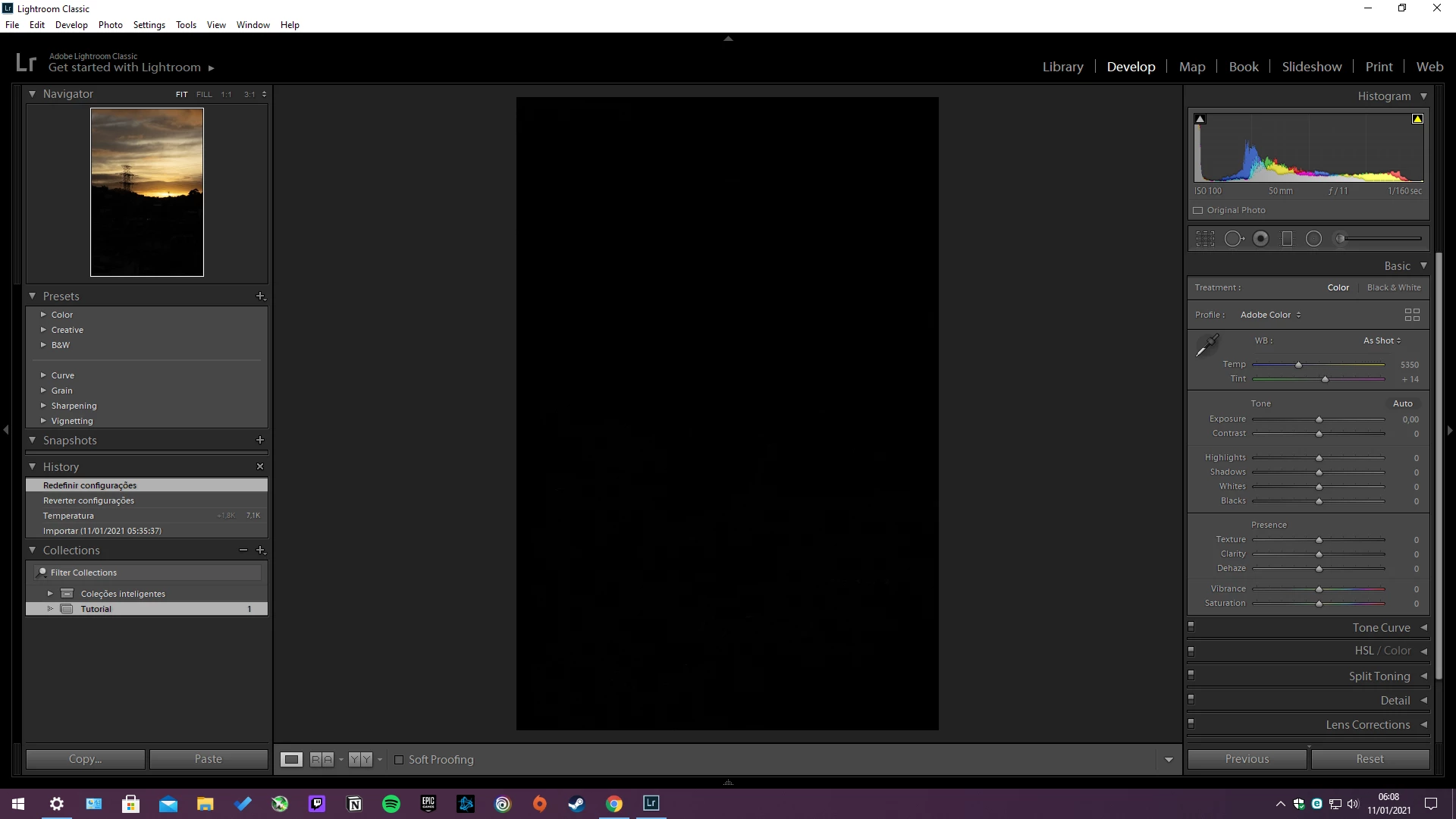
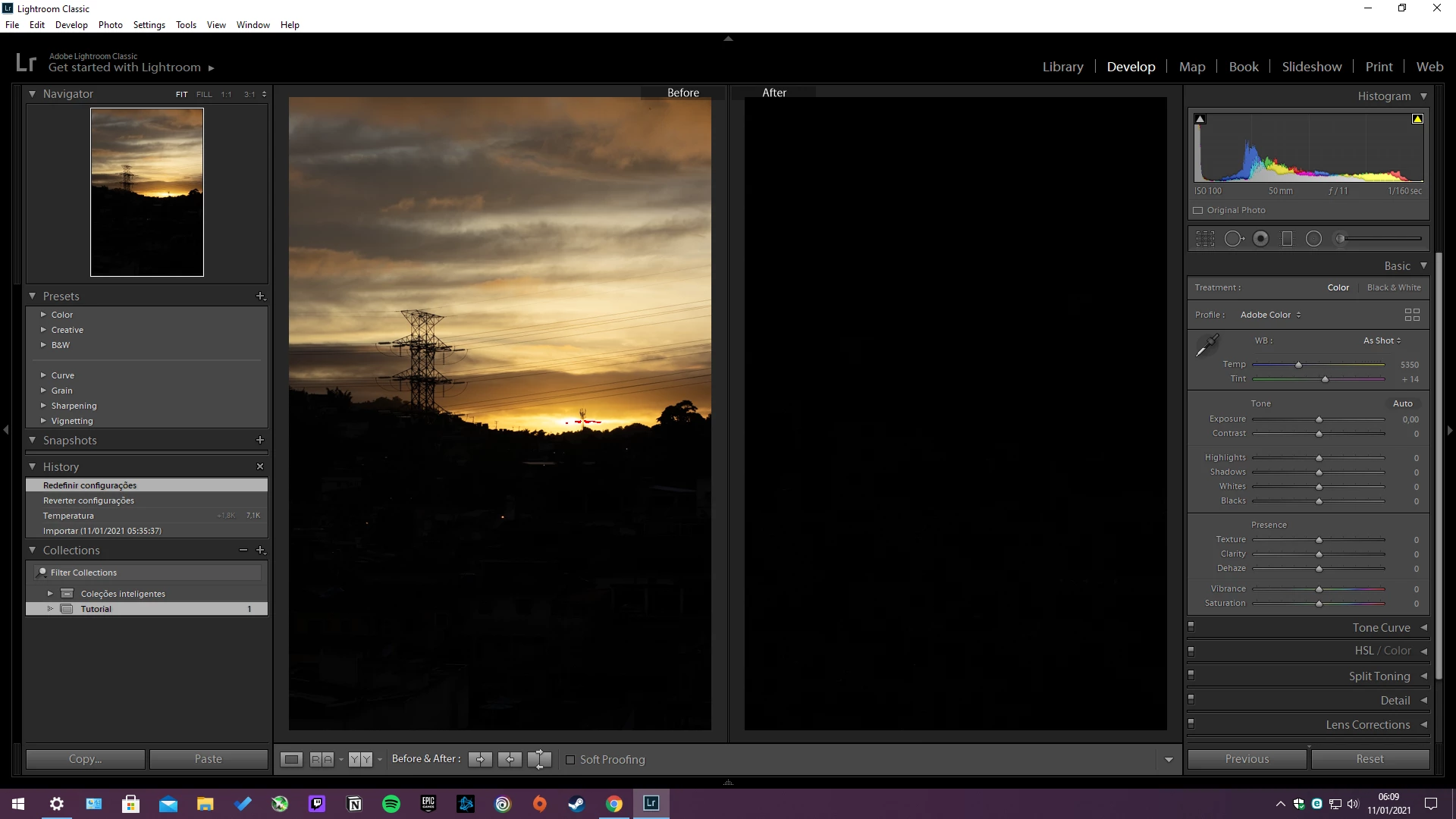
Adobe lightroom editing screen with all black image

  • January 11, 2021
  • 3 replies
  • 671 views

Whenever I go to the development screen, the image is all black, some wrong settings I made
 

{Moved from Lightroom Cloud to Lightroom Classic Forum by Moderator} 

This topic has been closed for replies.
Correct answer Per Berntsen

First, try to disable the GPU. Edit > Preferences > Performance > Set Use graphics processor to Off.

If this fixes the issue, update your graphics driver, and try to to turn the GPU back on.


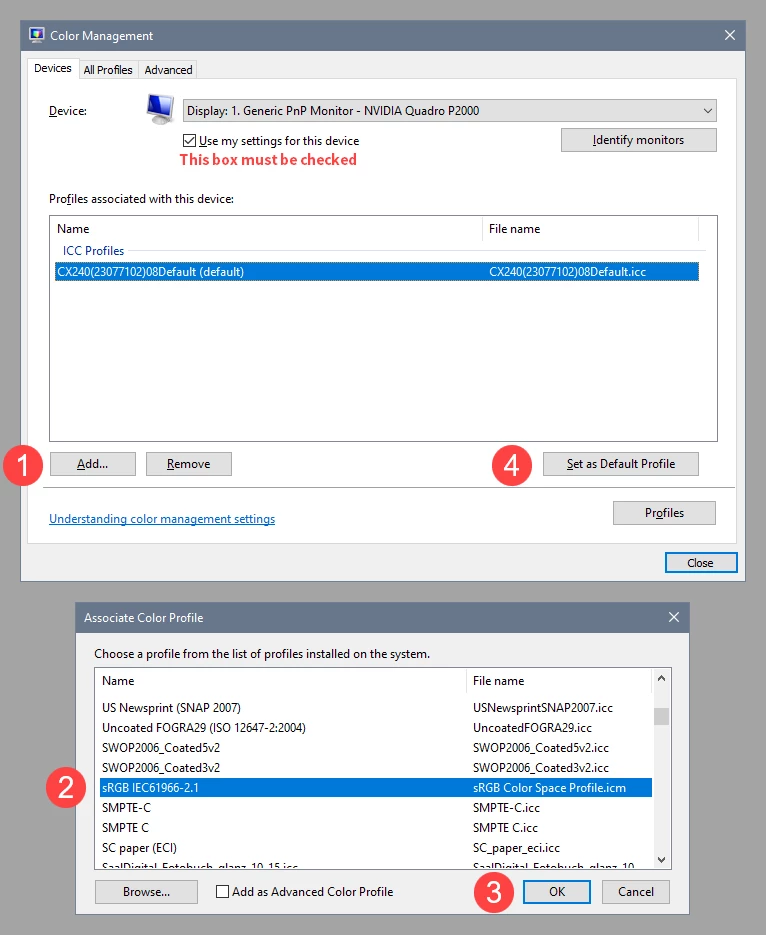
Another possibility is that you have a defective monitor profile.

As troubleshooting, and as a possible temporary fix, try setting it to sRGB (use Adobe RGB if you have a wide gamut monitor).

With Lightroom closed, press the Windows key + R, type colorcpl in the box and press Enter.

Add the sRGB profile, then set it as default.

If this fixes the issue, it is recommended that you calibrate the monitor with a hardware calibrator.

This will also create and install a custom monitor profile that describes your monitor accurately.
 

3 replies

Per Berntsen
Community Expert
Community Expert
January 11, 2021

I see from your screenshot that you have a GeForce RTX 2070 super with what seems to be the latest Game ready driver.

Try installing the latest Studio driver, which should be more suitable for Lightroom use.

Participant
January 12, 2021

Maybe that's the problem, I use my computer more for games than for editing. I will not change the driver, I will use it with the GPU disabled, because today I used it during the day and it worked perfectly. I will consider your previous answer as the correct one, as it worked for me. Thanks to everyone who helped me, and I'm sorry for any mistakes because I used the Google translator. Good photographs!

Per Berntsen
Community Expert
Per BerntsenCommunity ExpertCorrect answer
Community Expert
January 11, 2021

First, try to disable the GPU. Edit > Preferences > Performance > Set Use graphics processor to Off.

If this fixes the issue, update your graphics driver, and try to to turn the GPU back on.


Another possibility is that you have a defective monitor profile.

As troubleshooting, and as a possible temporary fix, try setting it to sRGB (use Adobe RGB if you have a wide gamut monitor).

With Lightroom closed, press the Windows key + R, type colorcpl in the box and press Enter.

Add the sRGB profile, then set it as default.

If this fixes the issue, it is recommended that you calibrate the monitor with a hardware calibrator.

This will also create and install a custom monitor profile that describes your monitor accurately.


Participant
January 11, 2021

The only way it worked was to disable the GPU. Modifying the color profile did not work.

Participant
January 11, 2021

Drivers are updated

cmgap
Community Expert
Community Expert
January 11, 2021

Have you tried the Reset button in the lower right corner? Is  this  the only image in your library that this is happening to? Have you completely shut down  your  computer and reopened the same image?

Participant
January 11, 2021

I did everything you recommended and the problem continues