
siegfrieda48443840
Participant
November 10, 2022
Question

After Update Lightroom changes File Attributes of the lrdata Folders to S(System)

  • November 10, 2022
  • 3 replies
  • 905 views

After the Update of Lightroom. Lightroom start to change the File Attributes of the Following Folder/Files to S (System)
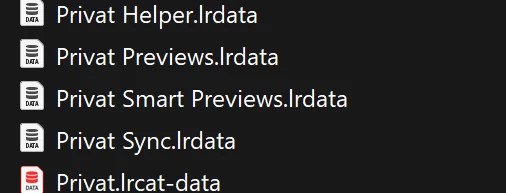
How can I avoid that? 

I need to change this behaviour because Sync Tool won't sync this Files anymore.


Regards

This topic has been closed for replies.

3 replies

Participant
April 18, 2024

I just tried to setup up Synology Drive (latest version as of the time of this post) the same way and have the same problem.  Just to be clear for everyone.  All my catalog files are on my local system on an SSD that is directly attached to the computer, and I am not looking to move that off to my NAS or the cloud.  Even with 2.5 GB ethernet, it is not fast enough.  I want to ensure I have copies of my catalog files and make it easier to move between a Desktop and a Laptop when I am working with a catalog.  Now I know this works on Mac, and there are no limitations.  

I request everyone who sees this or has posted to this thread to upvote so we can get Adobe to see it and respond.  Also, request an enhancement with Synology to see if they can support an exception for folders and backup even if Lightroom is not creating folders correctly.  

Clearly, Adobe is doing this for a reason, and it would be good to understand why.  As a highly technical individual with a stronger understanding of systems and networks, I see no reason they are doing this or, at the minimum, giving people the option.  

Hillman79
Participant
July 20, 2024

I am also living with this issue for some months now. I used Capture One before and had my catalog on my local desktop drive and sync it real time to my NAS so that I can seamlessly switch to my notebook and work on the same catalog there. Worked flawless with Capture One and Synology Drive as syncing tool. Then I switched to Lightroom and the issue began. The problem is that Adobe gives those lightroom folders the attribute "System" as the TO stated. Why Adobe? The content of those folders is changed by user interaction in lightroom...why make the system folders? Furthermore it obviously worked with older lightroom versions before 2022. I also had a ticket with Synology and asked them to make Synology Drive also sync files/folders with attribute "System". The just answered that it is not possible at the moment, software works as designed but they will forward the suggestion to development...that was in December 2023 and of course nothing changed until now. Not that I expected it. A workaround is to use Resilio Sync. It works but if you want to sync several folders with your NAS with several users in your home you need a paid version of Resilio Sync. Therefore I have both sync services running parallel at the moment wich is not perfect solution as it takes more CPU and RAM than neccessary. I still hope that either Adobe or Synology will come up with a solution.

GoldingD
Legend
November 10, 2022


 I use Synology Drive Client for syncing


Does that mean your catalog is on the cloud, or are you just posting copies of images to the cloud?

And do you keep your working photos on the cloud or a local hard drive?


Or do I have the wrong info on what that does? Is it for the cloud, or for a NAS?


siegfrieda48443840
Participant
November 10, 2022

I am syncing the Catalog Data  that means the .lrcat, .lrdata, etc...

so i can use the same catalog with previews and all other things on more than one PC.


It worked fine for years.


But since last update of Adobe Lightroom I get an error from Synology Drive client that it can't sync the .lrdata files becomes of the Attributes ( Synology is not Supporting Files with S as attribute).

If I change the Attribute manually it works fine. But if I open Lightroom , Lightroom sets the Attribute back to S. And the sync is not working anymore.

So Lightroom must have changed this behaviour:

johnrellis
Legend
November 10, 2022

Interesting, those folders are also marked as System in my LR 12.0.1 / Windows 10.  I see the same behavior: After I remove the System attribute using "attrib" at the command line and then restart LR, those files will reacquire the System attribute as soon as LR writes into those folders.


Seems gratuitous...but good luck in getting Adobe to pay attention.

GoldingD
Legend
November 10, 2022

1. Based on that screenshot, I see nothing telling me they are system file types. How about including File Type in the view. The icons shown, stating Data, do not indicate system.


2. What is Sync Tool?


siegfrieda48443840
Participant
November 10, 2022

Hier is a Screenshot with the Attributes:


2. I use Synology Drive Client for syncing


GoldingD
Legend
November 10, 2022

So File Type is "Dateiordner" or "File Folder"

And Attribute is SD


This looks just like one of my folders:


Not a system file. I am not aware of an issue.But I do not use Synology (perhaps another member does???)