
heatherc15475534
Participant
June 4, 2022
Resuelto

Batch Auto-straightening isn't working

  • June 4, 2022
  • 4 respuestas
  • 35244 visualizaciones

Good morning! I'm trying to auto straighten a bunch of photos, something I haven't had issues with in the past. I select my images, select 'auto sync', go to the crop tool and hit Auto to straighten. All of my images look like they've had an adjustment made (or LR thinks they have) but if I go back into the image and hit the auto straighten, more adjustments are made. This is frustrating as this used to work, so I don't think it's my technique. Any ideas on how I can make this functional again? Anyone else having this issue? TIA.
Mejor respuesta de johnrellis

[This post contains formatting and embedded images that don't appear in email. View the post in your Web browser.]


When you click the crop tool's Auto button, Auto Sync copies the computed crop angle from the current photo to all the other selected photos, so they all end up with the same angle.  It does not recompute the straighten angle for each selected photo.  I verified this behavior in LR 11.3.1 and 10.4.


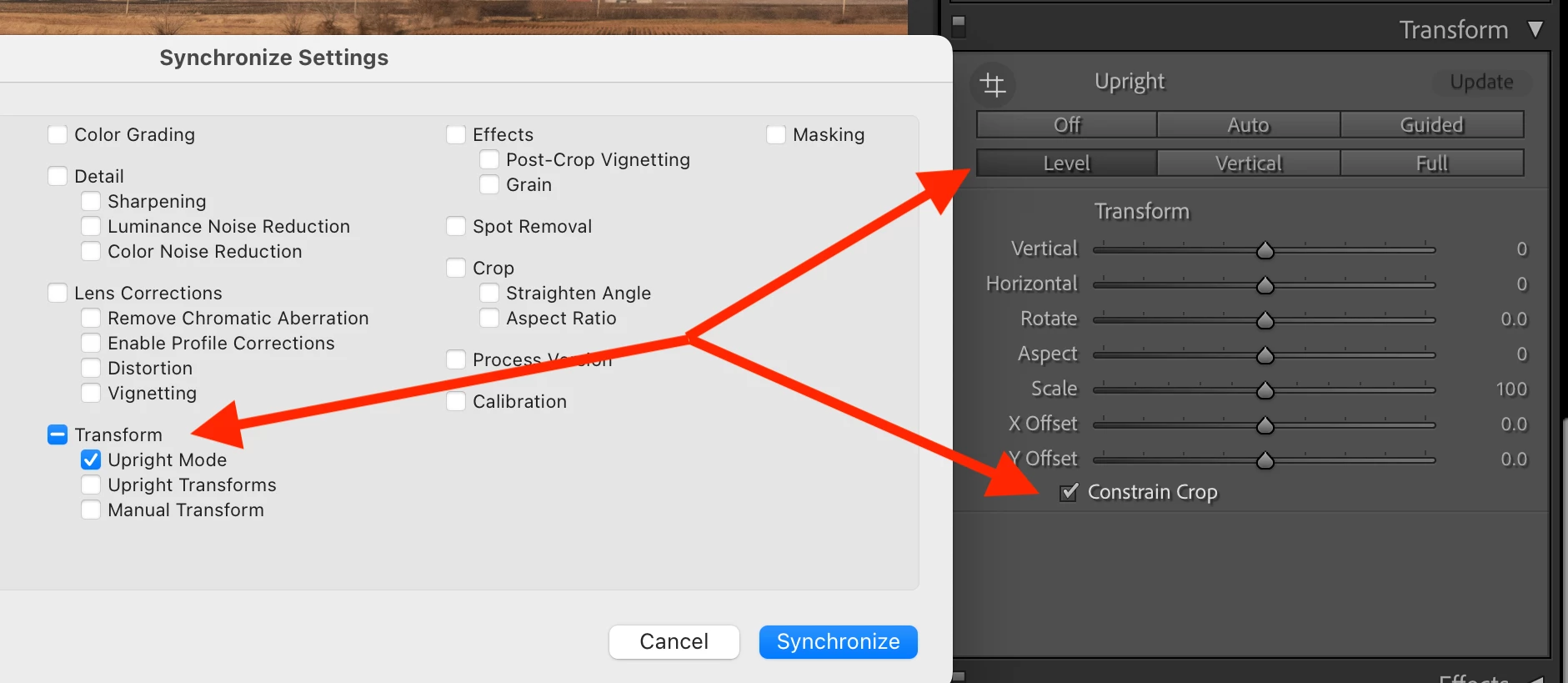
To batch-straighten all the selected photos, computing the correct angle for each photo separately, do this instead:


1. Select all the photos and go to Develop.


2. In the Transform panel, select Level and Constrain Crop.


3. Click the Sync button and select Upright Mode only:


And yes, you could also use Auto Sync, but it's dangerous, and for too many people, using it eventually ends in tears.

4 respuestas

Participant
January 3, 2024

2024. Still paying a premium subscription price and Adobe can't give us the ability to batch correct. 

johnrellis
Legend
January 4, 2024
Participant
November 1, 2023

Good day! I found this solution earlier this year and it had been working great for months. but then recently after these new updates, it hasnt been working right for each image any more. Is there a new solution or something I should be doing now?


johnrellis
Legend
November 2, 2023

Hmm, I just retested my steps above, and they worked in my test catalog with LR 13.0.1.  Do Help > System Info -- which exact version of LR are you running?

Nicolas Gop
Participant
December 5, 2023

Hi John! 
there is not Shortcut for  Crop - Auto.  isn´t ?

roc97007
Known Participant
November 1, 2022

I'd like to suggest an enhancement request.  There's currently no way to auto-straighten a batch of photos.  Auto-straighten sometimes gets it wrong, but it would still be a net timesaver.  I deal with thousands of photos over multiple days, and the single most common buttons I press in Develop is "r" followed by clicking on the "Auto" button.  There doesn't even seem to be a keyboard shortcut for auto straighten, which although not ideal might be faster.


Ideally, I would Select a bunch of photos, click "Auto" once, and have them all auto straighten, NOT to the same tilt as the first photo, but each straightened as if I did it individually.


   Ron

roc97007
Known Participant
November 1, 2022
I've read about the synchronize technique, but my understanding is that it adjusts the angle of the rest of the photos the same degree as the first photo, instead of recalculating the degree of straightening necessary for each photo. True or not true?

The issue is that I might have 2500 photos all taken against the same set of vertical columns, (in a stadium, as it happens) but each photo might be off by a slightly different amount and in a different direction. Syncing the angle of a bunch of photos to the angle of the first photo is not a solution, as the corrections will be different for each one.

Please advise.

Ron
roc97007
Known Participant
November 6, 2022

Below is the result from the original DNG - I needed to Reset crop in order to see the whole image frame - with the Full option of Upright applied. I've allowed the white edges to remain below, to better illustrate what's going on with perspective straightening when that option is used on this specific exposure.


It seems that the prominent white wall behind, which was not photographed straight-on, has caused Upright / Full to distort the entire photo through a combination of transforms, to bring the top and bottom edges to parallel. That is not unusual for "Full"; it gets quite aggressive pictorially. This looks similar to your bad-result example, IMO.


By contrast, "Level" button in Upright leaves the image alone apart from rotating the whole thing as-is - exactly what Crop's Auto levelling button also does. The other Upright modes do additional transformations and I would regard Full in particular as very much special-purpose - for example, if photographing a painting on the wall of a gallery (where you only care about the squareness of that one 2D surface, and not at all about the wider perspective of the photo).


This DNG was behaving a little unusually for me until I turned on CA and lens corrections (which a tooltip in Upright recommends doing before it does its analysis, rather than after), and then cleared the crop that it had brought in initially. Then everything was as I would normally expect with a newly taken Raw coming from my own camera.


Interesting that you're observing a different kind of distortion than am I.  It's still odd that "level" on my machine is not giving the same results as on yours.  I am still, consistently, seeing the odd shift with the top of the photo distorted, using just the Level transform.  Clearly, it's NOT working the same as the "auto" button, at least on my machine.  As I mentioned before, this may be a mac vs pc difference.  I migrated to a pc from a G4 years ago, for reasons I won't go into now.  I could fire it up and test on it, but I don't think it'd be a valid test.  My work computer is a Macbook, but it's owned by the company and I'm reluctant to install CC on it.  Let me think about this and maybe I can come up with a valid mac vs pc test.


(It's an Intel mac -- I'm aware of the issues with CC running on an M1 mac.  It's just... not mine to play with.)


Yes, I have CA and Profile Corrections turned on.  I always start with that, activating them for the first photo, along with a bit of vibrance and a base level of noise reduction (as all photos are taken in available light -- flash can scare the horses) and then copy/paste those settings into the rest of the photos.  I also do some quick develop corrections in library mode, upping exposure a bit, as those settings seem to be relative to the current photo and not absolute as it is in develop mode.  (The photos always end up a little dark in that venue, I think because the camera is confused by the white background, and I need to brighten them slightly.  Fortunate that I can do that edit en masse.)


So, unless you want to trade machines, I don't see a solution, and will have to continue poking the auto button for each photo.

johnrellis
johnrellisRespuesta
Legend
June 4, 2022

[This post contains formatting and embedded images that don't appear in email. View the post in your Web browser.]


When you click the crop tool's Auto button, Auto Sync copies the computed crop angle from the current photo to all the other selected photos, so they all end up with the same angle.  It does not recompute the straighten angle for each selected photo.  I verified this behavior in LR 11.3.1 and 10.4.


To batch-straighten all the selected photos, computing the correct angle for each photo separately, do this instead:


1. Select all the photos and go to Develop.


2. In the Transform panel, select Level and Constrain Crop.


3. Click the Sync button and select Upright Mode only:


And yes, you could also use Auto Sync, but it's dangerous, and for too many people, using it eventually ends in tears.

heatherc15475534
Participant
June 6, 2022

Thanks so much, I'll try this!