
ppaulo
Participant
October 29, 2019
Answered

Batch editing in Lightroom Classic

  • October 29, 2019
  • 2 replies
  • 1572 views

Hallo User,

I'm editing my great amount of holiday photos with LR CC. My problem is that there are allways the same run I want to shorten. The photos with the same exposure I can mark and work with batch editing, but then I have to open each photo to go to 'Photo/ Work in/Sharpener Pro 3:Output Sharpener'. And then save this photo after a short time. I would like to carry out this process with one button. Is there a possibility to do so in LR? If yes, does it work? Thanks a lot Paul


{Thread title edited by moderator}
    This topic has been closed for replies.
    Correct answer john beardsworth

    With Lightroom Classic batch editing is very simple - partly because the program is built around it.

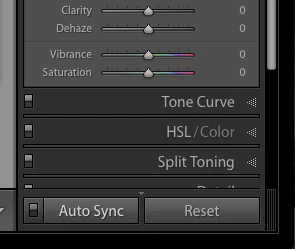
    You select the photos, ensure AutoSync is enabled, and drag the sliders. Give it a try.


    2 replies

    john beardsworth
    Community Expert
    john beardsworthCommunity ExpertCorrect answer
    Community Expert
    October 29, 2019

    With Lightroom Classic batch editing is very simple - partly because the program is built around it.

    You select the photos, ensure AutoSync is enabled, and drag the sliders. Give it a try.


    Participant
    August 16, 2021

    How do I bathc autp,mate all photos, do i Select all, adhsut sliders accordisngly , then auto sysnc? Or can I select the underexposed photos, adjust sliders, then auto sunc, and the same for overexposed / Where does to "store" the altered photos, ? I ahvbe not used Lightroom before and its daunting ?


    Community Expert
    August 16, 2021

    In response to the question about how to use AutoSync: for adjustments done entirely within Lightroom, that is very simple. AutoSync is not a particular command, it is setting a different mode of working for Lightroom Classic as a whole. You might leave LrC in that mode indefinitely or you might terminate it, as you prefer.


    Take for example imposing a particular Exposure, the same, onto a set of ten photos.

    • make sure AutoSync is already on, or if not, turn it on
    • select all ten photos
    • set the desired Exposure value


    All ten photos now reflect this new Exposure, while in all other respects staying as they individually were.


    Whenever only one photo is selected, AutoSync has got nothing to do. So whether it is turned on or off is a non-issue. It only matters when multiple photos are highlighted.


    Two options of how to work:

    • leave AutoSync generally off, so you can safely relax about which images are or are not highlighted. If you do use AutoSync exceptionally, it is then incumbent on you to turn it off again immediately - to avoid unintended batch edits. 
    • leave AutoSync generally on, because you want to routinely edit in the batch. It is then incumbent on you to be constantly careful whether other images may be highlighted as well as the active image - since if there are, they will also get swept up into each new edit that you may apply to the active image.
    nikunj.m
    Community Manager
    Community Manager
    October 29, 2019

    Hi Paul,


    Batch processing images through a plugin like the Sharpener Pro 3:Output Sharpener would not be possible in Lightroom Classic. You can however create an action in Photoshop and then use that to batch process the images through there.

    You can check out the steps mentioned on page 14 of the PDF in the link below on how to create the action to include the Sharpener Pro 3:Output Sharpener.

    http://www.doncastercameraclub.co.uk/resources/Sharpener-Pro-3-User-Guide.pdf


    Let us know is that helps.


    Regards,

    Nikunj