
Participant
October 28, 2018
Question

Borderless Printing: Other answers have not helped

  • October 28, 2018
  • 5 replies
  • 4503 views

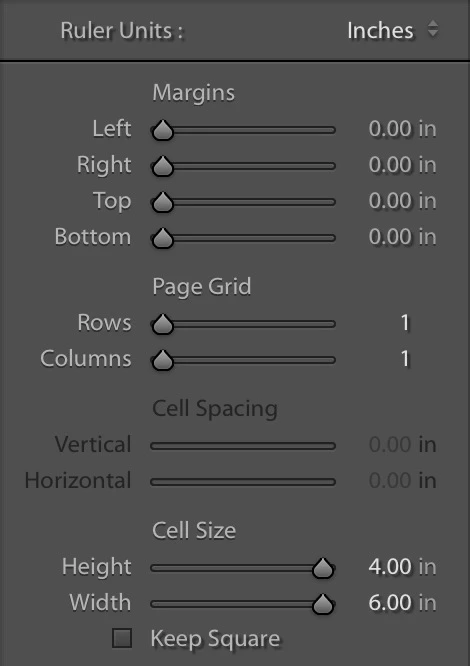
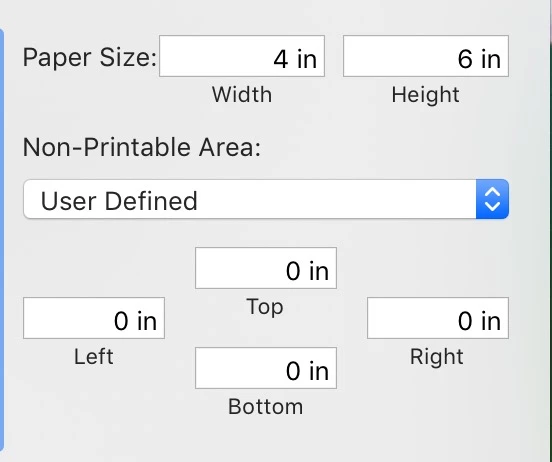
I have read at least 5 answers on this forum, plus more from other sites. LR Classic was printing borderless, but after resetting my printer due to a network issue, now it won't, even with the exact same settings, which are pasted below. I have tried with Zoom to Fill both on and off. I get a border either way. It's not just shrinking the image to fit inside the border; the border cuts off the edges of the image. Per one answer from earlier this year (Printing issues with Lightroom ), I tried printing through Preview, but got a border. I have an HP 7858 that has printed borderless as recently as yesterday. I am running Mas OSX 10.14. I am able to borderless from my phone, so I believe the problem is with LR, not the printer.
This topic has been closed for replies.

5 replies

Inspiring
December 4, 2021

You may have found this already but I remember a past post somewhere you need to be able to select BORDERLESS in the PAGE SETUP of PRINT. Here's an example https://photographybay.com/2015/10/04/7-steps-to-borderless-printing-in-lightroom/.


For my Epson XP-15000, there is no BORDERLESS option for paper. I have to select a paper that will support borderless then select BODERLESS in the XP-15000 setup.

December 4, 2021

Setting borderless printing is fairly basic and I don't  think it is OS specific. It is controlled by Lightroom. Normally in print module if you select printer then in one of the sub menues (combo box in the middle in case of Mac) you should find "paper handling" that lists all the available sizes. Each size should appear twice, the second has borderless word following. (I hope I understood your post right!).

Problem with LR is that even if you asign a black background it still leaves white paper showing, 2 milimeter at the bottom and 1.5 at the righthand side.

Inspiring
December 5, 2021

"Setting borderless printing is fairly basic and I don't think it is OS specific. It is controlled by Lightroom. " I would suggest from what I've found with my printer and the link, borderless is controlled by the printer which is why you need to ensure it is set in the Printer Properties through PAGE SETUP and/or PRINTER SETUP.

Inspiring
January 28, 2019

I have this exact same problem with. HP 7520.  Worked fine printing borderless for 8 months.  Then about 2 weeks ago started putting a 1mm white edge on the trailing edge of all 5x7 print.  I went through the process of deleting all the HP apps and driver then reinstalled.  Now it prints a white border all the way around.  I made it worse instead of better.

Rob_Cullen
Community Expert
Community Expert
January 29, 2019

I now see something similar with my Epson Printer! A slim white margin on two edges!

Re-installing the printer may have reset the Lightroom templates for your printing.

Re-check everything-

'Printer'-Paper Size, Borderless, 'Image Settings'- Zoom to Fill, 'Layout'- Margins all at '0', Cell Size at Maximum.

With the same problem I cannot suggest a correct answer.

Regards. My System: Windows-11, Lightroom-Classic 15.1.1, Photoshop 27.3.1, ACR 18.1.1, Lightroom 9.0, Lr-iOS 10.4.0, Bridge 16.0.2 .
Inspiring
January 29, 2019

Have you got a Mac or a Windows machine? Mine is a Windows application and

I'm about to decide that the issue occurred about the time of my last

Windows update. I've got all the settings in LR triple checked. So, I

know they are as they should be. However, depending on where I check the

settings in my print driver, ie from HP App, from Control Panel, inside

other print applications, I find each to have different settings. I'm

thinking that somewhere in all those different settings there is a master

setting that's driving the borderless vs bordered printing and that in fact

the application settings themselves are being ignored. Now I just have to

figure how to get them to sync up or at least acknowledge the setting set

in LR.

cmgap
Community Expert
Community Expert
October 29, 2018

Have you tried selecting a different printer altogether to clear the settings? If not, choose any other printer, change the page settings and the printer settings by selecting different sizes and borders etc. and then go back to your HP, set it for borderless and try again.

Participant
October 30, 2018

Well, I exported a photo to jpg and printed from Preview and still got a border, so the problem is clearly either with the printer or the OS. I very much appreciate everyone's help. Hopefully, I will get some help from HP.

Also, don't buy this printer. I can't speak for all HP printers, but this is definitely not one of my better purchases.

armsdan
Participating Frequently
October 29, 2018

I print a lot, different printers but I do a lot of large format printing and other things. So I have two ideas that may help.

First, Reseting a printer is a pain! If you had to go through and uninstall and reinstall then I would bet there is a setting somewhere in the print dialog box that is not set. If the photo is 6X4 as the screen shows, and the printer is capable of printing a 6X4 borderless which the specifications for your printer say it is... Then there is a box in the print dialog box causing it.

Second, I am assuming you've already ruled out my first suggestion, so I wonder is a borderless 6X4 possible from say photoshop? If you have a 6X4 canvas are you able to print it borderless? That will help us narrow down the issue.

Rob_Cullen
Community Expert
Community Expert
October 29, 2018

Follow the suggestions from armsdan​. You look to have Lightroom set up correctly, so it will most likely be the printer driver.

I am not familiar with the printer or the Mac printer setup dialog.

I did a search for the printer manual and could only find a PDF for the HP 7800 Series, and this PDF made no mention of borderless that I could find, so have a careful read of your printer manual.

As to the "template" question-

There is a Template Browser panel on the left of screen. Adobe provide many templates (you can preview in the window above) but I think most are for 'Letter' sized papers. I suggest you leave the Adobe templates 'collapsed' in the 'Lightroom Templates' folder and only browse out of interest.

When you have successfully printed an image (in the way you want it) then you must create a template for that setup, which will appear in the 'User Templates' group.

Regards. My System: Windows-11, Lightroom-Classic 15.1.1, Photoshop 27.3.1, ACR 18.1.1, Lightroom 9.0, Lr-iOS 10.4.0, Bridge 16.0.2 .
Rob_Cullen
Community Expert
Community Expert
October 29, 2018

One thought-

Do you have "Stroke" activated? This will give a 'border' even with all your settings given above (which look correct!).

And if the Ratio of image WxH is different to the Paper Ratio WxH, then you must have [Zoom to Fill] turned on, otherwise you will get odd 'borders'.

And my other advice- Do not click on a Print template preset. This would over-ride and negate all your settings.

Regards. My System: Windows-11, Lightroom-Classic 15.1.1, Photoshop 27.3.1, ACR 18.1.1, Lightroom 9.0, Lr-iOS 10.4.0, Bridge 16.0.2 .
Participant
October 29, 2018

Thanks for replying.

Stroke border is off and the ratio in the corner says:

I don't even know what a print template preset is. How can I check to make sure I'm not inadvertently using one?
