idahochukar
Known Participant
January 26, 2019
Answered

Brush changes not sticking from develop module to library module in LR Classic

  • January 26, 2019
  • 4 replies
  • 3057 views

I had an issue today 1-26-19 with a brush, will call it brush 1, used to adjust highlights, shadows, blacks, clarity, saturation, sharpness and color in Light Room Classic when working on a Tif file from PS that started as an NEF edited in LR then edited in PS and sent back to LR as a Tif file. The changes made with the brush are all there and look great when I am in the develop module. When I go to the library module a crop, and two other brushes used on other parts of the image stay but brush 1 used to adjust color etc. does not. If I export to my hard drive from either the develop module or the library module the changes with brush adjustment used to adjust color do not stay. I checked for updates to PS and LRCC and there were none today. Last update that downloaded from CC was to PS 20.0.2 , LR CC version is 8.1. I use a MacBook Pro with OS 10.14.3 connected to a NEC PA272W. Any known issues or suggestions?

    This topic has been closed for replies.
    Correct answer Todd Shaner

    SEE REPLY #33 BELOW - There is another related issue with LR concerning NEC Spectraview display profile compatibility.

    Using PS I combined idahochukar's  two screenshots downloaded from reply #14 above as a composite image. They are both PNG file format with the OP's NEC Spectraview display profile embedded. The saved JPEG file also has the OP's NEC Spectraview display profile embedded as expected.

    Test JPEG Rendering Results

    1) Inside PS 20.0.2 the LR Develop module screenshot is more saturated and the Library module screenshot is less saturated just as described by the OP. This rendering appears correct.

    2) Inside the LR Develop module the rendering is identical to PS as described above so also correct.

    3) Inside the LR Library module the Develop module screenshot looks identical to the Library module screenshot with BOTH desaturated, which is not correct.

    As a test I created a screenshot of the OP's screenshot and assigned it with my NEC Spectraview display profile. The results are the same as 1-3 above. So it appears NEC Spectraview display profile is compatible with PS 20.0.2, but not LR 8.1. Keep in mind my NEC Spectraview calibration display profile works fine with NO rendering issues. This is a LR Library module color management issue. Unchecking 'Use Graphics Processor' and viewing at 1:1 Zoom has no affect on the rendering.

    Try it for your self with the below JPEG file. View it in the Develop module and then switch to the Library module. The top Develop module screenshot desaturates and the Library module screenshot below it stays the same (less saturated) with both now the same. Very bizarre!

    NOTE: You may not see much of a difference if using a standard gamut display. The NEC PA272w is a wide gamut display with 99% Adobe RGB gamut.

    Dropbox - NEC PA272W LR Screenshot Develop.jpg


    PROBLEM SOLVED

    There's nothing wrong with your NEC Spectraview calibration, Datacolor Spyder 5, or NEC PA272w monitor.

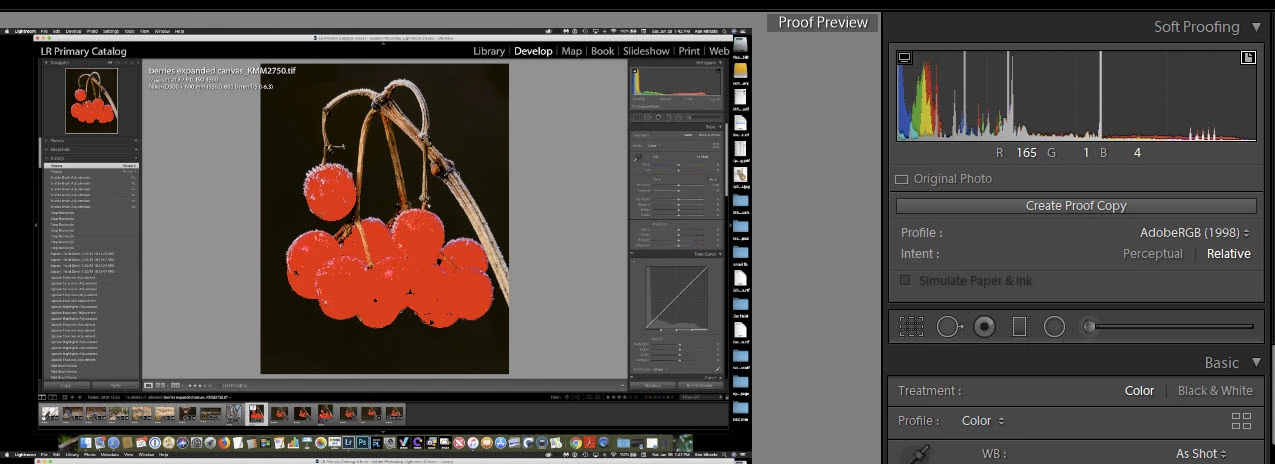
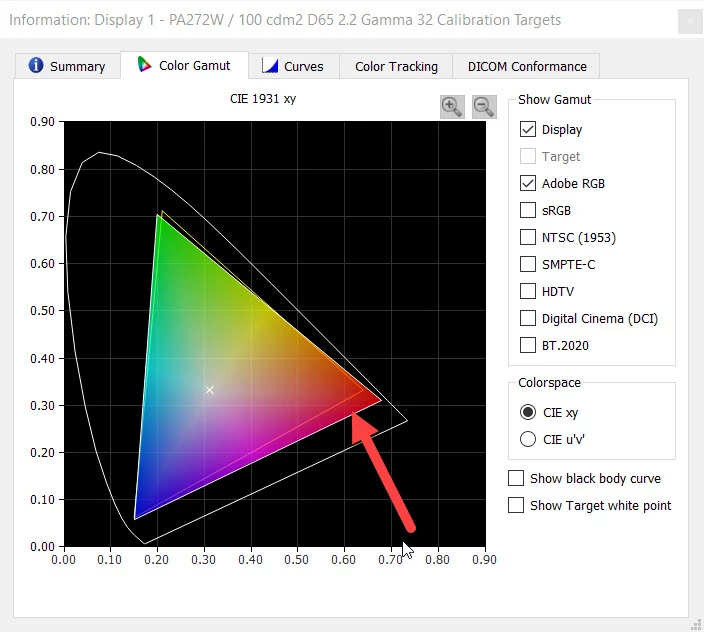
    We sometimes overlook the obvious and as stated above you may not see the issue here when using a standard gamut display. Below is a LR Adobe RGB Soft Proof view showing the berries all outside of gamut. The Develop module uses a much wider Pro Photo RGB 1.0 Gamma working color space and the the Library module uses Adobe RGB. The NEC PA 272w monitor renders 99% Adobe RGB, but has additional gamut outside of Adobe RGB in the Red chromaticity (see below). This additional Red gamut is visible in the Develop module's wider gamut color space so when switching to the Library module there is a very noticeable red desaturation.

    SOLUTION

    You're Brush 1 settings as described are probably pushing the red berries outside of Adobe RGB. Use less saturation adjustment and turn on Soft Proof to prevent pushing color into an area that can't be rendered in actual prints or on lesser capable displays. Please let me know if you have any other questions.
    4 replies

    GoldingD
    Legend
    January 26, 2019

    So, looking at the library vs the develop screen shots, I do not perceive much if any difference, and as you clearly worked on the Berry’s, I gazed upon them, not much if any difference. Also no or  very little difference in the histogramm.

    now this just looking at your reply on an iPad (retina)

    you might try to make a extreme really illogical mod in the adjustment filter, make the berry’s some othe color, realer really over or under expose them, or cut the saturation way down to nothing, something extreme, to prove a big difference library vs develop.

    that being said, remember that the color space in library is not the same as in develop.

    idahochukar
    Known Participant
    January 26, 2019

    The color difference is major on my 27" monitor.  I have never run into a variation of color like this before between develop and library modules once I have built 1:1 previews and never when I have exported.  What is the difference in color space between the library and develop and where do I find that or adjust it? I know how to adjust color space if needed at export but not aware of other optionss.

    Todd Shaner
    Todd ShanerCorrect answer
    Legend
    January 27, 2019

    SEE REPLY #33 BELOW - There is another related issue with LR concerning NEC Spectraview display profile compatibility.

    Using PS I combined idahochukar's  two screenshots downloaded from reply #14 above as a composite image. They are both PNG file format with the OP's NEC Spectraview display profile embedded. The saved JPEG file also has the OP's NEC Spectraview display profile embedded as expected.

    Test JPEG Rendering Results

    1) Inside PS 20.0.2 the LR Develop module screenshot is more saturated and the Library module screenshot is less saturated just as described by the OP. This rendering appears correct.

    2) Inside the LR Develop module the rendering is identical to PS as described above so also correct.

    3) Inside the LR Library module the Develop module screenshot looks identical to the Library module screenshot with BOTH desaturated, which is not correct.

    As a test I created a screenshot of the OP's screenshot and assigned it with my NEC Spectraview display profile. The results are the same as 1-3 above. So it appears NEC Spectraview display profile is compatible with PS 20.0.2, but not LR 8.1. Keep in mind my NEC Spectraview calibration display profile works fine with NO rendering issues. This is a LR Library module color management issue. Unchecking 'Use Graphics Processor' and viewing at 1:1 Zoom has no affect on the rendering.

    Try it for your self with the below JPEG file. View it in the Develop module and then switch to the Library module. The top Develop module screenshot desaturates and the Library module screenshot below it stays the same (less saturated) with both now the same. Very bizarre!

    NOTE: You may not see much of a difference if using a standard gamut display. The NEC PA272w is a wide gamut display with 99% Adobe RGB gamut.

    Dropbox - NEC PA272W LR Screenshot Develop.jpg


    PROBLEM SOLVED

    There's nothing wrong with your NEC Spectraview calibration, Datacolor Spyder 5, or NEC PA272w monitor.

    We sometimes overlook the obvious and as stated above you may not see the issue here when using a standard gamut display. Below is a LR Adobe RGB Soft Proof view showing the berries all outside of gamut. The Develop module uses a much wider Pro Photo RGB 1.0 Gamma working color space and the the Library module uses Adobe RGB. The NEC PA 272w monitor renders 99% Adobe RGB, but has additional gamut outside of Adobe RGB in the Red chromaticity (see below). This additional Red gamut is visible in the Develop module's wider gamut color space so when switching to the Library module there is a very noticeable red desaturation.

    SOLUTION

    You're Brush 1 settings as described are probably pushing the red berries outside of Adobe RGB. Use less saturation adjustment and turn on Soft Proof to prevent pushing color into an area that can't be rendered in actual prints or on lesser capable displays. Please let me know if you have any other questions.

    GoldingD
    Legend
    January 26, 2019

    Continuing with odd questions, and as you have the same issue in Library as in develop, this is probably not it, but let me ask anyhow

    in Develop, in history, you have not perhaps clicked on an earlier state?

    idahochukar
    Known Participant
    January 26, 2019

    no

    GoldingD
    Legend
    January 26, 2019

    Wher the mods using a brush accomplished in PS or in LR?

    If in PS, was any layering involved?

    idahochukar
    Known Participant
    January 26, 2019

    I have never used the forum before and can not figure out how to reply there?

    As my post said the brush was being used in LR CC on the Tif file that came back from the round trip to and from PS

    There had been layers but they were flattened.

    I am just learning PS and a friend was showing me and he flattened the layers. Before he had me do a save as and it was in LR after I closed PS.

    Then I made a few further adjustments in LR and most stuck but the one brush did not.

    GoldingD
    Legend
    January 26, 2019

    As you flattened the PS file, my inquiry is moot. Not the issue.

    Todd Shaner
    Legend
    January 26, 2019

    Screenshots of the Develop and Library previews would help. Also show a screenshot with Brush 1 and 'Show Selected Mask Overlay' selected and the Brush Effect settings panel visible.

    idahochukar
    Known Participant
    January 26, 2019

    Here are the requested screen shots … had to look up how to do a screen shot again

    Also not sure if this is the correct way to get the screen shots to the forum.

    GoldingD
    Legend
    January 26, 2019

    Save your screenshot to your desktop, create your reply and click on the icon for an image, select the screenshot you have on desktop, keep in mind size constraints.