
MattyP76
Participating Frequently
January 26, 2022
Answered

Brushes not showing up

  • January 26, 2022
  • 5 replies
  • 2015 views

I recently bought the 2022 version of LRC. I've scoured this website and others trying everything I can find to get my brushes to show up. I can see them in the local adjustment folder but they won't show when I need them. 

How do I get them to show? Also, is it possible to buy a copy from Adobe? I bought mine from a third party site and now I'm wondering if it's even legit. 


You need to ask program questions in the forum for the program you are using
To ask in the forum for your program please start at https://community.adobe.com/
Moving from Using the Community (which is about the forums) to the correct forum... Mod
This topic has been closed for replies.
Correct answer tmickow

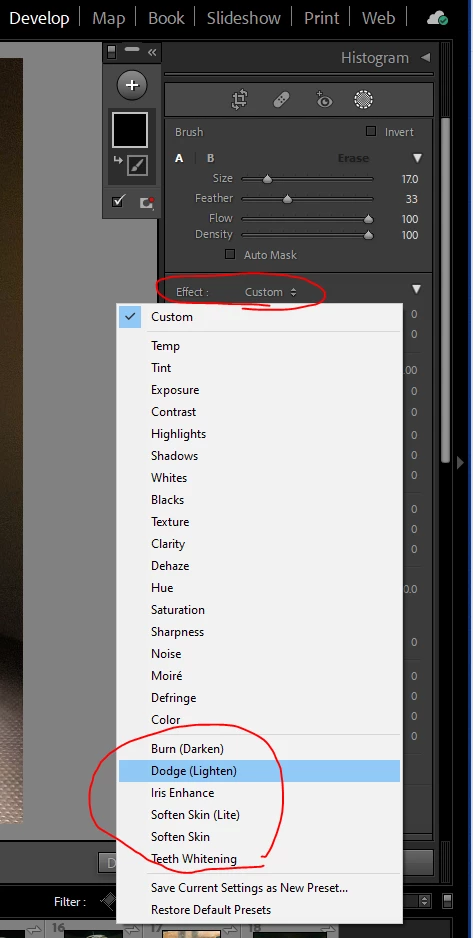
Look in the Effect drop down.  That's where Dodge, Burn, Teeth Whitening, etc. should show up.


5 replies

MattyP76
MattyP76Author
Participating Frequently
January 27, 2022

Isn't that where I am? The LrC forum?

gary_sc
Community Expert
Community Expert
January 27, 2022

Hi Matty,


Very sorry, I misunderstood you. I was thinking you were looking for the various custom brushes one finds in Photoshop. LRC has brushes that are limited to size and hardness. And you're saying you do not have these brushes at all?


Sameer K
Community Manager
Community Manager
November 20, 2024

Where did you find them? I have the same problem


Hi, @abtstudio. Welcome to the Lightroom Community. I'll assist you.


The original post is from 2 years ago. Did the accepted answer help? If not, please provide the System info from Lightroom Classic > Help > System info > copy & paste into a text document > upload here or share a link.


Also, Lightroom Desktop does not have Brush presets.


Waiting to hear from you. Thanks!
Sameer K

(Use '@mention' to tag me when you reply)

GoldingD
Legend
January 26, 2022

Please post your System Information as Lightroom Classic (LrC) reports it. In LrC click on Help, then System Info, then Copy. Paste that information into a reply. Please present all information from first line down to and including Plug-in Info. Info after Plug-in info can be cut as that is just so much dead space to us non-Techs.


MattyP76
MattyP76Author
Participating Frequently
January 27, 2022

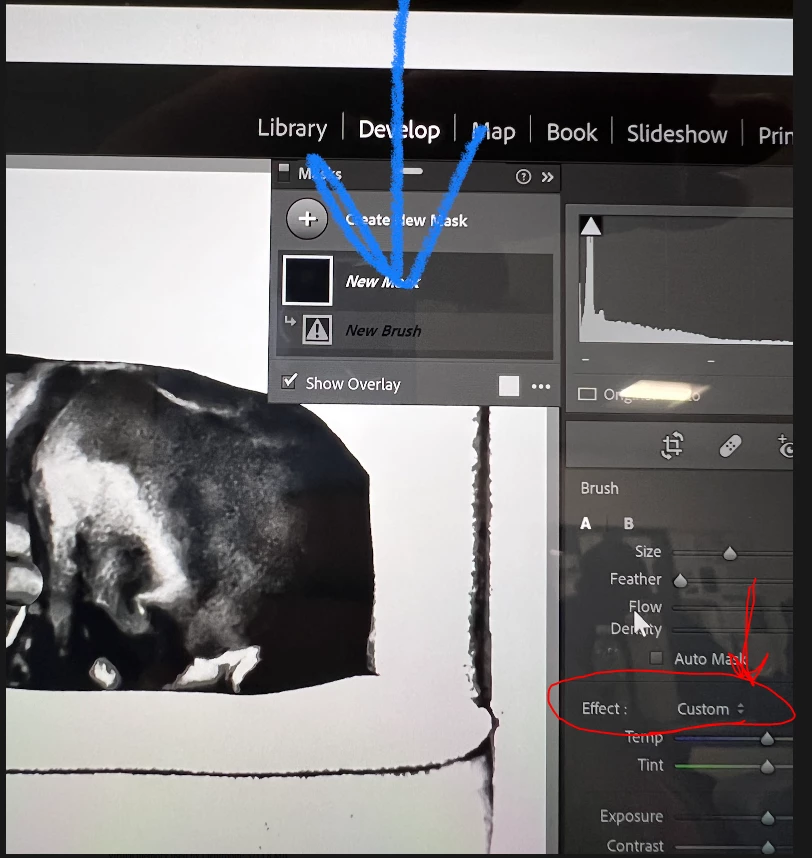
Here is the info from System Info you asked for and I included a couple of pictures. One is a picture of the the brushes in the Local Adjustments Folder. The other is a picture of where the brushes should show up I believe.


  Lightroom Classic version: 11.0 [ 202110120910-0bccc70d ]
License: Creative Cloud
Language setting: en
Operating system: Windows 10 - Home Premium Edition
Version: 10.0.22000
Application architecture: x64
System architecture: x64
Logical processor count: 8
Processor speed: 2.4GHz
SqLite Version: 3.36.0
Built-in memory: 16218.0 MB
Real memory available to Lightroom: 16218.0 MB
Real memory used by Lightroom: 3223.8 MB (19.8%)
Virtual memory used by Lightroom: 3714.8 MB
GDI objects count: 660
USER objects count: 1969
Process handles count: 1625
Memory cache size: 32.2MB
Internal Camera Raw version: 14.0 [ 950 ]
Maximum thread count used by Camera Raw: 5
Camera Raw SIMD optimization: SSE2,AVX,AVX2
Camera Raw virtual memory: 1825MB / 8109MB (22%)
Camera Raw real memory: 1852MB / 16218MB (11%)
System DPI setting: 192 DPI (high DPI mode)
Desktop composition enabled: Yes
Displays: 1) 2880x1920
Input types: Multitouch: Yes, Integrated touch: Yes, Integrated pen: Yes, External touch: No, External pen: No, Keyboard: Yes

Graphics Processor Info:
DirectX: Intel(R) Iris(R) Xe Graphics (27.20.100.9624)


Application folder: C:\Program Files\Adobe\Adobe Lightroom Classic
Library Path: C:\Users\panos\OneDrive\Pictures\Lightroom\Lightroom Catalog.lrcat
Settings Folder: C:\Users\panos\AppData\Roaming\Adobe\Lightroom

Installed Plugins:
1) AdobeStock
2) Facebook
3) Flickr
4) Nikon Tether Plugin

gary_sc
Community Expert
Community Expert
January 26, 2022

Hi Matty,


Brushes to do what? If you're planning on doing Photoshop activities in LRC, you're not going to see that. There are brushes for Mask 2, there are brushes for spot removal, but there are no "painting" brushes in LRC. However, you can Command/Control-e to move the image into PS. Do your painting and when you save, the file will be back in LRC.


Does that help?

MattyP76
MattyP76Author
Participating Frequently
January 27, 2022

Hey Gary,


The brushes that aren't showing are the dodge, burn, teeth whitening, skin soften etc. I can see them in the local adjustment preset folder but they do not show up as an option when needing them. Attached are some pictures. 


tmickowCorrect answer
Inspiring
January 27, 2022

Look in the Effect drop down.  That's where Dodge, Burn, Teeth Whitening, etc. should show up.


DdeGannes
Community Expert
Community Expert
January 26, 2022

Regards, Denis: iMac 27” mid-2015, macOS 11.7.10 Big Sur; 2TB SSD, 24 GB Ram, GPU 2 GB; LrC 12.5,; Lr 6.5, PS 24.7,; ACR 15.5,; (also Laptop Win 11, ver 24H2, LrC 15.0.1, PS 27.0; ) Camera Oly OM-D E-M1.
DdeGannes
Community Expert
Community Expert
January 26, 2022

Welcome to the forum, please provide some additional info as per the guidelines. See the screen capture.


Regards, Denis: iMac 27” mid-2015, macOS 11.7.10 Big Sur; 2TB SSD, 24 GB Ram, GPU 2 GB; LrC 12.5,; Lr 6.5, PS 24.7,; ACR 15.5,; (also Laptop Win 11, ver 24H2, LrC 15.0.1, PS 27.0; ) Camera Oly OM-D E-M1.