excited_Radiance5CCF
Participating Frequently
December 13, 2019
Question

Can't export multiple JPEG files

  • December 13, 2019
  • 5 replies
  • 1979 views

Hi,

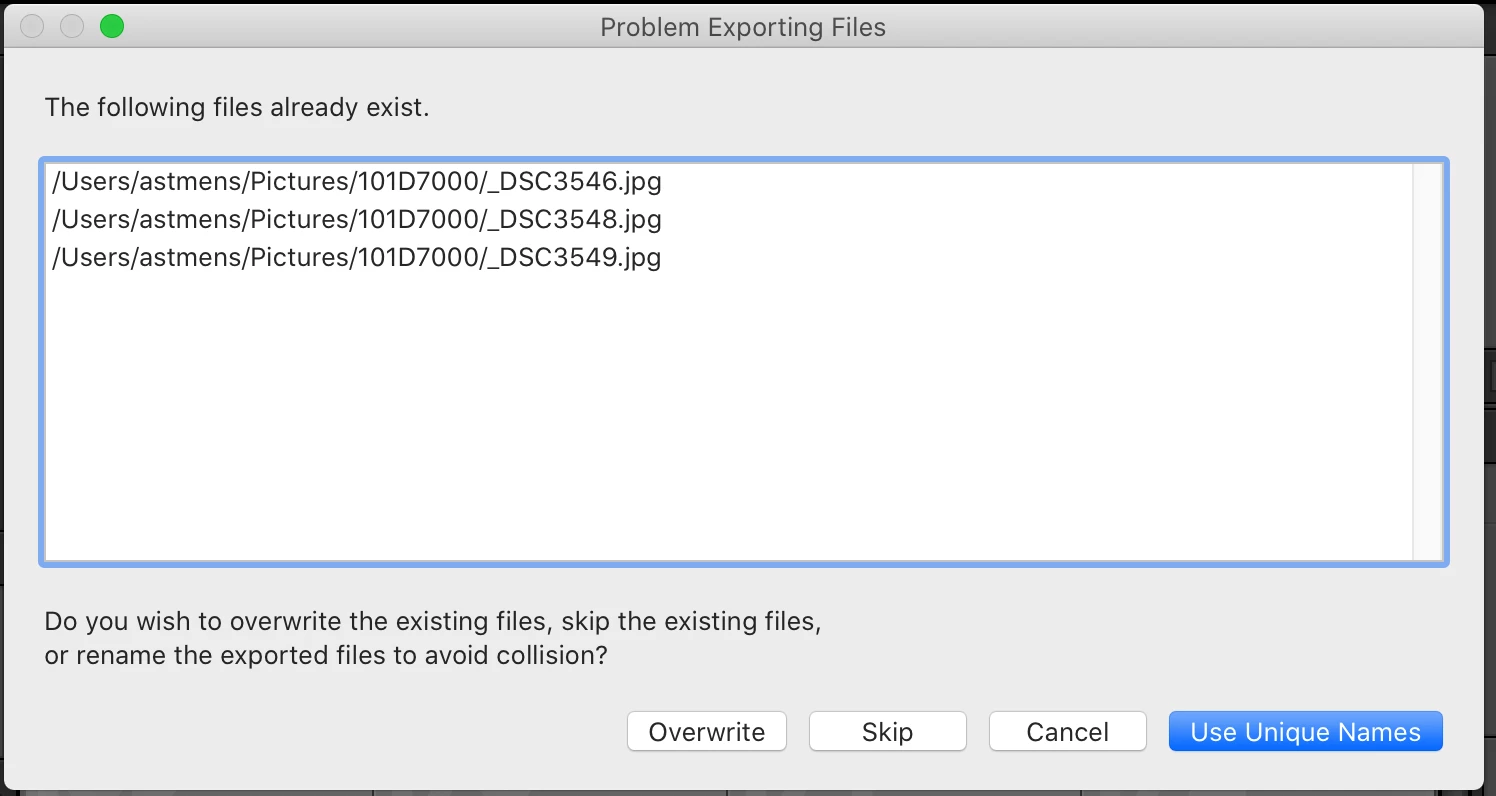
I have "Lightroom Classic version: 8.4.1". I select multiple RAW photos for export. Press "Export..." & "Export". Then I get notification that all files already exist. Thats probably because I have tried exporting them before... I choose "Owerwrite" but each time only the first file of the selection gets exported and written to the disk. Rest of them does not get exported!

How to make the "export" to write all the files from the selection to the disk?
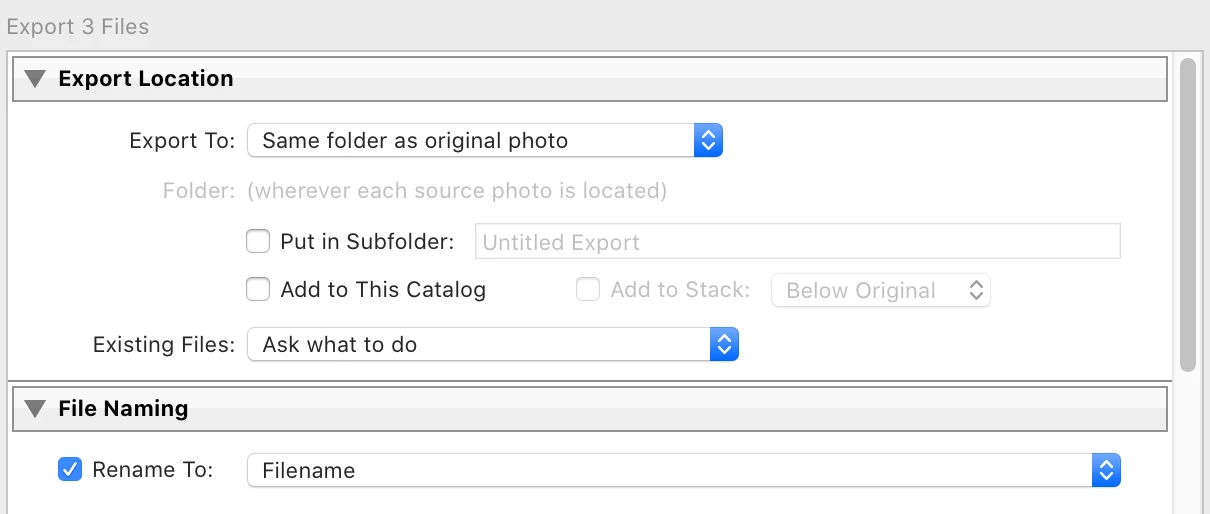
 

I have tried multiple times exporting with different settings, but always in "same folder". Before I had mulptiple duplicates which I deleted manually from the disk and now wanted to create only one JPEG per RAW file, but encounter this problem of exporting JPEG's.

Thanks!

This topic has been closed for replies.

5 replies

GoldingD
Legend
December 15, 2019

In your screenshot (incomplete) in File Naming you have checked Rename to Filename, why and what more is in that panel?


GoldingD
Legend
December 15, 2019

In your export options, do not forget to turn on the add to this catalog option.


excited_Radiance5CCF
Participating Frequently
December 15, 2019

If I understand it correctly then adding to catalog should not change the fact if it gets exported or not... just bothers me of checking if I am about to edit JPEG or RAW version of the file.

Did more testing. So I exported 8 jpeg's and added to collection with replace without warning enabled and "Do nothing" after export. Nothing got exported. Until I go to each individual photo in my Catalog and right-click on it to "Show in Finder". Only thent selected photo is being exported. So looks like Lightroom Classic is exporting them somewhere, but is not actually writing them to disk at specified location... until it is forced to show the photo.


Just Shoot Me
Legend
December 15, 2019

Actually I think your major problem is you really don't know how LR works and how to work with LR.


The catalog file is just a Database file. There are NO images in the catalog. All the catalog holds are References, a Record, of where the images are stored on your hard drive, Drive letter or name and the folder name along with the image name and or number and what edits you have done and any keywords or collections it is in.


There are View option to SHOW the File name, including the Extension (JPG, NEF, RAF, TIF, Whatever) in the main Grid area and also on the image itself when using the Loupe View.


So either your install of LR Classic is totally FUBAR or you simply are not using it correctly.


If you select several images and do an export to some other format like TIF, or from a folder that does NOT have any JPGs in it do all of the images get exported? If they do then it is something you are doing that is stopping the export when there is existing files with the same name.

DdeGannes
Community Expert
Community Expert
December 13, 2019

Just a thought "are any of the jpeg files that are going to be overwritten actually source files included in the export"? 

Regards, Denis: iMac 27” mid-2015, macOS 11.7.10 Big Sur; 2TB SSD, 24 GB Ram, GPU 2 GB; LrC 12.5,; Lr 6.5, PS 24.7,; ACR 15.5,; (also Laptop Win 11, ver 24H2, LrC 15.0.1, PS 27.0; ) Camera Oly OM-D E-M1.
excited_Radiance5CCF
Participating Frequently
December 13, 2019

no, I had this before and then the overwrite option was unavailable (grayed out) with explenation that source files cant be overwritten. thats why I deleted all the jpeg's and was left with only RAW/NEF files.

Just Shoot Me
Legend
December 13, 2019

I just did a test of exporting 4 Fuji RAF Raw file to JPG. First go I included a watermark.

Then with those same 4 files select I exported again. This time I uncheck the watermark option that dialog window came up, Files already exist. I selected overwrite and all of them got overwritten. I then did another export and this time I rechecked the watermark option. All 4 got overwritten this time with the watermark again.


So I can't reproduce what you are seeing.


I suggest you uninstall and reinstall LR. Or first you could reset the preferences.

Just Shoot Me
Legend
December 13, 2019

Just did a test and you can't select all of them. So your only option is to set the Existing File option to Overwrite WITHOUT WARNING.


Which IMHO is a very bad idea.

excited_Radiance5CCF
Participating Frequently
December 13, 2019

Tried again with another new folder. This time nothing got exported. On Second time as before - I get the message, that photos are already there and asks for action. "overwrite without warning" - no export, just does not notify me that there are files already.

Each attempt it does go trough the "export process" which takes time. But at end of it - no results

excited_Radiance5CCF
Participating Frequently
December 13, 2019

I have no idea what happend but suddenly I tried couple of times and when choosing the "Using the unique names" all previous attempts got exported to the folder I tried to export to. So I ended up with 3 copies of ecach image and had to manually deleting all the duplicates...

Wonder what happened?

Just Shoot Me
Legend
December 13, 2019

Unless you are using an older opereating system that can't use a newer version of Adobe Lightroom you are 2 versions behind. LR Classic is at version 9.1 and you say you are using 8.4.1.


Is the First file the only one that gets exported? If so then try selecting all of them in that dialog box beore you click overwrite.


But why are you selecting to overwrite them? That changes the original file and does not allow you to go back, remove or change the edits done to them.


Also in the Export dialog, If you really always want to Overwrite existing files, there is an option to do that. It is in the Export Location section, "Existing File:" section. Setr that to "Overwrite WITHOUT WARNING" and you won't get that dialog again.


A better option is to select "Use Unique Names" so the original file is still there.

excited_Radiance5CCF
Participating Frequently
December 13, 2019

Yes, only the fist one gets written to the disk and shows up in the Finder.

I want to overwrite because I want to have only one JPEG per RAW file, I do not need any duplicates. The thing is that Lightroom thinks that file is already exported and there and takes no action (the export act is getting written to the history of each RAW file selected). And files which I try to "re-export" do show up in the list for overwritting, but still only the first gets exported.

Now I tried exporting to a new subfolder so there is no previous exports. First I selected first 9 and they all got exported. Then I repeated with rest of them and again - only first one got exported. This time I used "Export with previous...".