
joyodongo
Participant
January 7, 2020
Answered

Can't export videos in original format as getting error 'assertion failed' Lr Classic 9.1

  • January 7, 2020
  • 3 replies
  • 5278 views

I'm trying to export videos in original format (if you ask why, I make the selection of the videos in lightroom, colour-tag them and then export them), but I always get the error "assertion failed". If I rename them it still doesn't work, it only works if I change the format, which I don't like (the original are  some .mov and some .mts files, if I try only with .mov I get the same error).


This is my software/hardware:

I'm working with Lightroom CC 9.1 and MacOS 10

Lightroom Classic version: 9.1 [ 201911291132-64cf80b4 ]
License: Creative Cloud
Language setting: en-GB
Operating system: Mac OS 10
Version: 10.15.2 [19C57]
Application architecture: x64
Logical processor count: 4
Processor speed: 3,8 GHz
Built-in memory: 8.192,0 MB
Real memory available to Lightroom: 8.192,0 MB
Real memory used by Lightroom: 1.206,1 MB (14,7%)
Virtual memory used by Lightroom: 12.773,6 MB
Memory cache size: 361,9MB
Internal Camera Raw version: 12.1 [ 351 ]
Maximum thread count used by Camera Raw: 3
Camera Raw SIMD optimization: SSE2,AVX,AVX2
Camera Raw virtual memory: 1270MB / 4095MB (31%)
Camera Raw real memory: 1306MB / 8192MB (15%)
Displays: 1) 5120x2880, 2) 1920x1080

Graphics Processor Info:
Metal: AMD Radeon Pro 580


Any ideas? Thanks in advance.
 

This topic has been closed for replies.
Correct answer im2suns

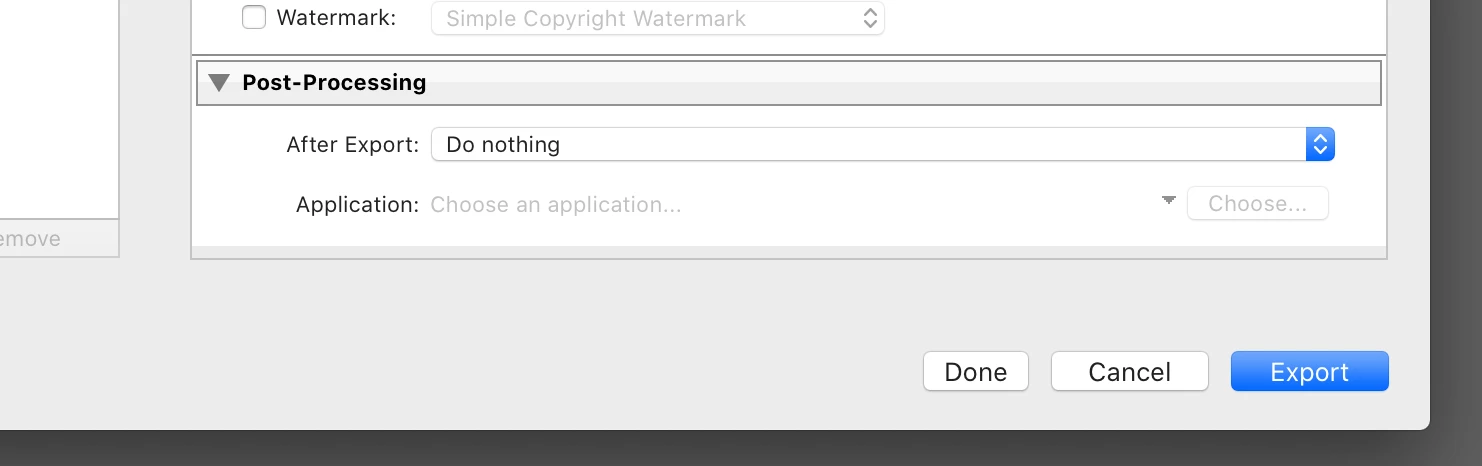
In the very last option in export dialog what option do you have chosen there?


Try, Do nothing. 


So, I actually got this to work just now.  For others, I also had a symptom of the Creative Cloud app not updating with an error 184 which said a file was locked.  


I tried changing the My Pictures location in the registry, changing file permission all to no success, lightroom would not export video as originals. 


Following leads here I did create a new Win 10 Administrator account, "lightroom" and then logged into the creative cloud app in the new account.  For the first time in many months, creative cloud was able to update the app without a 184 error.  


Further, the Lightroom Video export as Original was able to export as I wanted it to without the error.


There certainly seem to be some file permissions errors in my main windows profile preventing Lightroom Classic and the CC App to update properly.  I have no idea what they are or how to fix.  Pretty basic install here. 


My workaround will be to use this new account for my video exports and then go back to my main profile to do Premiere Pro edits.


3 replies

DdeGannes
Community Expert
Community Expert
May 9, 2020

When the upgrade of macOS there were some changes made in the Privacy and Security areas. Go to Apple System Preferences > Privacy and Security. ake sure Lightroom Classic has all the permissions necessary for files and folders. See the screen capture. Also, update to the latest version of Catalina 10.15.4.

Regards, Denis: iMac 27” mid-2015, macOS 11.7.10 Big Sur; 2TB SSD, 24 GB Ram, GPU 2 GB; LrC 12.5,; Lr 6.5, PS 24.7,; ACR 15.5,; (also Laptop Win 11, ver 24H2, LrC 15.0.1, PS 27.0; ) Camera Oly OM-D E-M1.
chrisperry88
Participant
May 14, 2020

Basic home user here, same problem as described with no solution in comments.  Seems like a relatively new topic thread so thought I would comment.  Only difference, I have Win 10 updated as of now.  


I simply want to sort my video in Lightroom in collections, then export the collection from my data storage device to my SSD so I can edit them in PPro.  It works great for stills.  I want to just keep the original video, no edits, no options or trims required.  A basic copy and paste after the time I spent sorting.  Now, I have to find each file in windows explorer and copy it, or choose the H.264 export which I don't want at this point in my work flow.


I tried looking at permissions and the registry value of USERS\Pictures linked above so not sure why  I can't use the option listed in the export dialogue to copy my video clips from my hard drives to my SSD on my Desktop, without a video re-encode?


Participant
January 28, 2021

Thank you for posting this. But Alas, no luck here. Windows 10 and been having problems exporting video form LT classid for a long while. Getting VERY frustrated.


Same issue here on Mac.


Figured out solution. On export setting, for PICTURE, make sure format is set to original. Then for VIDEO, you can set format to original, and it will export. However, when i switched PICTURE export format to JPEG - even though i was only exporting a video - i got again the assertion failed error message


Folder access was not a problem in my case

sebastianw86492114
Participant
January 26, 2020

Hello,


i have the same problems here. Is there any solution right now?

Best regards, Sebastian

Participant
May 9, 2020

Same issue for me, is there any solution right now ?

Akash Sharma
Legend
January 8, 2020

Hi there,


Sorry that you're getting an error "assertion failed" while exporting a video from Lightroom Classic 9.1. This issue occurs when Lightroom do not have required permissions while processing a file. Please checkout the solution mentioned in this article https://helpx.adobe.com/in/lightroom-classic/kb/user-permissions-issues.html and give read/write permissions to the required folders. 


Let us know how it goes. 

Thanks,

Akash

joyodongo
joyodongoAuthor
Participant
January 8, 2020

Thanks for the answer Akash,

it can't be a permissions issue, because when I export the videos to the same folder with a processing option (DPX or H.264) it works just OK. I get the error when I try to export the original, unedited file.


Thanks.