
michelled97068596
Participant
October 26, 2017
Answered

Can't see main screen image in develop module.

  • October 26, 2017
  • 1 reply
  • 6223 views

Hi There,

I bought a new laptop, have all my files and catalogs already transferred over, and everything seemed to be working until I tried to use the develop module.  I can see the small image on the left top corner, and when I adjust exposure and sliders it changes, the strip of photos from the collection are along the bottom, but where the big main image is supposed to be, its blank grey.  When I switch to the Library module and click on an image, then go over to the develop module, that image is in that big area, but it wont adjust, and it doesn't change to another photo when I click on a different photo from the strip.  There aren't any ! marks indicating the file locations are missing, it just wont bring the image up onto the main screen.  What is going on?  Any help here?
    This topic has been closed for replies.
    Correct answer Vishu_Aggarwal

    Can you share the screenshot of your Lightroom issue. Also the platform and the Lightroom version details on which your using the Lightroom.

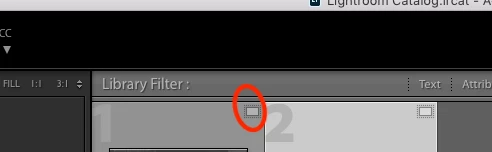
    Also did you create smart previews while importing the image and if you click on smart preview icon on the image thumbnail in filmstrip or library view does it show any error.

    You can also try disabling the GPU Processor for Raw files. By going to Preferences > Performance > uncheck use graphic processor..than restart Lightroom & check.

    1 reply

    Vishu_Aggarwal
    Vishu_AggarwalCorrect answer
    Participating Frequently
    October 26, 2017

    Can you share the screenshot of your Lightroom issue. Also the platform and the Lightroom version details on which your using the Lightroom.

    Also did you create smart previews while importing the image and if you click on smart preview icon on the image thumbnail in filmstrip or library view does it show any error.

    You can also try disabling the GPU Processor for Raw files. By going to Preferences > Performance > uncheck use graphic processor..than restart Lightroom & check.

    Vishu AggarwalAdobe Certified Instructor, Professional and Expert
    michelled97068596
    Participant
    October 27, 2017

    Thank you!  Ok I did both the smart preview and disabled the GPU, and I didn't even need to restart it in order for it to work.  What does disabling the GPU do though?  Does it effect the quality or anything?

    Vishu_Aggarwal
    Participating Frequently
    October 27, 2017

    Great! your welcome.

    GPU  does not effect the quality but it does help in to speed up the task of adjusting images in the Develop module. You can read about it more - Adobe Lightroom GPU Troubleshooting and FAQ.  Link also provides you the list of supported/troubleshooting GPU & its drivers.

    Vishu AggarwalAdobe Certified Instructor, Professional and Expert