It’s important to be specific about how this is done:
You control whether metadata is included in exports, since some workflows need maximum preservation of metadata, and others need to exclude metadata for reasons of privacy or security. For it to work the way you want, you have to set it up right. In the Lightroom Classic export dialog box, keywords will be included if you make sure to select any of the Metadata Include options that start with All:
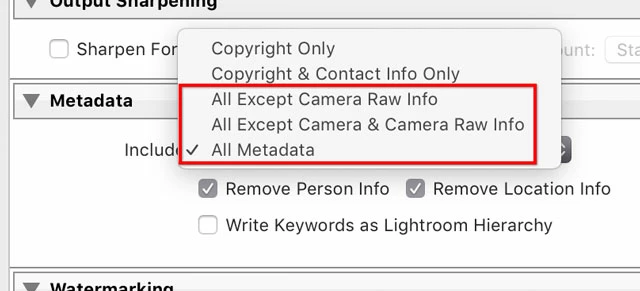
If you choose one of the first two options, keywords will not be included. You can save the correct setting as part of an Export preset, so that you simply apply the preset instead of having to verify every Export setting every time. If you need more detailed control over how metadata is exported from Lightroom Classic, you can use the plug-in Jeffrey’s Metadata Wrangler.
People have long taken advantage of the ability of Lightroom Classic to embed metadata in exported images so that, for example, when you export JPEG images to upload to a website that recognizes embedded metadata such as keywords, caption, location, etc., (such as Flickr or a stock photo website), that website can easily read the metadata and display it on the web page next to the image. It should be pretty straightforward to get this to work for your purposes.
ben_iland wrote: “So how would another user search using a seperate Windows and/or Mac computer to find the photo using the keywords?”
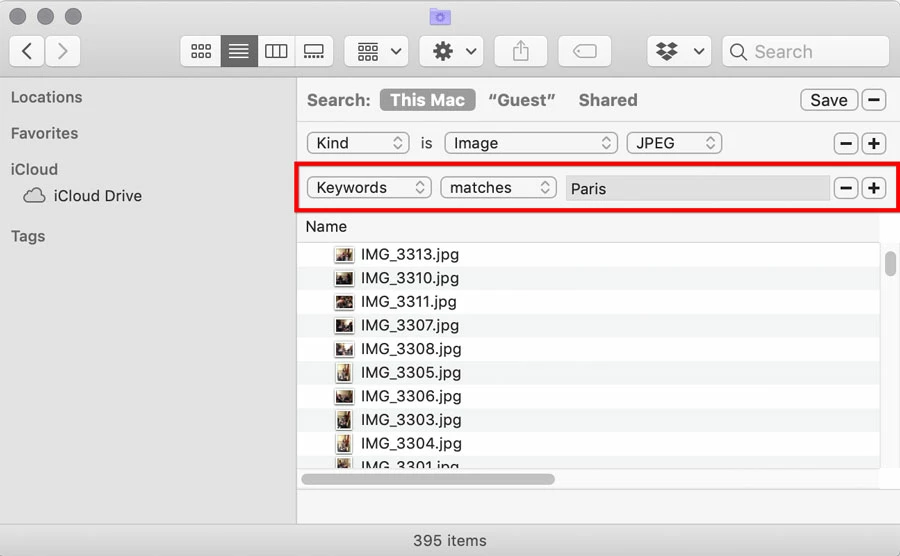
Metadata support is built into both macOS and Windows at the file system level. If the files are in the Mac or Windows computer’s local file system, both the Mac Spotlight and Windows desktop search features can find keyword metadata inside of files, including images. Of course, that makes the metadata available to applications, too. Adobe Bridge and many other Mac and Windows media organization applications (e.g., Photo Mechanic) can also search for files based on metadata (e.g., find all images with a “Paris” keyword).
On a Mac, if you select a file on the desktop and choose File > Get Info, any keywords in the image are listed in the Get Info window. In Windows I think you can view file keywords on the desktop in the Properties window.
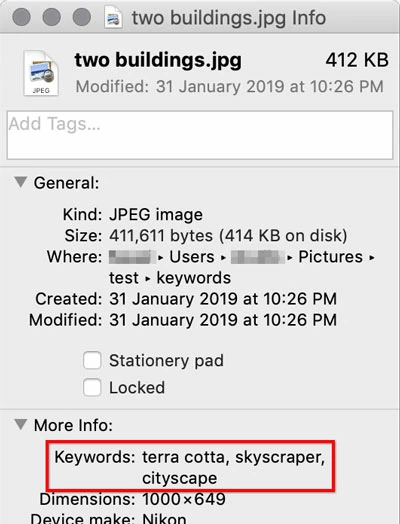
Now, that’s for a local file system. I think I’ve heard of it not always working if the user is browsing files on a network server, like if the server isn’t using a Mac or Windows file system. But if the secured computer storing your exported images is running macOS or Windows, people should be able to find keyworded photos using the built-in desktop search alone, no additional applications needed. Below is an example of using an advanced metadata search in a window in the Mac Finder.

 AdChoices