g.nyus
Participating Frequently
December 18, 2018
Question

Cannot convert .lrtemplate to .xmp presets. Lightroom 8.1

  • December 18, 2018
  • 6 replies
  • 4669 views

Hi there,

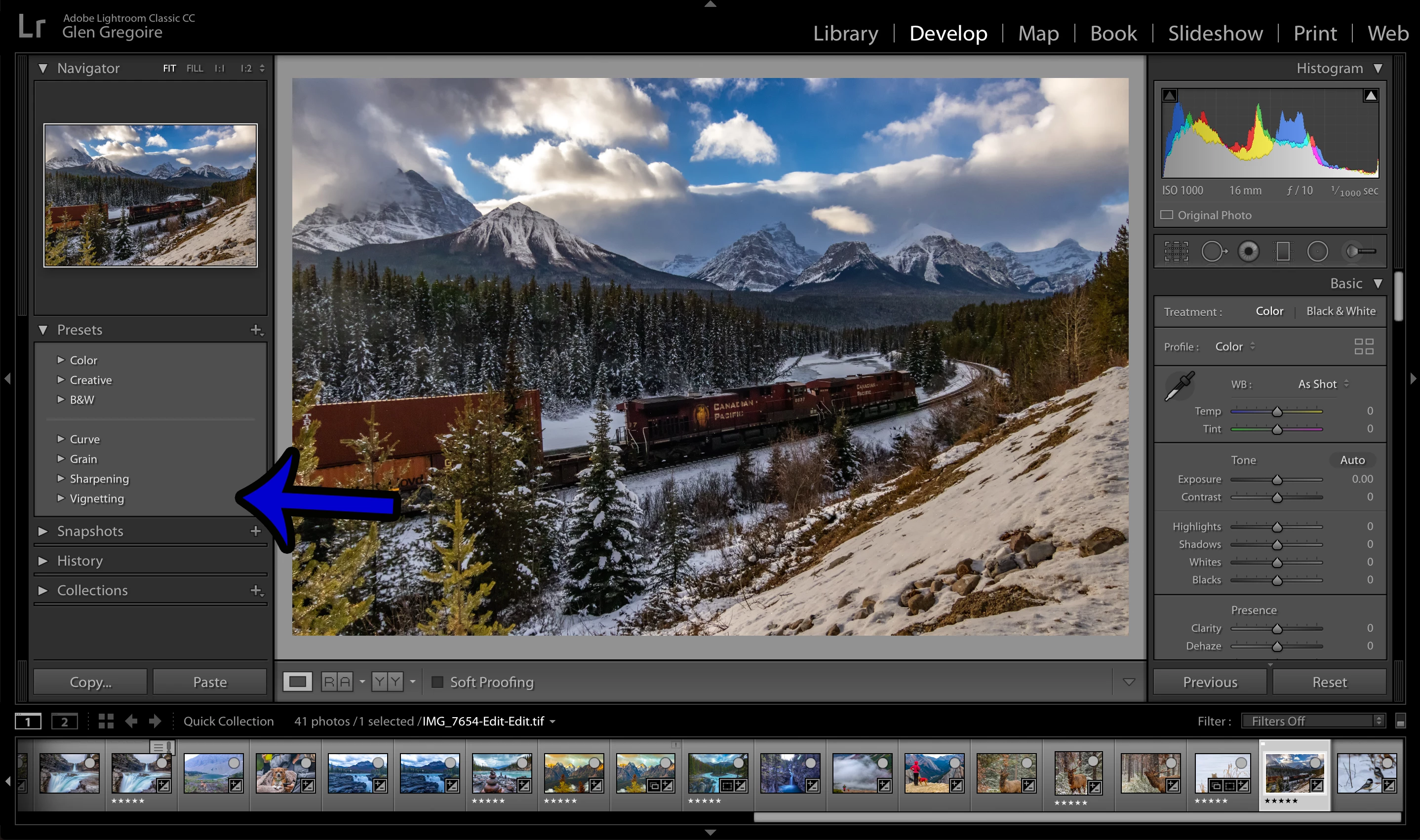
I actually have two issues happening.  I have no "User Preset" dropdown menu under the main Preset dropdown on the left column of the main screen.

I also can't seem to get my .lrtemplate presets to convert to .XMP.

I have moved them from my Lightroom "Develop Presets" folder to my Camera Raw "Settings" folder, as per the tutorials I have watched.

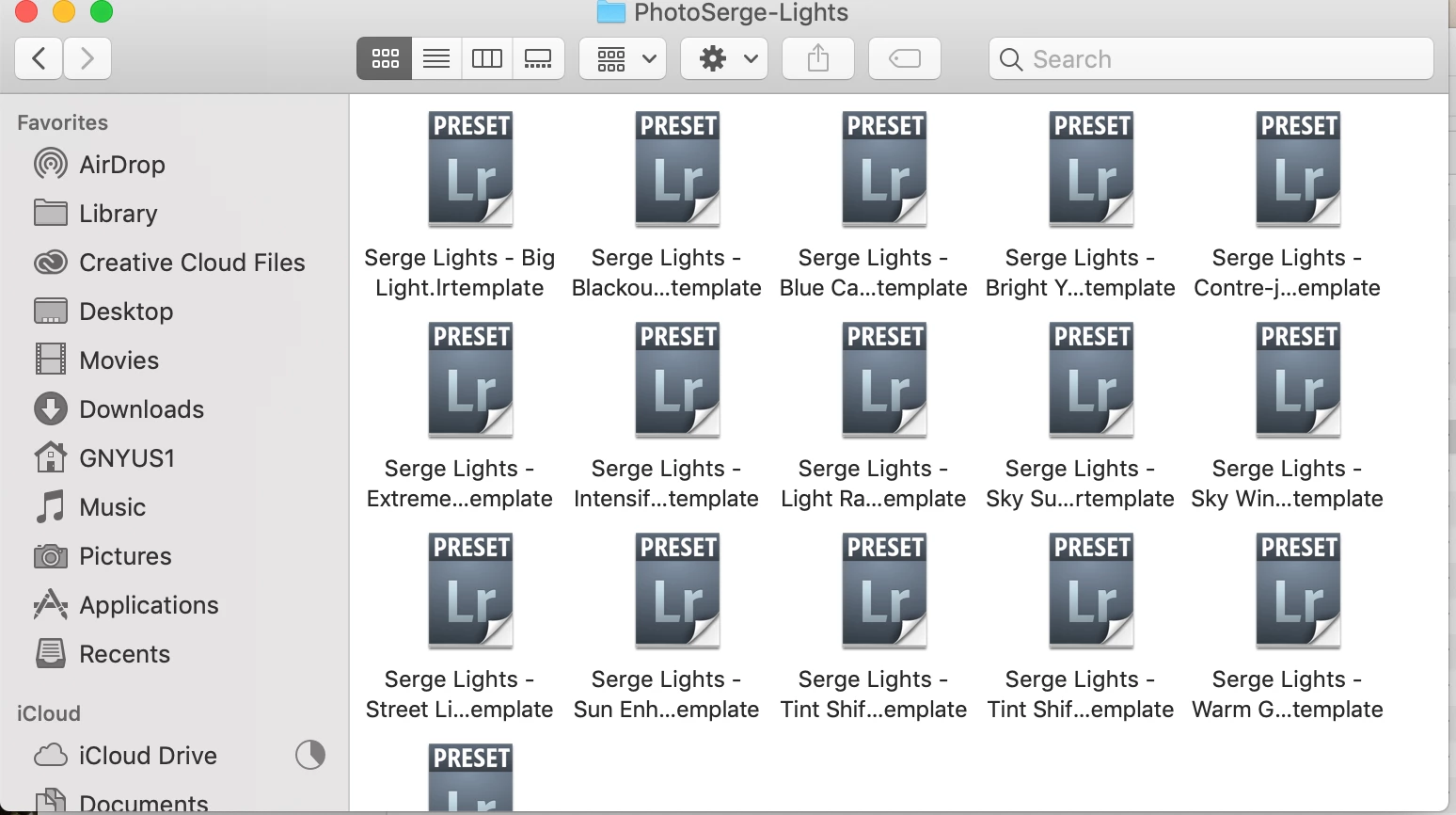
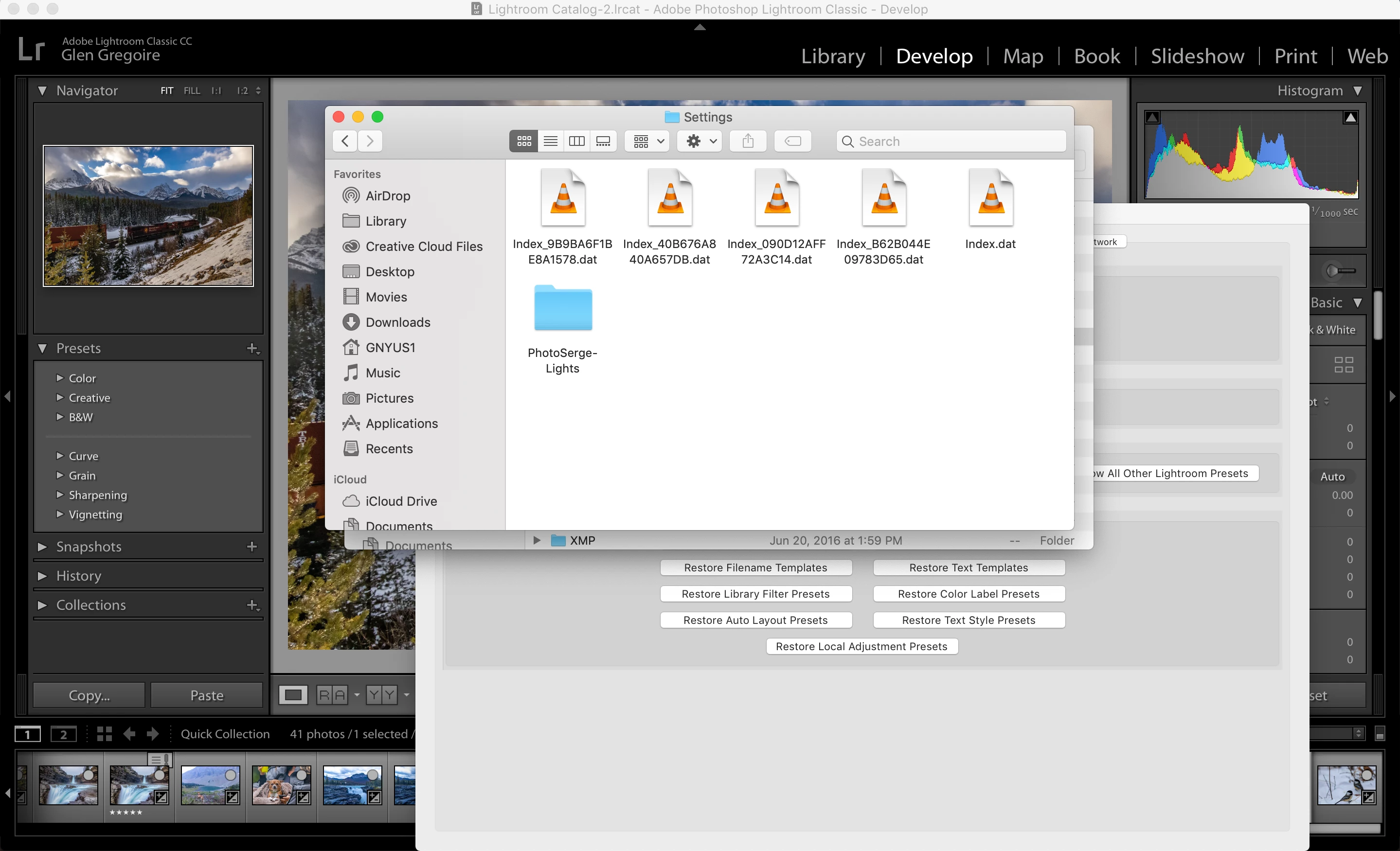
I have also tried to drag and drop the .lrtemplate presets into the folder via the Lightroom > Preferences > Presets > Show All other Lightroom Presets route. I have tried having just the"PhotoSerge" folder in the Camera Raw folder, as well as opening the folder and having the actual files in the Camera Raw folder.

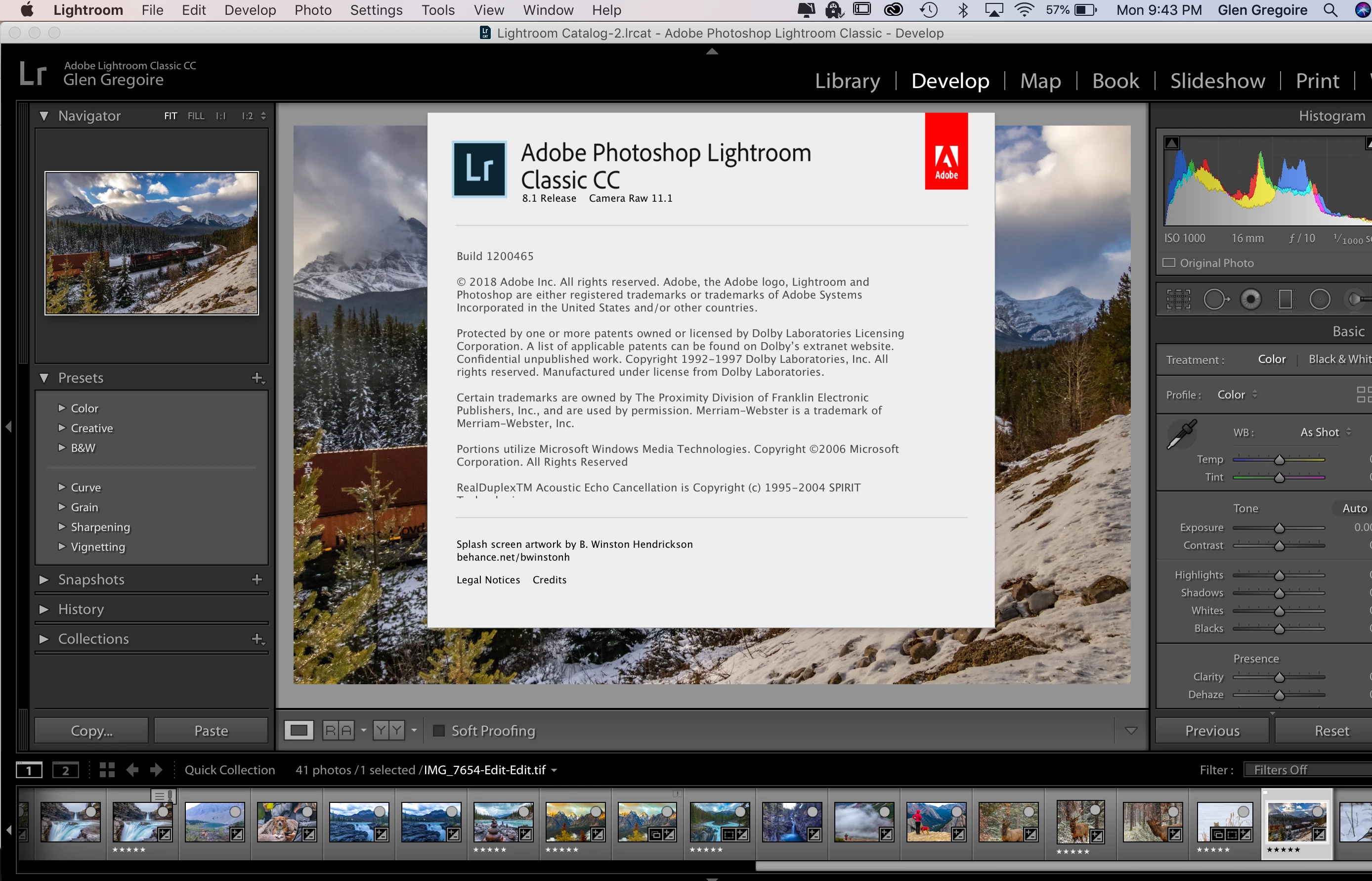
I am using Lightroom 8.1.  There seems to be be lots of advice on this subject, but when I follow it, I am no further ahead.

Thanks in advance for any help.

Glen.

No User Preset
PhotoSerge Preset Folder in Camera Raw Settings Folder
Misc.
    This topic has been closed for replies.

    6 replies

    GoldingD
    Legend
    December 18, 2018

    Apparently I have not been getting enough sleep, some obvious questions and notes have gotten right past me.

    First off, You were looking in User presets. Typically those are ones you made, not third party you bought.

    Second, the author of the presets will have included code in the package that tells Lightroom how to display them. So, it is quite possible that the one particular preset you are looking for is in PhotSerge-Lights

    Now in a bit, I will scroll up and look at your screenshots again. Something like this:

    That's the Manage option in the Presets panel.

    You will notice that you cannot go one deeper and turn on or off individual presets in any of those third party sets.Now as a test, I tried to import just one preset, one from a third party set , well, it imported, it showed up in another OS folder (Imported Settings instead of Settings) but it never shows up in the presets pane. well, not under User, and not by itself, its back within the third party set (group), exactly where it was before, I just have two copies, one LR opens, one LR ignores.

    So, in your presets, make sure the one you are looking for is not within a group

    g.nyus
    g.nyusAuthor
    Participating Frequently
    December 20, 2018

    HI David,

    Sorry for my very late reply!  I have had a busy last couple days.  So I have received an email from the PhotoSerge tech support.  What I have is definitely a preset, but it’s a “Brush” preset. Which gets installed in the “Local Adjustment Preset” folder. Not the Develop Preset folder.  It will also only display after you select the Brush tool on the right side of Lightroom.  The presets should then show up and be selectable.  I will try that tonight.  That would explain why I can’t see them on the left side.  I have actually never used them, so I didn’t realize this,  but wanted to make sure they got transferred over since I did purchase them. Looks like I misunderstood that there can be different types of presets.   I’ll let you know what I find out!

    Glen.

    GoldingD
    Legend
    December 18, 2018

    Is this the product??:

    https://www.photoserge.com/p/serge-ramelli-signature-light-profiles

    Profiles, not presets

    or maybe: https://www.photoserge.com/p/lightroom-presets-lights

    ones profiles, other is presets

    g.nyus
    g.nyusAuthor
    Participating Frequently
    December 18, 2018

    I’ll have to verify when I get back home.

    I can’t seem to find my invoice for the product right now.

    Do you know if profiles use the .lrtemplate file extension as well as presets?  That could be my problem. My pride hopes it’s not that easy, but my patience hopes it is.

    Thanks.

    Glen.

    GoldingD
    Legend
    December 18, 2018

    Ok, well sort of not Ok, I was going to make the statements shown below (stuck out) but when I went to test this out (and I would have included screenshots) I found out this was no longer true. BUT, try out one preset by itself just in case as none of my presets I was moving around are the old format.

    hmmm, looking again at a few of your earlier screenshots

    How many directories down are these templates?

    It would look like you have a directory named PhotoSerge-Lights, then directories under that like SergeLights-Big Lights, and probably withing that, the actual files that the preset calls for.

    Ok, not sure if they ever altered this. or perhaps altered it in a bad way, Might be one two many deep on those directories.

    Instead of copying the main directory PhotoSerge-Lights, with all its sub directories, copy the sub directories to settings. In other words, a preset folder in settings should have in it, immediately in it, all the various files that make up the preset, not another directory.

    .

    GoldingD
    Legend
    December 18, 2018

    Ok, back on a PC (with my stored links)

    In this one the author starts talking profiles, but eventually gets to presets, slightly dated, but take a long look:

    Updates in Lightroom Classic: How to Install Presets and Profiles April 2018 - YouTube

    g.nyus
    g.nyusAuthor
    Participating Frequently
    December 18, 2018

    Hi David,

    I watched that video last night actually, but couldn't get it to work following his instructions.

    When I use the "import Presets" option, I get a pop window telling me that I have the wrong type of preset.

    Which we both know is true, but the automatic conversion does not happen as the author states should happen.

    (I see I'm back on a selected .tif file in the screenshot, but I've tried using a .CR2 file as well)

    Rob_Cullen
    Community Expert
    Community Expert
    December 18, 2018

    "the wrong type of preset" might suggest these are PROFILES and not Presets.

    Have you tried the [Import] option from the PROFILE browser in the Basic panel?

    I do not know if this will work any differently, but worth trying.

    Regards. My System: Windows-11, Lightroom-Classic 15.1.1, Photoshop 27.3.1, ACR 18.1.1, Lightroom 9.0, Lr-iOS 10.4.0, Bridge 16.0.2 .
    Rob_Cullen
    Community Expert
    Community Expert
    December 18, 2018

    The '[new' system for XMP presets has created problems for many!

    I have a couple of suggestions-

    I have no "User Preset" dropdown menu under the main Preset dropdown on the left column of the main screen.

    First- Click on the [ + ] icon on the Preset header bar and choose [Manage Presets...]

    in the dialog- check that every box is ticked so that no Preset Groups are hidden from view. In particular the [User Presets] box.


    If [User Presets] is already checked, then try creating a preset of your own and see if it appears, because Lightroom will not show 'empty' folders in the Presets panel.

    I also can't seem to get my .lrtemplate presets to convert to .XMP.

    I have moved them from my Lightroom "Develop Presets" folder to my Camera Raw "Settings" folder, as per the tutorials I have watched.

    I have also tried to drag and drop the .lrtemplate presets into the folder via the Lightroom > Preferences > Presets > Show All other Lightroom Presets route. I have tried having just the"PhotoSerge" folder in the Camera Raw folder, as well as opening the folder and having the actual files in the Camera Raw folder.

    I understand there are two common ways to install .lrtemplate Presets-

    1. Click on the [ + ] icon, choose [Import Presets...] and search for the {PhotoSerge} folder of presets with Finder.

    2. Copy the .lrtemplate files into the 'old' folder in {....Lightroom/Develop Presets }  (Not the 'new' {Settings} folder ). If you "moved" them out of {....Lightroom/Develop Presets } instead of copying, then move them back! Restart Lightroom.

    When you restart, Lr should convert and place the new XMP versions in the {Settings} folder automatically, and leave the .lrtemplate files renamed with a tilde prefix.

    Note:

    -The folder structure in {Settings} may no longer 'mirror' the folder structure in the Presets panel. It is internal data within each Preset file that determines where it installs in the Presets panel folders (Groups). Your {PhotoSerge} presets may all install in the User folder!

    -Some Presets have been known to contain "illegal" characters that Lightroom baulks at and will not install.

    Some more links to confuse you further!

    lrtemplate to xmp preset installation tutorial - new lightroom update - LR CC Classic 2018 - YouTube

    Even the [+] menu has changed from v7.3 [Add Presets] since this linked video was made, but most info still applies-

    Updates in Lightroom Classic: How to Install Presets and Profiles April 2018 - YouTube

    And many found this plugin to be helpful in sorting out Preset chaos!  Fix Presets Lightroom Plugin

    Regards. My System: Windows-11, Lightroom-Classic 15.1.1, Photoshop 27.3.1, ACR 18.1.1, Lightroom 9.0, Lr-iOS 10.4.0, Bridge 16.0.2 .
    GoldingD
    Legend
    December 18, 2018
    g.nyus
    g.nyusAuthor
    Participating Frequently
    December 18, 2018

    Hi, thanks for the quick reply! 

    I tried the re-install technique suggested in the article, but unfortunately no luck.  It seems odd.  All the videos I watch, just have the user drag and drop the preset folder into the Camera Raw Settings folder and Lightroom recognizes it and converts it. I don’t know why mine is different.

    Thanks for the help though.

    Glen.

    JohanElzenga
    Community Expert
    Community Expert
    December 18, 2018

    g.nyus  wrote

    All the videos I watch, just have the user drag and drop the preset folder into the Camera Raw Settings folder and Lightroom recognizes it and converts it.

    Are you sure about that? That is not the correct procedure. Lightroom places the converted presets into the Settings folder, but you have to place the old .lrtemplate presets in the old Develop Presets folder for Lightroom to find them and convert them. I'm not sure it will also convert them when you place them in the Settings folder.

    Another thing: Your first screenshot shows that you have selected a TIFF file. If these presets apply a raw-profile, they won't work with non-raw files and so they are not available. In versions up to Lightroom 8.0 they would simply vanish in that case (causing a lot of confusion), now you can have them shown in italics. That is something in the preferences - presets tab, so check that out too.

    -- Johan W. Elzenga