bradg56330306
Participating Frequently
May 1, 2023
Answered

Cannot import after deleting preview catalog

  • May 1, 2023
  • 3 replies
  • 1591 views

I had an error that was crashing LRC upon startup so I had to go to the program folders in Windows 10 and delete the preview catalogs. 

After doing so, the program no longer crashes, but I also cannot see any previews and when I try to create new previews, LRC does not make any progress (library is 15k photos). I can still edit photos but it is difficult to blindly choose which photo to look at wihtout the preview.

Additionally (and the part that makes the program unusable) is that I cannot import new photos. When I go to the import dialog, I get a spinning wheel at the bottom and no progress.


I'm not sure if I need to somehow force the program to create a new preview catalog so I can use it again? I have tried uninstalling and reinstalling - without deleting settings - to no avail. Any suggestions are appreciated!


Build 202304101834-a085245c version 12.3 on Windows 10.
This topic has been closed for replies.
Correct answer Sameer K

Hi Sameer & @GoldingD . System info is attached.


When I relocated the catalog folder and tried to troubleshoot it, it was indeed corrupt. But when Lightroom was attempting to repair the catalog, the "lightroom encountered an error when reading a catalog file and needs to quit" forced the program closed before I could access again.


Thanks for sharing the info.


  • Press the ALT/OPT (Windows/macOS) when launching Lightroom Classic.
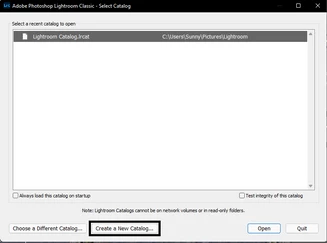
  • Choose the option to create a new catalog and create a new one on the internal drive.


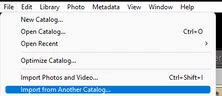
  • In the new catalog, head to File > Import from Another Catalog, as shown below.


Proceed with merging the old catalog into the newly made, internal storage-based catalog. 

For more help via video-based steps, check here. See Merging individual catalogs into a master catalog


Let me know how it goes from here,

Thanks!
Sameer K

3 replies

bradg56330306
Participating Frequently
May 1, 2023

Update: 

I auto-optimized my library and the previews are back, but so is the crashing error about reading the preview cache. I am still unable to import new photos. See photo sequence

Sameer K
Community Manager
Community Manager
May 1, 2023

Please share the system info as requested above. It'll help identify the root-cause of the catalog instability.

Thanks!

Sameer K

bradg56330306
Participating Frequently
May 1, 2023

Thanks for sharing the info.


  • Press the ALT/OPT (Windows/macOS) when launching Lightroom Classic.
  • Choose the option to create a new catalog and create a new one on the internal drive.


  • In the new catalog, head to File > Import from Another Catalog, as shown below.


Proceed with merging the old catalog into the newly made, internal storage-based catalog. 

For more help via video-based steps, check here. See Merging individual catalogs into a master catalog


Let me know how it goes from here,

Thanks!
Sameer K


Sameer, when I try to create a new catalog, I get an error message that says "file not found. Check the file name and try again." If I try to overwrite an existing catalog, I get a message that the catalog cannot be overwritten. What are my options?

Sameer K
Community Manager
Community Manager
May 1, 2023

Hey, @bradg56330306. Welcome to the Lightroom Classic Community. I'll need more info to help you figure this out. Please share the system info of Lightroom Classic from Help > System info > Copy & paste into a text document > Upload and share with us here.

Lightroom Classic attempts to generate previews for all other modules except the Develop module, and here the raw image is rendered as it is. That could be why the image is editable and not visible anywhere else.


Try using any recent catalog backup & check if the issue exists.

If this does not help, move the catalog folder to a different location & open the catalog again.


Let me know how it goes. Thanks!
Sameer K