paulinl22265988
Participant
May 30, 2020
Answered

Cannot import pics from Apple photo library LR Version 9.2.1

  • May 30, 2020
  • 3 replies
  • 7907 views

I cannot seem to be able to locate my photos to import into LR. The library doesnt even show up in finder.. 

IMPORT

USERS

MY COMPUTER

PICTURES


but the photo library is not showing up??


This topic has been closed for replies.
Correct answer gary_sc

Hi Paulin,


Your luck is that I helped somone recently on this. Apple does something VERY wierd here, they've "captured" all of the images into a storage section of the Photos App itself. There's no way for LR or any other application to access them.


HOWEVER: if you export them, you're good.


Open up Photos, do a Command-a to select all and export them like this:
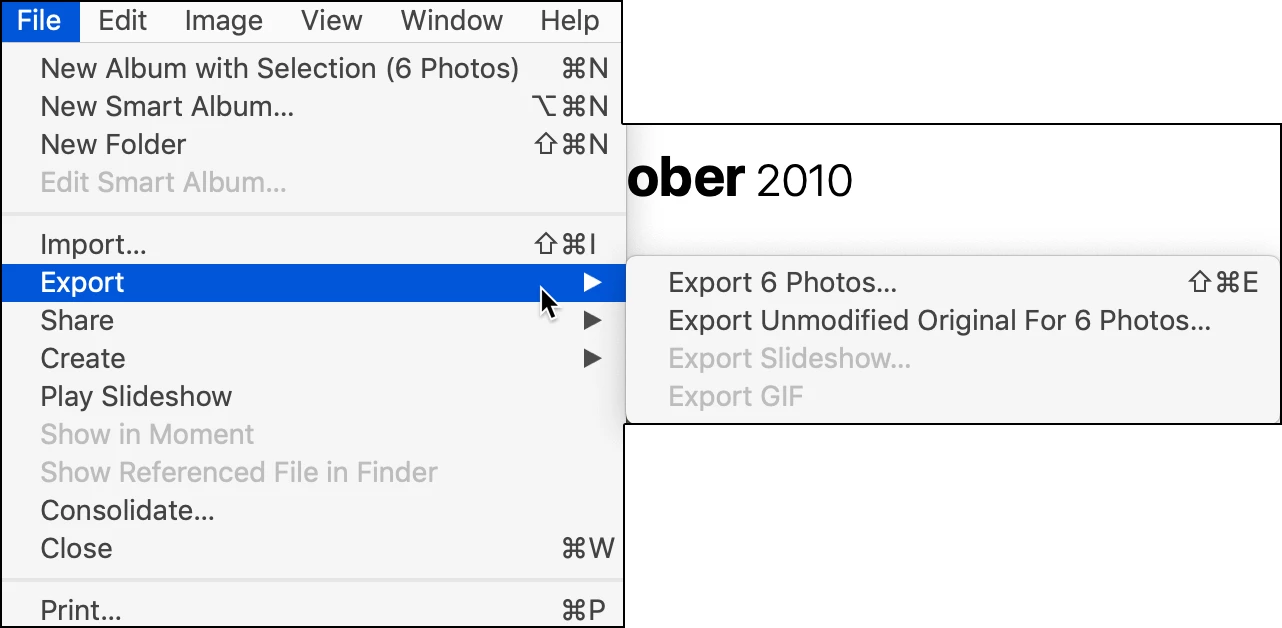
(Note: there are only 6 images here because I needed to find out what was happening so I just left them there.)


If you export the 6 images, they will still have any adjustments you've made on them.

If you export the Unmodified images, you will get the original images with no modifications. 


NOW, if you have them organized by events, people, places, whatever, I suggest you export them in blocs and place them in folders that respect those blocks. That is, if you have a block of photos from your trip to New York, place those images in a folder called New York. 


Do this with all of your images.


Now, for importing into Lightroom, here's a tip: LR does not know about or respect any folder that the images came from. By that I mean that if you import the images from a folder called New York, you will not see a folder called New York in Lightroom. But there's an easy way around this: as you export your images from Photos, Import them into LR in the same blocks. That is, as you select the folder called New York to import in, you can then create a folder in LR called New York to place them in. Continue this until you're done.


Tip#1: I've found it faster and easier to pre-create the folder that I want to create in the Library mode, not during Import. If I were to drag in the New York folder with the intent to add a folder during the Import process, it would bring up the Mac's New Folder window where I'd have to once again dig down to add the folder in the location I wanted. I've found that if I create the new folder BEFORE I start the Import, it's there waiting for me. That saves time.


However, importing in a folder that's already on your desktop can be a drag from the Import Dialog. The easier way to do this is to drag! So...


Tip #2: if you have a folder of images you want to bring into your catalog, if you are in Library mode and have the Grid (of images) showing, you can drag that folder over the Grid (you'll see a plug (+)) and LR will automatically switch over to Import mode and all you have to do is then deside the normal conditions you want, any presets, move or add, whatever, then select the location (already pre-set by Tip #1), and then click OK — you're done!


Let me know if this helps.



3 replies

Just Shoot Me
Legend
May 31, 2020

Actually you can access them directly in Finder by Expanding the Package folder they are stored and hidden in, from the users.

Once you Expand that package file (IIRC it is called Photos Library.photoslibrary”    https://osxdaily.com/2017/02/23/where-photos-files-located-mac/) you will find multiple folders with ther names as the dates you took the pitures. In those are you images.


I do not suggest the Export method as those Exports are NOT your original files.

I suggest you COPY all your image from the multiple folders you find in that package folder to s new folder that you create on your drive. Then LR can access that new folder.

gary_sc
Community Expert
Community Expert
May 31, 2020

Sorry Just Shoot Me,


Have you ever tried it?


When I did this original test I imported some copies of the images from some images in my computer and did the test of exporting from there. I just exported two images (of the 6 in there). One I didn't alter within Photos, the other I did. After exporting, they still have the same date as the original and do not show any modification changes in their metadata other than being opened today. Otherwise they match the original images exactly.


The problem with opening up the Container package within Photos is that you have a mess of images and if the user has done ANY sorting or of any kind, that's gone. On the other hand, if the user has no intention of doing any sorting nor any wish to know anything other than the date sort that is 2nd nature to LR-Classic, than sure, one can do it as you propose. But it will not make any difference to exporting without any alternations within Photos.

Just Shoot Me
Legend
May 31, 2020

I'm not talking about any Dates.

I'm talking about the Original Image files. When you Export from Photos the files created by the export process are COPIES of the original files not the original files. Which may or may not have any edits but they are still Copies.


The Capture Date/Time (The date and time the Camera recorded the image file) should never change. The File "On Disk" date will change but has no baring on this discussion.


All I'm trying to point out is the Original Files that were imported, or whatever Apple calls it, into the Photos program are available to the user by Expanding that Package folder and getting them out of there by either Copying or Moving them from that package folder and subfolders to some other folder on the Users hard drive.


Yes it make a Big difference to me. Exported files are NOT the Original files.

It might not matter to you or even the OP but it is something that needed to be pointed out.


Did you even bother to read the link I posted about how to access your original files in the Apple Photos program?

GoldingD
Legend
May 30, 2020

What MACOS?


and did you go from previous OS to new OS recently?


paulinl22265988
Participant
May 30, 2020

Hi David!

Thank you!

I am on catalina 10.15.4.

GoldingD
Legend
May 31, 2020

So Catalina, remember that security in Catalina has been steeped up and Apps need rights.


So, if you have not already done so see the following


On the MAC, in the OS, outside of Lightroom. Bring up System Preferences. Select Security and Privacy, Select the Privacy tab.


As you apparently save catalogs and/or photos in the system folder Photos, scroll down to Photos, if bit already a app with rights, add Lightroom Classic.


Next scroll down to Files and Folders, for both Lightroom Classic and for Photoshop, click on all boxes.


For some reason, and this is not consistent, some people have had to scroll up to Full Desk Access and added Lightroom Classic. On my MACBook, this is not the case.


https://nektony.com/duplicate-finder-free/folders-permission


gary_sc
Community Expert
gary_scCommunity ExpertCorrect answer
Community Expert
May 30, 2020

Hi Paulin,


Your luck is that I helped somone recently on this. Apple does something VERY wierd here, they've "captured" all of the images into a storage section of the Photos App itself. There's no way for LR or any other application to access them.


HOWEVER: if you export them, you're good.


Open up Photos, do a Command-a to select all and export them like this:

(Note: there are only 6 images here because I needed to find out what was happening so I just left them there.)


If you export the 6 images, they will still have any adjustments you've made on them.

If you export the Unmodified images, you will get the original images with no modifications. 


NOW, if you have them organized by events, people, places, whatever, I suggest you export them in blocs and place them in folders that respect those blocks. That is, if you have a block of photos from your trip to New York, place those images in a folder called New York. 


Do this with all of your images.


Now, for importing into Lightroom, here's a tip: LR does not know about or respect any folder that the images came from. By that I mean that if you import the images from a folder called New York, you will not see a folder called New York in Lightroom. But there's an easy way around this: as you export your images from Photos, Import them into LR in the same blocks. That is, as you select the folder called New York to import in, you can then create a folder in LR called New York to place them in. Continue this until you're done.


Tip#1: I've found it faster and easier to pre-create the folder that I want to create in the Library mode, not during Import. If I were to drag in the New York folder with the intent to add a folder during the Import process, it would bring up the Mac's New Folder window where I'd have to once again dig down to add the folder in the location I wanted. I've found that if I create the new folder BEFORE I start the Import, it's there waiting for me. That saves time.


However, importing in a folder that's already on your desktop can be a drag from the Import Dialog. The easier way to do this is to drag! So...


Tip #2: if you have a folder of images you want to bring into your catalog, if you are in Library mode and have the Grid (of images) showing, you can drag that folder over the Grid (you'll see a plug (+)) and LR will automatically switch over to Import mode and all you have to do is then deside the normal conditions you want, any presets, move or add, whatever, then select the location (already pre-set by Tip #1), and then click OK — you're done!


Let me know if this helps.


paulinl22265988
Participant
May 30, 2020

Hey Gary,

    Thank you so much for your input! I am going to try it and see what happens!! Thansk again!


paulinl22265988
Participant
May 30, 2020

It Totally worked!! Thank you so much!!