
Participant
August 1, 2024
Answered

Cannot move or modify a mask in Classic 13.3

  • August 1, 2024
  • 3 replies
  • 1103 views

Hi, it has been days since I cannot move or modify a mask after creating it in Lightroom CC. When I create a mask, there is no lines to modify it (to modify the feather of a radial mask for example) and I have no "point" to move, extend or rotate it. This is really frustrating, can someone help me with it? Thanks
Correct answer Conrad_C

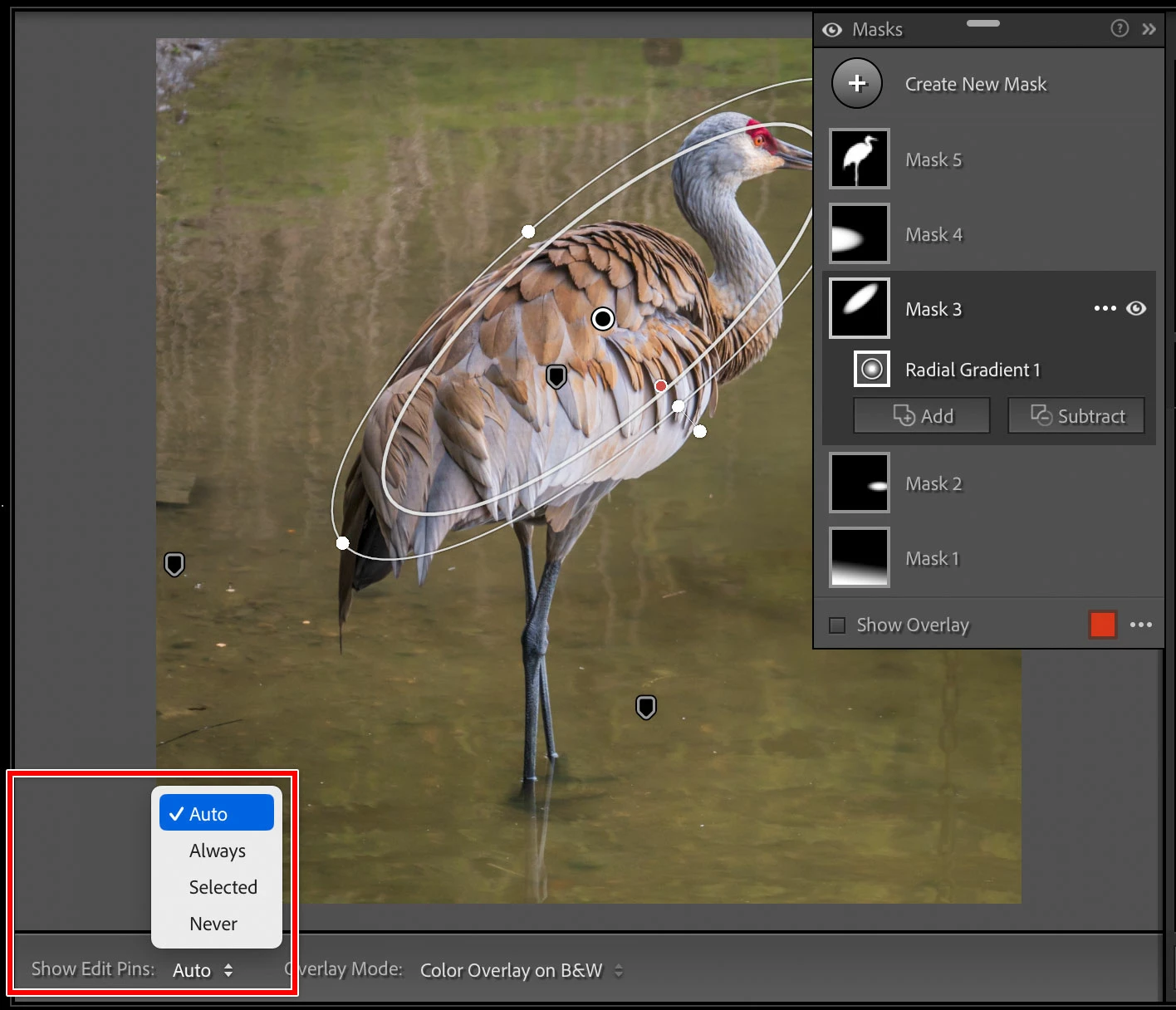
If you don’t see the on-image mask controls, their visibility is controlled by the tool overlay settings. These appear in two places: The Tools > Tool Overlay submenu, and the Show Edit Pins menu in the toolbar (when the toolbar is visible).


The H key shortcut tip that Ian provided is a popular single-key shortcut for toggling between Auto and Never on those menus (the shortcut is listed by the command Tools > Tool Overlay > Never Show).


If it changed and you don’t remember doing anything, what might have happened is that the H key got hit by mistake at some point.


3 replies

Siane698Author
Participant
August 1, 2024

Problem solved! Thanks to both of you guys 

Conrad_C
Community Expert
Conrad_CCommunity ExpertCorrect answer
Community Expert
August 1, 2024

If you don’t see the on-image mask controls, their visibility is controlled by the tool overlay settings. These appear in two places: The Tools > Tool Overlay submenu, and the Show Edit Pins menu in the toolbar (when the toolbar is visible).


The H key shortcut tip that Ian provided is a popular single-key shortcut for toggling between Auto and Never on those menus (the shortcut is listed by the command Tools > Tool Overlay > Never Show).


If it changed and you don’t remember doing anything, what might have happened is that the H key got hit by mistake at some point.


Ian Lyons
Community Expert
Community Expert
August 1, 2024

Have you tried tapping on the 'H' key to unhide the pins and guides?