anastasiaa67607051
Inspiring
September 1, 2020
Answered

Cant delete files with LR Classic 9.4 and Catalina

  • September 1, 2020
  • 4 replies
  • 1423 views

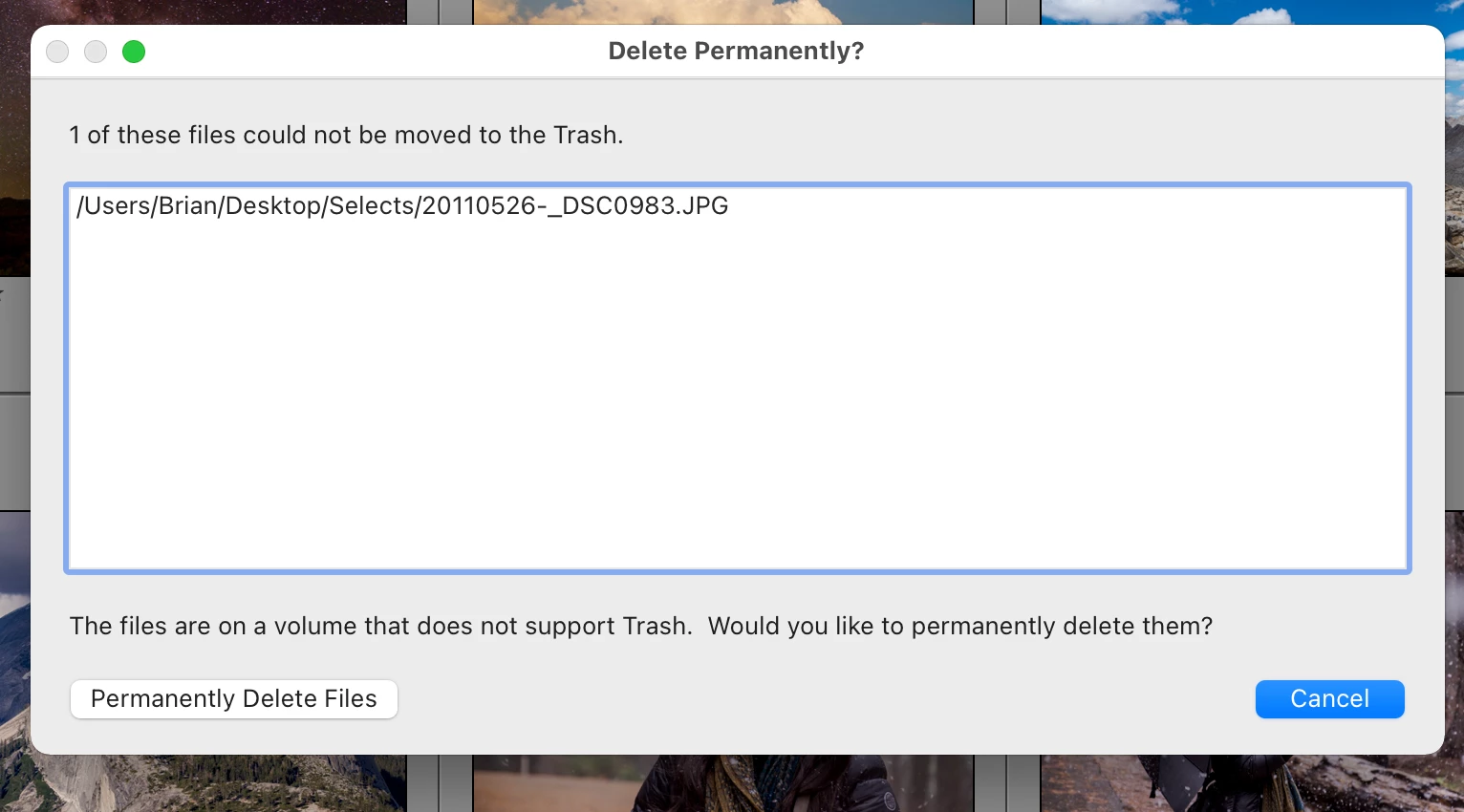
hello! I am getting this pop up saying that "the files are on a volume that does not support trash. Would you like to permanently delete them?" after I try to delete files off my Macbbook via Lr Classic running Catalina 10.15.6 and up to date Lr and Cam Raw. But even when i click permanently delete files, the images are still on my drive and in the lightroom catalogue. Help! 
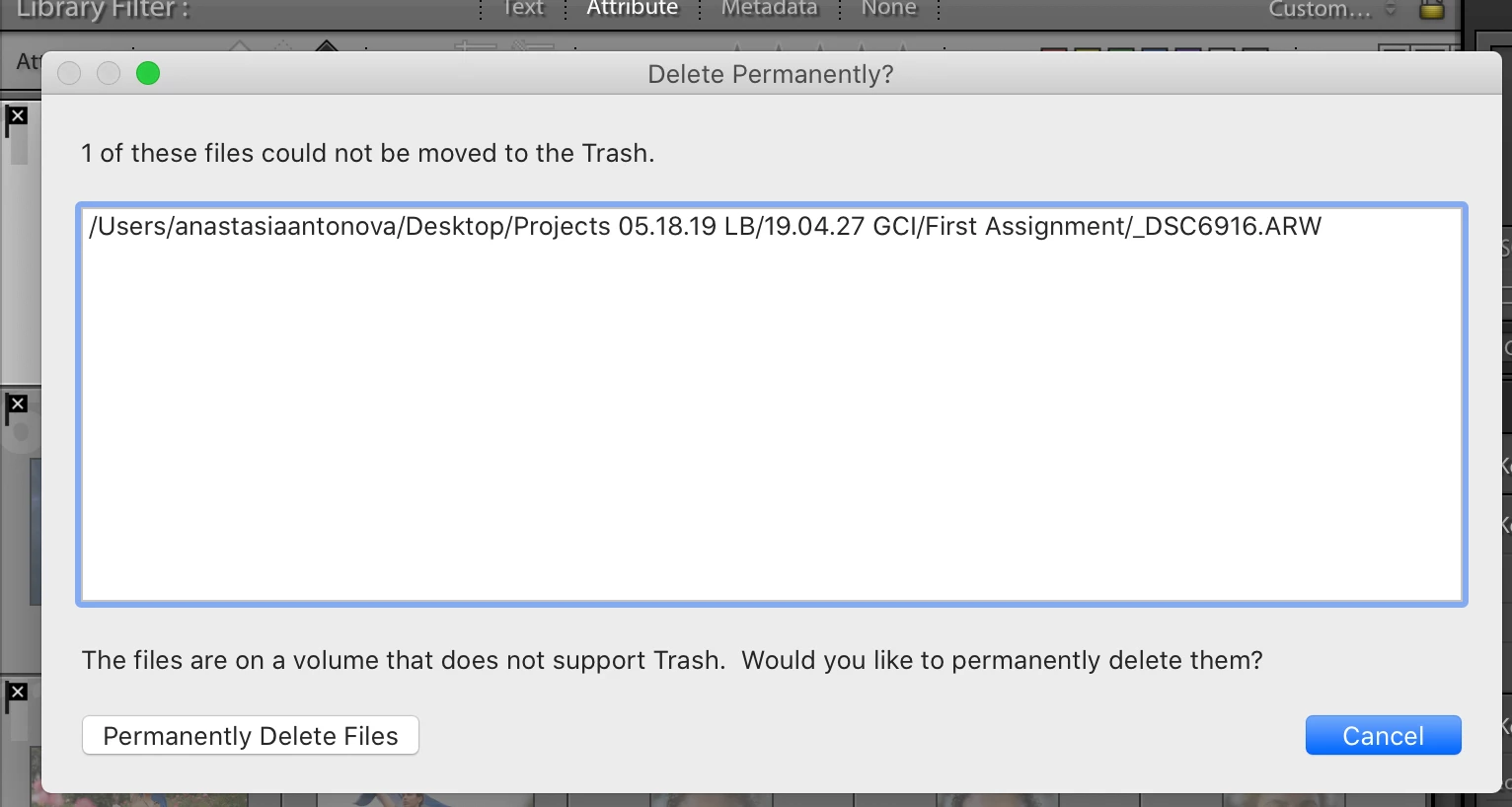
This topic has been closed for replies.
Correct answer kimballisms

Hi Anastasia, I was personally able to reproduce this.


This error happens when your Desktop folder is specially managed by macOS to be part of your iCloud Drive cloud files, so your desktop files are available from your iPhone/iPad/other macs.  Because it's in the cloud you actually don't have a real /Users/<name>/Desktop folder anymore, but Lightroom still sees one somehow, and gets confused when it's not on the same real filesystem as your Trash folder.


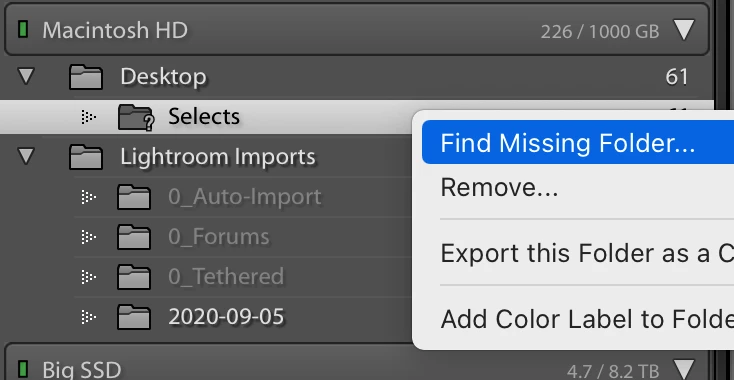
Your best option would be to quit Lightroom, move your entire folder of photos to a better location (like /Users/<name>/Pictures/FOLDER), and then when you re-open Lightroom, you can right-click on the missing folder and select "Find Missing Folder" from the context menu.  Navigate to where you put it on your real filesystem and you should be good to go.


4 replies

GoldingD
Legend
September 12, 2020

As to the files that will not go to trash, are they on an external hard drive? Is that external hard drive formatted using exFat? or FAt 32 (with a driver I assume)?


kimballisms
Inspiring
September 12, 2020

If you expand her screenshot and look closely at the full file path you can see the file is on her desktop.  I provided an explanation & solution above. 😉

kimballisms
kimballismsCorrect answer
Inspiring
September 12, 2020

Hi Anastasia, I was personally able to reproduce this.


This error happens when your Desktop folder is specially managed by macOS to be part of your iCloud Drive cloud files, so your desktop files are available from your iPhone/iPad/other macs.  Because it's in the cloud you actually don't have a real /Users/<name>/Desktop folder anymore, but Lightroom still sees one somehow, and gets confused when it's not on the same real filesystem as your Trash folder.


Your best option would be to quit Lightroom, move your entire folder of photos to a better location (like /Users/<name>/Pictures/FOLDER), and then when you re-open Lightroom, you can right-click on the missing folder and select "Find Missing Folder" from the context menu.  Navigate to where you put it on your real filesystem and you should be good to go.


anastasiaa67607051
Inspiring
September 13, 2020

thank u kim! i think i will stick to having it on the desktop and going thru the extra step but definitely happy to know the other option! Thank you again

TheDigitalDog
Inspiring
September 12, 2020

Sorry but I can't relicate this under Catalina; the delete function works as expected and explained. 

Author “Color Management for Photographers" &amp; "Photoshop CC Color Management/pluralsight"
JohanElzenga
Community Expert
Community Expert
September 1, 2020

Make sure that Lightroom has permission to access your Desktop folder. Check the options as below, or add Lightroom to 'Full Disk Access'.


-- Johan W. Elzenga
Participant
September 12, 2020

I checked my privacy and it has full access. 


I am not getting the popup he is getting but on my MAC, it is only removing the photos from the collection even if I select delete photos.


Does anyone know how to fix this?


Rob_Cullen
Community Expert
Community Expert
September 12, 2020

Deleting photos while viewing them in a Collection will only 'Remove' them from the Collection!

You must go to a Folder in the Folder panel and view the Library Grid to select and delete photos. Then you will get the dialog choice to [Remove- from the Catalog] or [Delete from the Hard-drive].


Regards. My System: Windows-11, Lightroom-Classic 15.1.1, Photoshop 27.3.1, ACR 18.1.1, Lightroom 9.0, Lr-iOS 10.4.0, Bridge 16.0.2 .