shyj
Participant
January 16, 2023
Answered

Canvas size for a collage using LrC Rel 12.1

  • January 16, 2023
  • 2 replies
  • 721 views

Trying to create scrapbook size collages (12"x12") using LrC Rel 12.1 on a Windows 11 PC.

All the tutorials I can find show two buttons at the bottom of the left panel

[Page Setup] and [Print Settings] but I only see one button [Page Setup]

When I click on [Page Setup] get the Print Settings window.  While I can select a paper size from that screen - it is tied to the printer that I have. (I don't have a large format printer).  For one of my printers I can select a Custom Paper size - but it will not allow for a paper that the printer can handle (12x12).  The Video Tutorials (YouTube) seems to use a different version of LrC and the [Page Setup] button opens a different screen tha does allow any size paper. - which they use to create a Collage and of course save it as a .jpg that you can send to have printed.

FYI - I used to use PSE to create my Scrapbook Pages - BUT  PSE-2022 only allow 8 photos in the "Create" Collage.

One work around I have tried - with mixed results - is to set up an 8x8 paper size in LrC - buld my Collage - save it as a jpg - open in PSE 2022 and resize it to 12x12.  Problem is the photo borders get unacceptalby large. . . .

Help!  
Correct answer Rob_Cullen

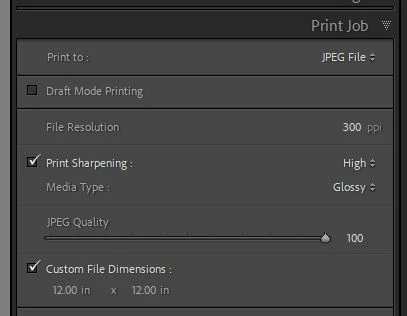
1) Set your [Print Job] to Print To:  'JPEG File'

2) Define your Page size in 'Custom File Dimensions: and set ppi.    (Inches x ppi = pixel dimensions of file)

3) Create the collage layout in a Custom Print

4) [Print to file] to 'export' a JPG.


PS:  Don't use any default Templates!!  You design the collage for 12x12in and save your own template!


2 replies

Rob_Cullen
Community Expert
Rob_CullenCommunity ExpertCorrect answer
Community Expert
January 16, 2023

1) Set your [Print Job] to Print To:  'JPEG File'

2) Define your Page size in 'Custom File Dimensions: and set ppi.    (Inches x ppi = pixel dimensions of file)

3) Create the collage layout in a Custom Print

4) [Print to file] to 'export' a JPG.


PS:  Don't use any default Templates!!  You design the collage for 12x12in and save your own template!


Regards. My System: Windows-11, Lightroom-Classic 15.1.1, Photoshop 27.3.1, ACR 18.1.1, Lightroom 9.0, Lr-iOS 10.4.0, Bridge 16.0.2 .
shyj
shyjAuthor
Participant
January 16, 2023

THANK YOU Rob Cullen 

- Thats worked - I needed to ignor the [Page Setup] button in Left Panel.☺

I added a few notes to your directions for those of us "novice" LrC Users ☺


In the Library Mode

Create a Collection that contains all the photos you might want to put into the Collage

In the PRINT mode - Right Column - 

- Layout Style - Custom Package

- Print Job -  
   - Print To:  'JPEG File'
   - File Resolution - 300 ppi (that's what I use for a 12x12in Scrapbook Page)

   - Custom File Dimensions: 12 in x 12 in

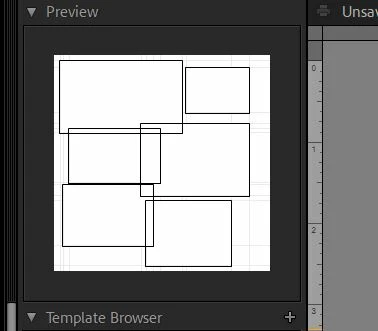
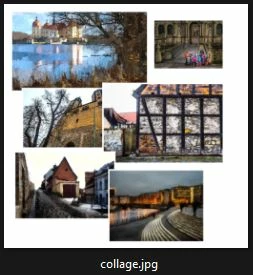
Create your collage then click the  [Print to File] button (Lower right corner of Right Panel) to 'export' a JPG.


Rob_Cullen
Community Expert
Community Expert
January 16, 2023

Good work, and the family will love it!

Thanks.

Regards. My System: Windows-11, Lightroom-Classic 15.1.1, Photoshop 27.3.1, ACR 18.1.1, Lightroom 9.0, Lr-iOS 10.4.0, Bridge 16.0.2 .
shyj
shyjAuthor
Participant
January 16, 2023

One of the YouTube videos that I mentioned in post

https://youtu.be/vOhipgKV9KE