
Participant
June 7, 2023
Answered

Catalog Problem Images Missing

  • June 7, 2023
  • 1 reply
  • 612 views

This morning I went to edit photos in my June 2023 folder, under the 2023 folder, and it showed three images.  There were over 100 images.  Looking under “All Photographs” I can see the images in chronological sequence, but they are not in the June folder.  Same with May.  The images are on the hard drive where they are stored.   Any ideas how to fix this, or what’s wrong?  My last backup was on 6/1/23, and today is 6/6/23.
This topic has been closed for replies.
Correct answer Ian Lyons

You've indicated that the missing photos can be seen in 'All Photographs', but not in the LrC folder. The easiest way to find where LrC has them stored is:


1. Go to 'All Photographs'

2. Right mouse click on any of the misplaced photos

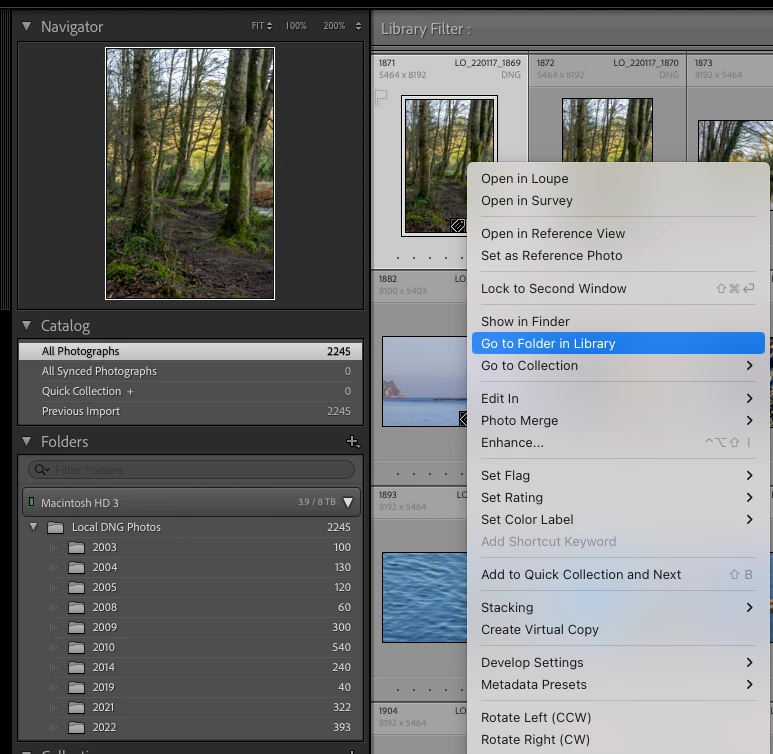
3. Choose 'Go to Folder in Library from the context menu as shown in attached screenshot.


Step 3 above should take you directly to the appropriate drive/folder and highlight the missing file. It will even expand the folder tree if necessary.


1 reply

Ian Lyons
Community Expert
Community Expert
June 7, 2023

You may have inadvertently enabled a filter or disabled subfolder view. Posting a screenshot showing the full Library module UI (with folder tree expanded) to the forum would be helpful. In the meantime, check that 'Show Photos in Subfolders' as shown in attached screenshot is enabled.


Participant
June 7, 2023

Thank you for the reply.  The "Show Photos in Subfolders" was checked, dang it.  I posted a photo of the folders, with the recent problem area expanded.  Aloha, Dom

Ian Lyons
Community Expert
Ian LyonsCommunity ExpertCorrect answer
Community Expert
June 7, 2023

You've indicated that the missing photos can be seen in 'All Photographs', but not in the LrC folder. The easiest way to find where LrC has them stored is:


1. Go to 'All Photographs'

2. Right mouse click on any of the misplaced photos

3. Choose 'Go to Folder in Library from the context menu as shown in attached screenshot.


Step 3 above should take you directly to the appropriate drive/folder and highlight the missing file. It will even expand the folder tree if necessary.