
Inspiring
December 29, 2017
Answered

Changing LR File Location - How To Point LR to New Location

  • December 29, 2017
  • 1 reply
  • 46724 views

I copied (Carbon Copy Cloner) my entire LR library to a brand new hard drive enclosure. Moving forward, I want to work from the new enclosure.

What are the steps to redirect LR to the new location? In short, the next time I launch LR, it needs to load from the new enclosure.

Preparation steps:

(1) The location of the Catalogs are set and will not change. They are on a completely separate hard drive.

(2) I have more than one backup of all the data.

(3) I have LR set up (desktop short cut) so LR opens directly from the .Ircat. If you're not familiar with this, I can provide more information.

System:

(1) macOS High Sierra (V 10.13.2)

(2) Thunderbolt2 to 2013 MacPro

(3) RAID 10 enclosure

Thank you in advanced for your assistance.

Rafael
This topic has been closed for replies.
Correct answer Rob_Cullen

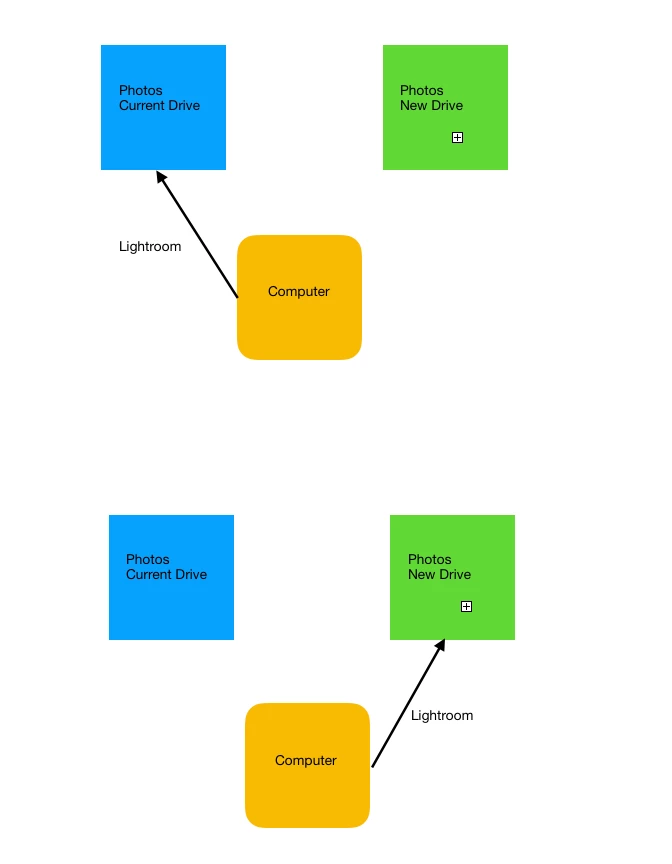
I've attached an images which shows what I'm attempting.

(1) Disconnect computer from current hard drive bay with all LR photos.

(2) Connect the computer to a new hard drive bay with all the LR photos.

When I disconnect the current bay, LR (I assume) is going to inquire, "where are the photos?", by placing a question mark on each folder. I would like to direct the computer (and LR) to the new bay/location.

If I right click on a given folder and select "find missing folder" and direct it to the new drive, will this work? Is this the proper manner to make this change?

Thank you,

R


And Victoria Bampton has a concise method for moving photo files-

https://www.lightroomqueen.com/move-photos-another-hard-drive-leaving-catalog/

1 reply

ManiacJoe
Inspiring
December 29, 2017

The location of the catalog and the location of the image files are completely separate and easy to move around.

Sounds like you want to change the location of the original image files from one drive to another. If so, that is an easy fix.

Open LR

Go to the Folders panel

Right-click on the top-most folder that you want to change,

select "change location", navigate to the new drive

Repeat as needed for each top-most folder you want to change.

Inspiring
December 29, 2017

I'm not sure I understand "top-most folder". When I right click on a folder these are the options that appear. See attached image.

Inspiring
December 29, 2017

It was hard to see from your screenshot, but it seems that you may have a large number of separately shown folders appearing in the Folders panel. This is what happens if you have imported a lot of separate shoots, for each of which you have made a separate folder; but without any of the folder context showing which these folders share in common. The LR Folders panel is at root, a listing of all the different discrete locations that are involved in your pictures' storage on disk (it doesn't display your complete file system per se).

By using the "Show Parent Folder" option you can cause Lightroom to also display the containing folder for a given shoot folder. If other shoot folders also occur within the same parent folder, then these move automatically to nest inside that - to correspond with how these folders physically related in the real file system. That will still be valid for the new arrangement, assuming you have not re-organised or renamed things piecemeal but simply transferred everything together in one lump.

Typically everything does sit under a single overarching parent folder, either directly or with a small number of intermediate folders between - for example, I have a single location with "Year" folders within. Once those "year" folders are showing you have the ability to select and manage a whole year's worth of photos in one go, rather than a single folder's worth. And by using "Show Parent" on one of the "year" folders, I have my full structure showing. Or you may have used some other system, or none.

"top-level" merely means, so far as your photos are concerned, the folder they all are contained inside - it does not have to occur at the very top of the file system of your drive.

But once an overarching parent folder is showing, this becomes a point of management for a whole lot of photos. So that is what you would re-address (Find Missing Folder / Update Folder Location). Ideally, that will be it but sometimes there are more than one involved - e.g. necessarily, if photos sit on different drives then there has to be at least a separate top-level folder on each drive.

Lightroom can, as of some versions back, add parent folders into its listing even once the former full path has stopped being accessible. Because LR has a record of what that former full path was.


I've attached an images which shows what I'm attempting.

(1) Disconnect computer from current hard drive bay with all LR photos.

(2) Connect the computer to a new hard drive bay with all the LR photos.

When I disconnect the current bay, LR (I assume) is going to inquire, "where are the photos?", by placing a question mark on each folder. I would like to direct the computer (and LR) to the new bay/location.

If I right click on a given folder and select "find missing folder" and direct it to the new drive, will this work? Is this the proper manner to make this change?

Thank you,

R