Participant
January 24, 2023
Answered

Cloning Tool does not seem to be working

  • January 24, 2023
  • 2 replies
  • 2034 views

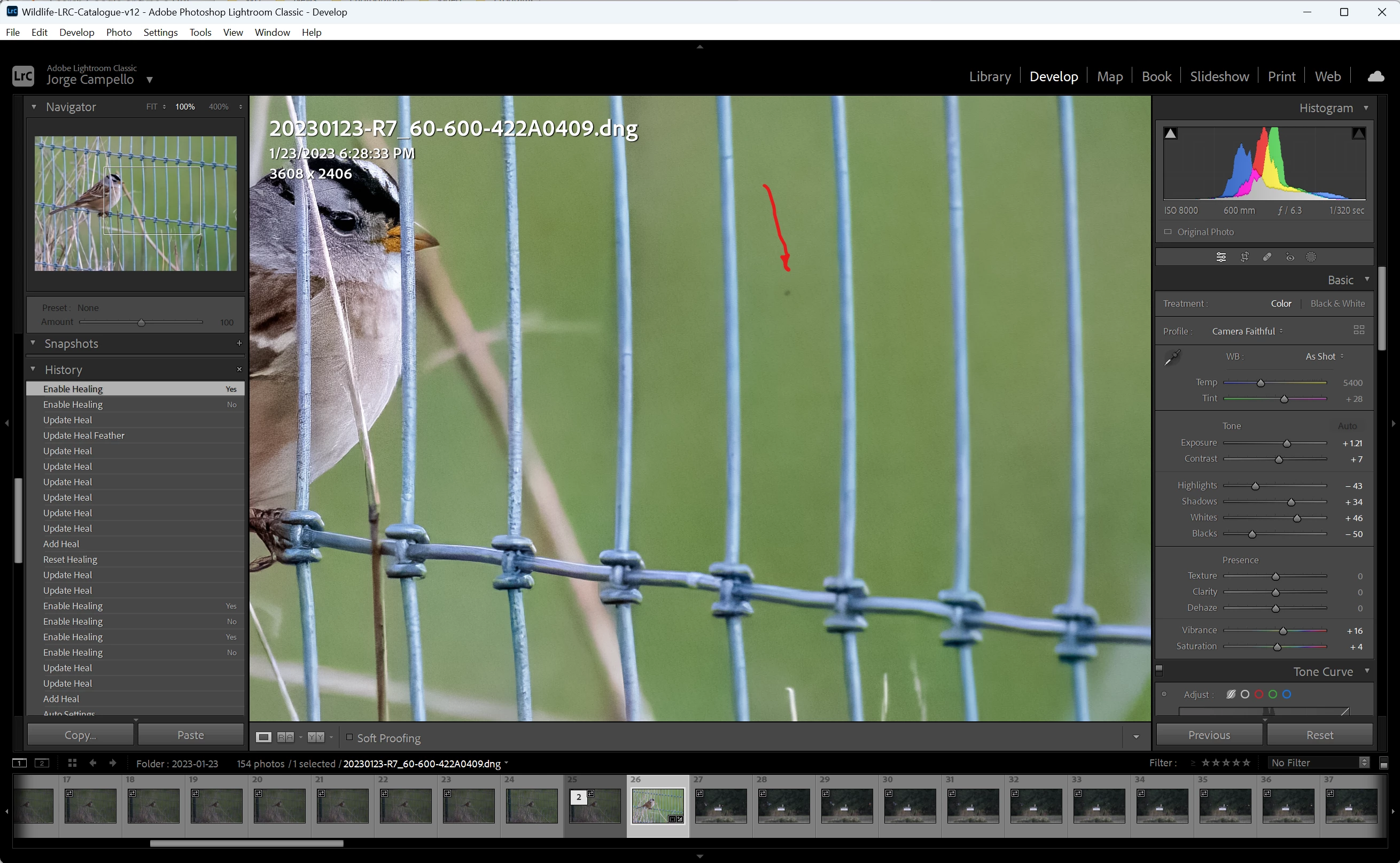
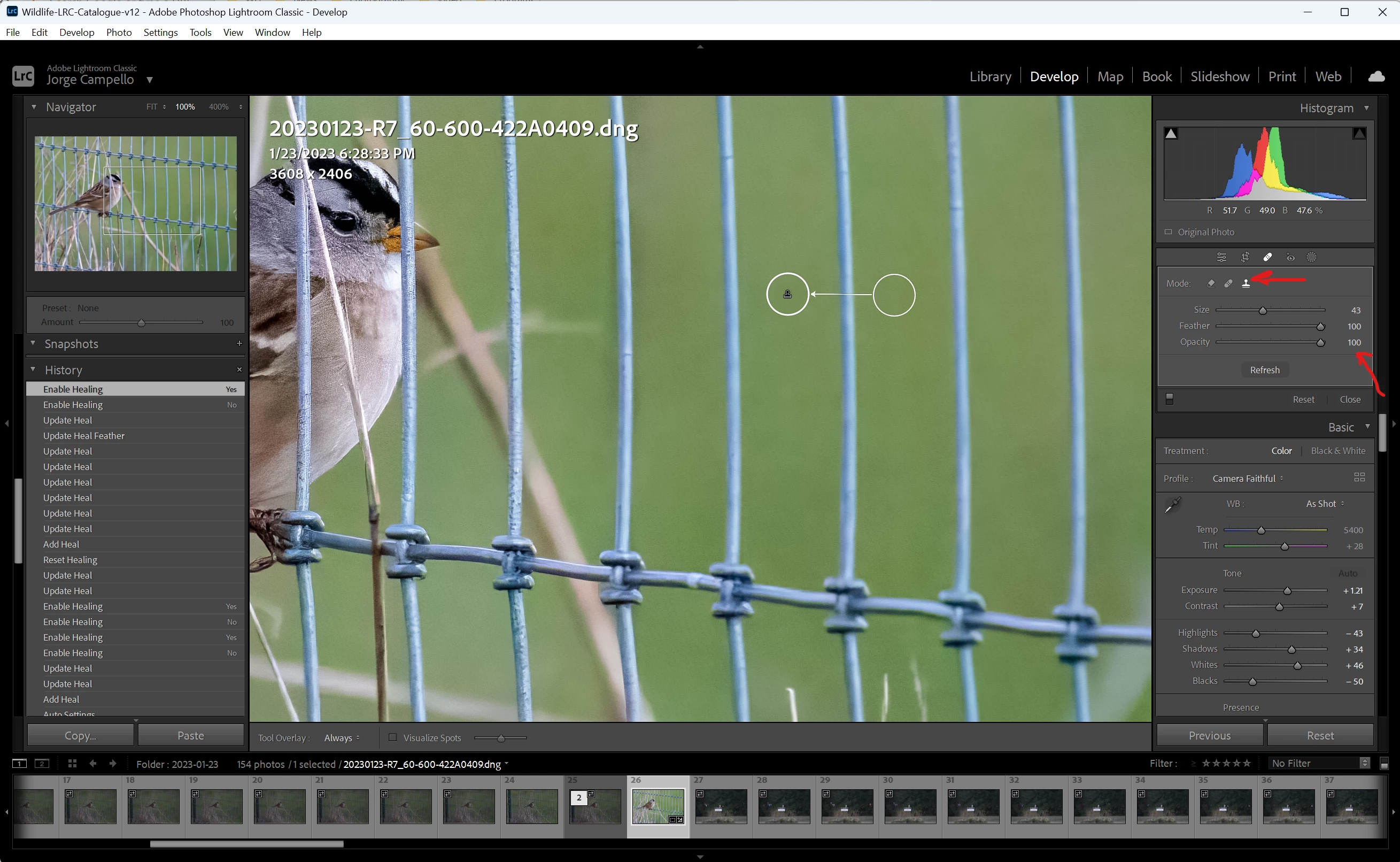
I'm having trouble wiht the Cloning Tool in Lightroom Classic.  It does not seem to work.  I've used it thousands of time with no issues, but somehow it isn't working.  I try to clone an area but the target area remains unchanged.  

I'm up to date with the latest version running on Windows 11.


This topic has been closed for replies.
Correct answer drtonyb

Do you have a background mask? I would expect this if you have created a background mask and adjusted it, then tried to remove a spot with any of the CA Remove/Heal/Clone modes. If you do have a background mask, select it in the Masking panel and it may be showing a warning that AI Settings Update is needed.

2 replies

drtonybCorrect answer
Legend
January 24, 2023

Do you have a background mask? I would expect this if you have created a background mask and adjusted it, then tried to remove a spot with any of the CA Remove/Heal/Clone modes. If you do have a background mask, select it in the Masking panel and it may be showing a warning that AI Settings Update is needed.

PinholeR5Author
Participant
January 24, 2023

Yes! Thank you for the suggestion. That solved my issue.


It wasn't a background mask but a stray mark from an adjustment mask I had made with the brush to deal with some blown-out highlights.  I must have inadvertently clicked while moving the mouse, leaving a stray dot.

PinholeR5Author
Participant
January 24, 2023

It is really strange.  I moved the source to include the fence, and with 0 feather. It does substitute it in but the dot I'm trying to remove is still there!   Now, the dot itself is in the image and not the monitor because I can move the LR window around and the dot stays in the same place in the image.