Participating Frequently
June 15, 2023
Answered

Color Issues with Lightroom

  • June 15, 2023
  • 3 replies
  • 4912 views

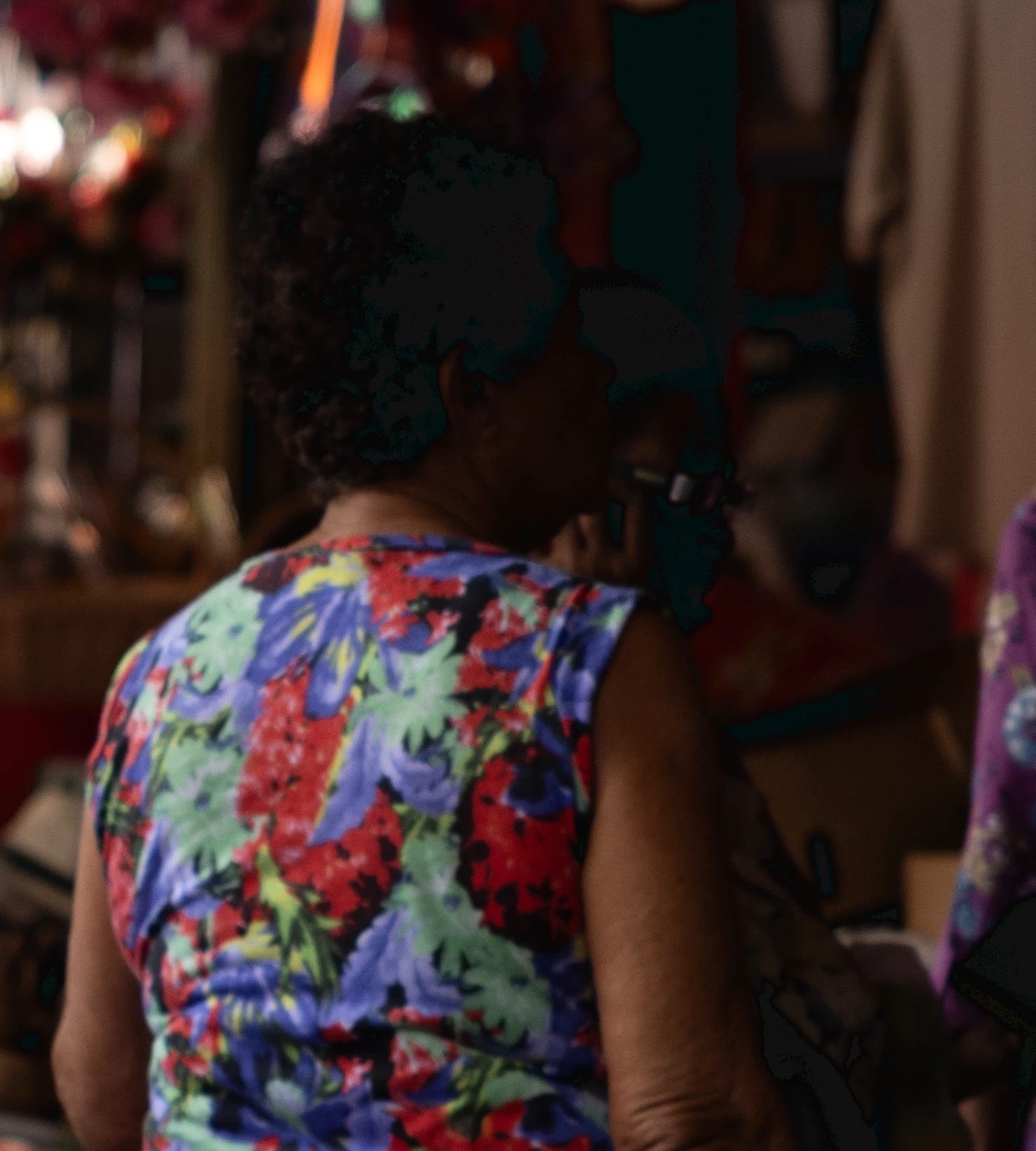
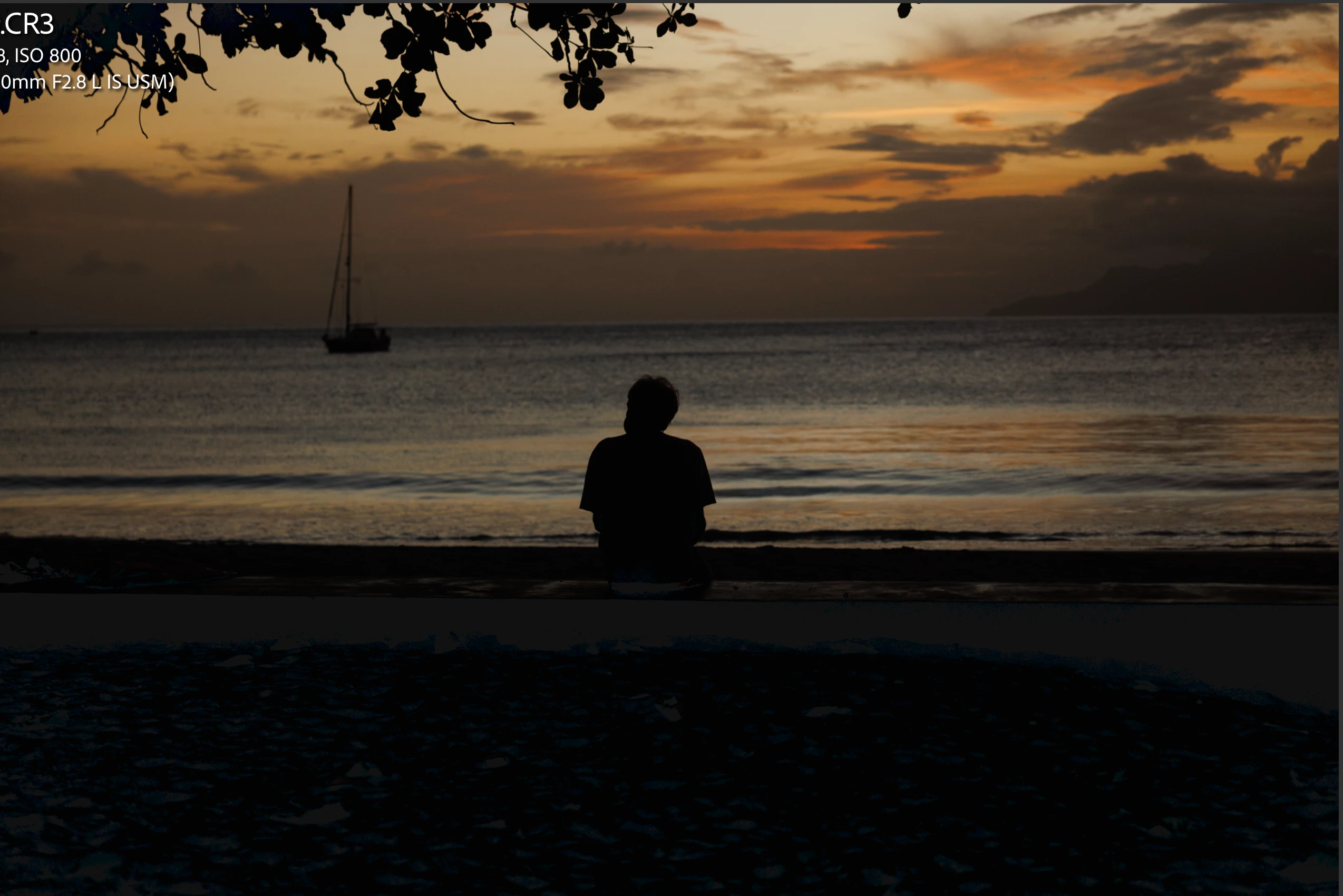
Currently using the updated Lightroom Classic v.12.4 on Big Sur v.11.7.7. Since the update with LRC 2 days ago, I've been having issues with weird colors appearing on the photos while editing, the darks shows off a reflective or dark blue-ish color which is not visible Lightroom CC. Can anyone help with this issue?


*attached photos have been underexposed to show the colors in the shadows*
  

This topic has been closed for replies.
Correct answer AxelMatt

The first thing that you should try is to switch off the GPU support from the Lightroom preferences and check if that helps to fix the issue. 

Go to Lightroom > Preferences > Performance tab > Uncheck "Use Graphics Processor" > Restart Lightroom. 

https://helpx.adobe.com/lightroom-classic/kb/troubleshoot-gpu.html 


Another step is to try to reset the Lightroom preferences. 

https://www.lightroomqueen.com/how-do-i-reset-lightrooms-preferences/ 

It's recommended to backup your preferences before you reset the preferences to the default settings: 

https://helpx.adobe.com/lightroom-classic/kb/preference-file-and-other-file-locations.html 


3 replies

AxelMatt
Community Expert
AxelMattCommunity ExpertCorrect answer
Community Expert
June 16, 2023

The first thing that you should try is to switch off the GPU support from the Lightroom preferences and check if that helps to fix the issue. 

Go to Lightroom > Preferences > Performance tab > Uncheck "Use Graphics Processor" > Restart Lightroom. 

https://helpx.adobe.com/lightroom-classic/kb/troubleshoot-gpu.html 


Another step is to try to reset the Lightroom preferences. 

https://www.lightroomqueen.com/how-do-i-reset-lightrooms-preferences/ 

It's recommended to backup your preferences before you reset the preferences to the default settings: 

https://helpx.adobe.com/lightroom-classic/kb/preference-file-and-other-file-locations.html 


My System: Intel i7-8700K - 64GB RAM - NVidia Geforce RTX 3060 - Windows 11 Pro 25H2 -- LR-Classic 15 - Photoshop 27 - Nik Collection 8 - PureRAW 5 - Topaz Photo
Dario5E6AAuthor
Participating Frequently
June 16, 2023

Turning off the GPU support for image processin did the trick, thank you so much Axel. 

Dario5E6AAuthor
Participating Frequently
June 16, 2023

You said further up that you had already done that. But then you hadn't after all-?


It seems that instead of turning it off completely I changed it to 'Auto', my mistake for not disabling it completely. But switching off the GPU for image processing did the trick. Thanks again for your help. 

D Fosse
Community Expert
Community Expert
June 16, 2023

I see it.


It looks like what I would normally call a defective monitor profile - but it could also be a GPU-related bug.


In many cases those are flip sides to the same thing, as display color management is performed in the GPU these days. A marginal profile could kick off a GPU problem and vice versa. And that again could happen with a new Lightroom version making new calls to the GPU.


Are you using a calibrator? I'd make a new profile first of all. Make sure you're making a v2 matrix-based profile, not v4 and/or LUT-based. Both the latter can be problematic in many scenarios and configurations.


My guess is that it disappears if you disable GPU in preferences?


Do you have Photoshop? Does it display the same thing? How about ACR?

Dario5E6AAuthor
Participating Frequently
June 16, 2023

But wouldn't it be the same thing over all the other applications if it was a defective monitor profile? And no, I haven't used a calibrator to calibrate my monitor. And nope, it doesn't disappear when I disable GPU in preferences 😕😕 


Photoshop and Lightroom CC works fine only issue is with the Lightroom Classic which I use more.

D Fosse
Community Expert
Community Expert
June 16, 2023
quote

But wouldn't it be the same thing over all the other applications if it was a defective monitor profile?


By @Dario5E6A


No, that's a common misunderstanding. Monitor profiles are pretty complex, and if some part of it isn't written according to strict icc specification, different applications can handle that differently.


Even if it all ends up in the same monitor profile, the source color spaces are often different. So the actual conversions are different.  In Lightroom Develop the data go from linear ProPhoto to the monitor profile. In Photoshop it goes from a gamma-encoded standard color space to the monitor profile. Those are two very different conversions. One may work correctly while the other fails.


Do you see any difference between Lightroom Library and Develop? That's another smoking gun.


Geoff the kiwi
Community Expert
Community Expert
June 16, 2023

I can't see what you are meaning - I'm on a phone in the middle of Africa!!

However it sounds like the clipping mask for underexposed out of gamut is showing.

This is turned off/on by the triangle top left in the Histogram. Over mask is red and accessed via the triangle in the right corner 

Dario5E6AAuthor
Participating Frequently
June 16, 2023

Basically it's showing an odd colors while editing especially in the blacks. I've turned off the clipping mask still same issue unfortunately 😞