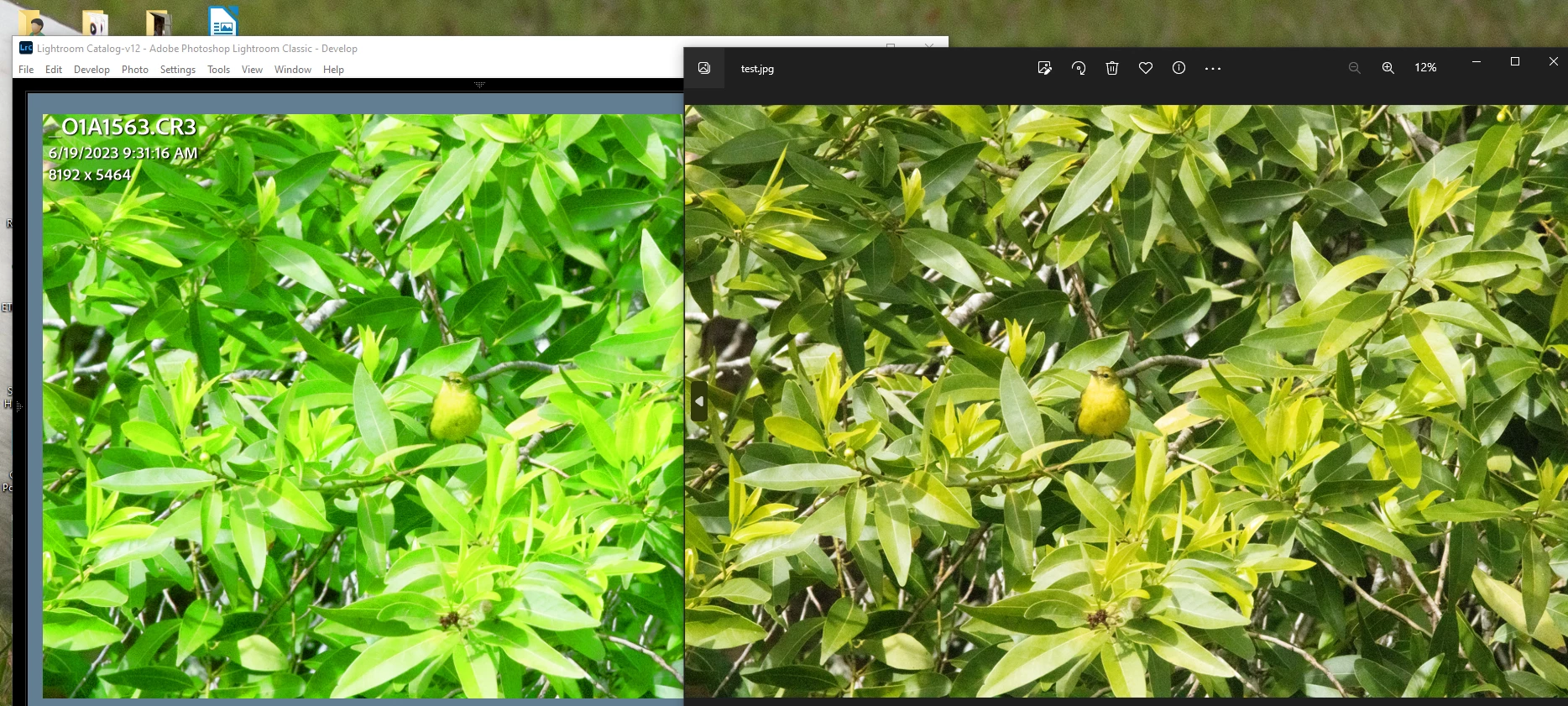
Thanks for the replies. I am sorry I am so dense about this, but it just doesn't make sense that the only place on the whole computer that has these weird oversaturated colors is in Lightroom. Nothing changed when I disabled the GPU in Lightroom preferences.
I am attaching a screen shot of the two different looks. When I export without editing (I don't use Lightroom catalog, please don't judge) to the folder where I keep my pictures, the colors look normal. See attached screenshot showing the filmstrip from lightroom and the unedited exported image. If I edited the photo and got ris of the weird colors, the export would look dull. I hope I'm explaining this right. Thanks for your kindness.
If disabling the GPU doesn't help, you most likely have a defective monitor profile.
Different color managed applications (like LrC and Photos) can react differently to a bad profile, which seems to be the case here. LrC is particularly picky about the monitor profile, while other applications tend to be more forgiving.
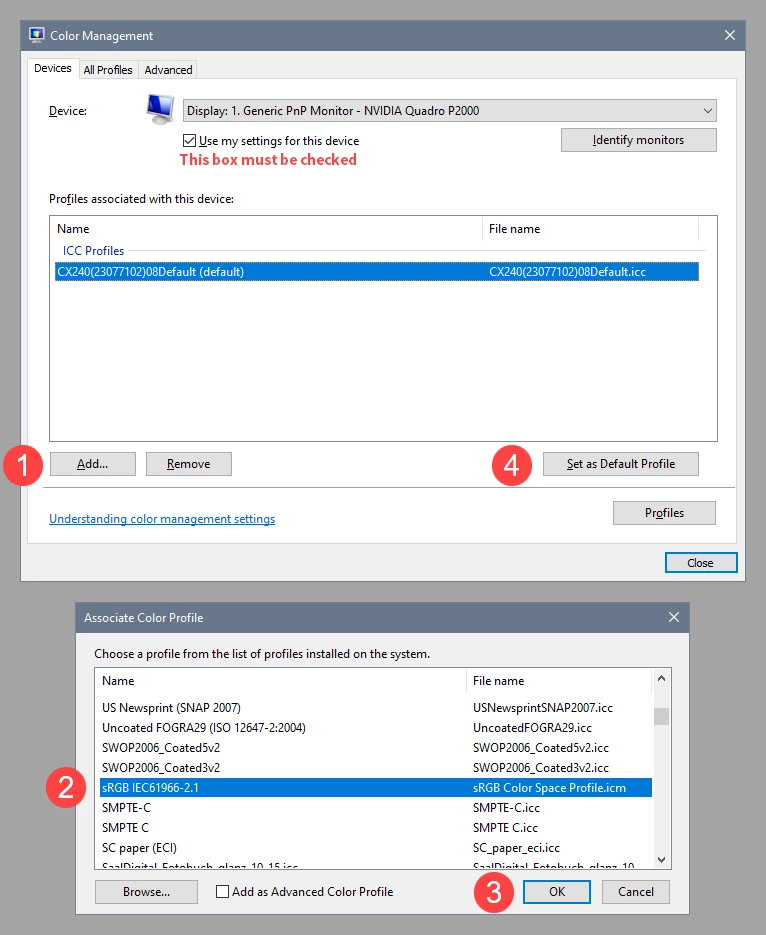
Try setting the monitor profile to sRGB (use Adobe RGB if you have a wide gamut monitor).
With LrC and Photos closed, press the Windows key + R, type colorcpl in the box and press Enter.
In the Color management dialog that appears, add the sRGB profile, then set it as default.
If this fixes the issue, you should ideally calibrate your monitor with a hardware calibrator. This will also create and install a custom monitor profile that will be more accurate than sRGB.

 AdChoices