Participating Frequently
December 14, 2021
Answered

Completely different colors when exporting

  • December 14, 2021
  • 4 replies
  • 11373 views

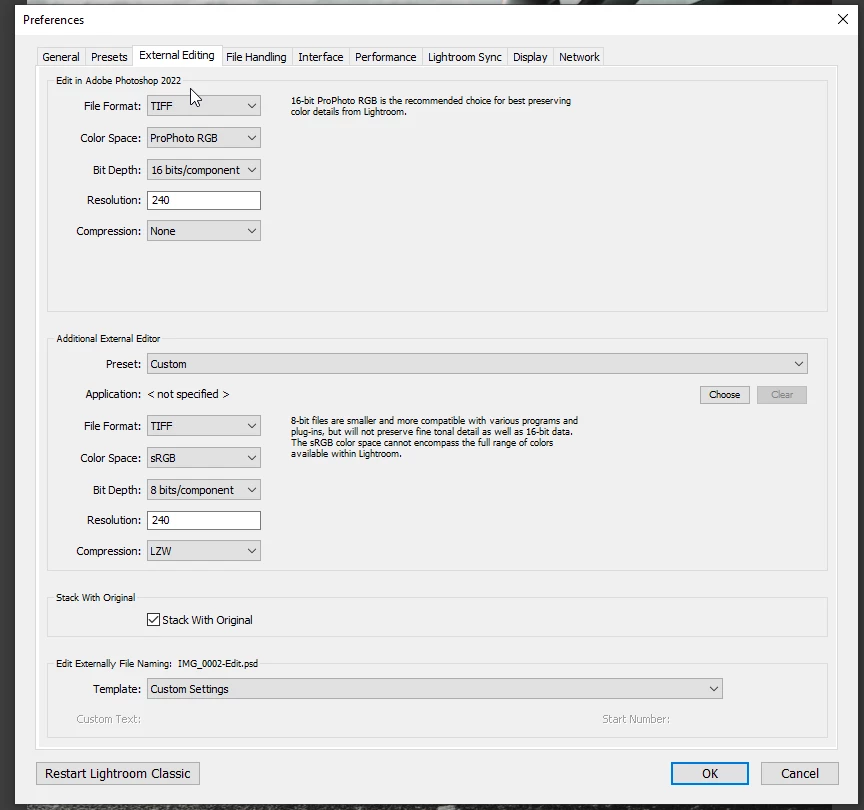
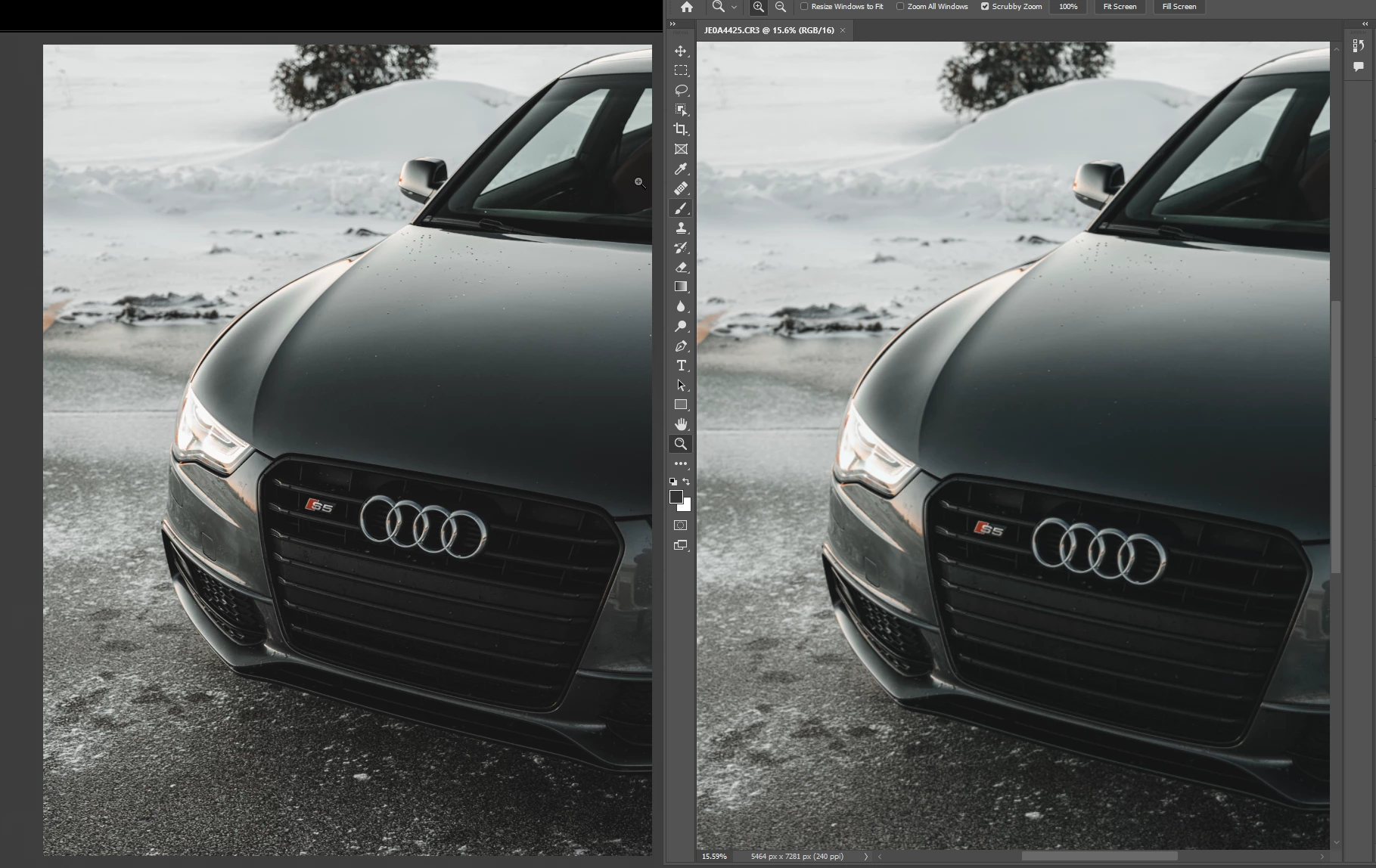
Hi all. When exporting from Lightroom Classic, or using the "edit in" function and editing in Photoshop 2022, the colors in my image are completely different. I have tried updating my graphics drivers. My display calibration is set to sRGB - but I do not think this is the issue as they are different even between applications.


I have not tried uninstalling and reinstalling. Version numbers are at the bottom of this post.


I've been struggling trying to find a solution for about 2 hours now and would appreciate any and all help as to why this would be happening.


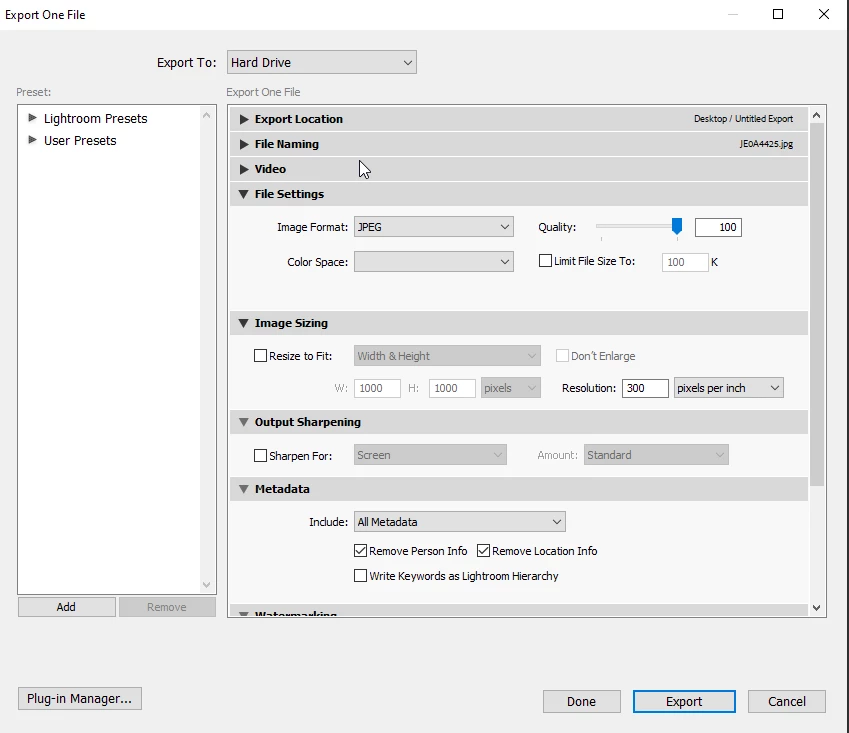
Photoshop Color Settings
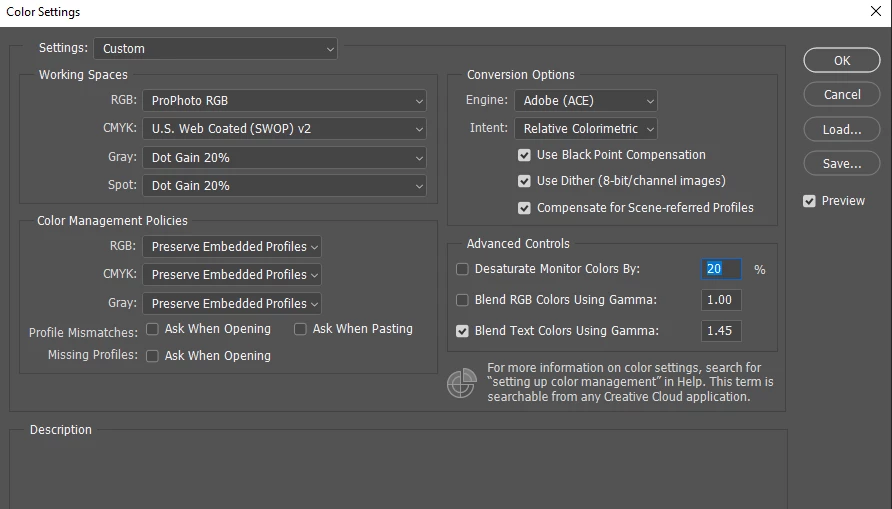
 

Lightroom External Editing & Export settings


Example below. Left is lightroom(correct) right is photoshop(wrong) You can even see some weird red color artifacting on the hood in the right image.
 

Lightroom Classic version: 11.0.1 [ 202111111509-eae8952e ]
License: Creative Cloud
Language setting: en
Operating system: Windows 10 - Home Premium Edition
Version: 10.0.19044


Adobe Photoshop Version: 23.0.2 20211119.r.101 ace26c0 x64
Number of Launches: 2
Operating System: Windows 10 64-bit
Version: 10 or greater 10.0.19044.1387

This topic has been closed for replies.
Correct answer johnrellis

I see that in the files I posted as well - odd that the magenta/red is showing up in 8 in those images. In Lightroom, that is not present on my monitor.


I am viewing the image in Develop inside Lightroom. Great info on the conversion paths though - that's nice to know.

Here is a link to the raw and xmp sidecar. Let me know what you see when you open it up/export/edit in PS.

Adobe Files 


"Here is a link to the raw and xmp sidecar. Let me know what you see when you open it up/export/edit in PS."


On my wide-gamut calibrated Eizo, I can't see any difference between:

- LR Develop,

- LR > Export to quality 100 sRGB JPEG > PS, and

- LR > Edit In > PS (ProPhoto RGB)


This suggests that what you are seeing is specific to your display, and calibrating it with a hardware calibrator (e.g. a Spyder or i1Display for about $130 - $200) should be the next step.


4 replies

Participant
September 11, 2024

Probably your edits was made on HDR mode and then you exporrted the image as jpg there is a little tick box under your image that title soft proofing and that how your photo will look like if you export as a jpg or tried to use online

Leonardo Izar
Participant
September 26, 2022

Simple solution and many wrong answers. I faced the same problem. go to the color sync utility and change the default color LCD to sRgb. You may need to look for the profile in the color profiles folder on the system.

johnrellis
Legend
December 14, 2021

[This post contains formatting and embedded images that don't appear in email. View the post in your Web browser.]


The Export settings show no color space is selected:


That's not supposed to happen -- normally, LR forces you to pick one. Try selecting sRGB and then updating the Export preset (if you're using one).


Correcting the Export settings won't affect the issue you're also seeing with Photoshop, but one issue at a time.

johnrellis
Legend
December 14, 2021

"My display calibration is set to sRGB"


1. Do you mean you've selected sRGB as the profile assigned to the display by Windows?


2. Are you on a Surface Pro by any chance? 


3. Triple-check you've assigned the profile "sRGB IEC61966-2.1" to your display by following the instructions here precisely:

https://www.lightroomqueen.com/how-do-i-change-my-monitor-profile-to-check-whether-its-corrupted/


Participating Frequently
December 17, 2021

I'm viewing these on my calibrated wide-gamut Eizo and my uncalibrated wider-gamut Macbook Pro Retina screen. In all three screenshots, I see a very faint, barely noticeable dark red tint across the hood, and in 10.png I might see a tiny bit of red triangle in the lower-right corner. It may be that 9.png and 10.png show just a tad bit more red tint than 8.png (Lightroom).


It sounds like the band of red across the hood and the triangle are much more noticeable on your display.


Some thoughts: 


1. How are you viewing the image in LR, Library Loupe or Develop?  You'll get the most accurate color by viewing at 100% zoom in Develop. In Library Loupe, there's an additional conversion to 8-bit Adobe RGB. (See the next point.)


2. There can be small differences between LR Develop, LR Library Loupe, and Edit In Photoshop.  Develop's working space is Melissa RGB (16-bit, Pro Photo primaries, a linear curve); Library previews are in 8-bit Adobe RGB (wider gamut than sRGB, but with more opportunity for color banding); your Edit In Photoshop settings convert the raw photo to 16-bit Pro Photo RGB; and the display's profile is 8-bit sRGB.  So the paths are:


Develop: raw > Melissa RGB > display's sRGB

Develop, Edit In PS: raw > Melissa RGB > Pro Photo RGB > display's sRGB

Library Loupe: raw > Melissa RGB > Adobe RGB, compressed JPEG > display's sRGB

Export to sRGB and open in PS: raw > Melissa RGB > sRGB, compressed JPEG > display's sRGB


Especially in the darker areas, there can be color inaccuracies with these paths due to the color-space conversions (especially to 8-bit Adobe RGB and sRGB) and from the JPEG compression.  It seems plausible that the different paths will produce slightly different results in the darks.


3. By setting your display profile to sRGB, you've ensured that differences between LR and PS weren't being caused by incompatible or non-industry-conforming display profiles. But you'll get more accurate color display by calibrating your display with a hardware calibrator.  (And when you do that, defer any upgrade to Windows 11 until you've verified that Microsoft has fixed its horrible bug with setting display profiles.)


4. If you provide the original raw with its edits, others of us can view the photo on wider-gamut displays, to confirm what you're seeing is caused by displaying the image on an sRGB display. Select the photo, do Metadata > Save Metadata To File, upload the raw and the .xmp sidecar to Dropbox, Google Drive, or similar, and post the sharing link here.


I see that in the files I posted as well - odd that the magenta/red is showing up in 8 in those images. In Lightroom, that is not present on my monitor.


I am viewing the image in Develop inside Lightroom. Great info on the conversion paths though - that's nice to know.

Here is a link to the raw and xmp sidecar. Let me know what you see when you open it up/export/edit in PS.

Adobe Files 


GoldingD
Legend
December 14, 2021

As of this evening, several updates are available, your issue may or may not get fixed.


PS v23.1

Lr v5.1

LrC v11.1

Camera RAW v14.1


Participating Frequently
December 14, 2021

I do not see these updates available.


GoldingD
Legend
December 14, 2021

You may need to refresh, also you can click on check for updates.


refresh mentioned in https://community.adobe.com/t5/lightroom-classic-bugs/p-headlights-dll-error/idc-p/12592127#M22763