
Known Participant
August 7, 2018
Answered

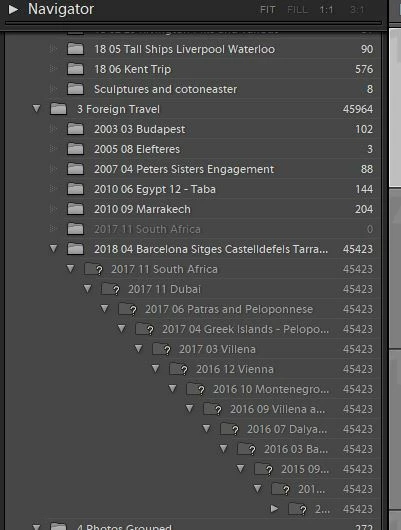
Completely messed up folder restructure by using Update Folder Location

  • August 7, 2018
  • 1 reply
  • 3134 views

Oh dear what a mess!  I keep my photo's on my hard drive in a very orderly fashion but had added some new folders and deleted some others whilst trying to free up some space - probably should have done it through Lightroom but hindsight is a wonderful thing!

I have 3 main folders in a larger folder called Photo's.  The third folder is called Foreign Travel and within that a folder for each trip I've taken - about 45000 photos.

For some reason it wouldn't let me sinc the folders - the button was greyed out so I went into each folder using Update folder location.

What this did is create a new folder as a sub folder - each containing 48000 photos

Now if I try to delete each one of these sub folders with 48000 photo's will I have to import them all again?  Any help will be very much appreciated.
    This topic has been closed for replies.
    Correct answer JohanElzenga

    Thank you - Athens and Athens 2 are 2 different folders and better not merged as one was at the beginning of the trip and the other at the end.  When I write up my little travelogue it is easier to find the photo's I need this way.  Is there anyway to bring in the Athens folder without merging it?


    stephanieb88038528  wrote

    Thank you - Athens and Athens 2 are 2 different folders and better not merged as one was at the beginning of the trip and the other at the end.  When I write up my little travelogue it is easier to find the photo's I need this way.  Is there anyway to bring in the Athens folder without merging it?

    The images in that folder must be somewhere on your hard disk (unless you deleted them). So you'll have to find out where they are, and then reconnect the 'Athens' folder to their current folder, regardless of the name of that current folder. If the images aren't anywhere on any hard disk, then there is nothing you can do but remove them from Lightroom.

    1 reply

    JohanElzenga
    Community Expert
    Community Expert
    August 7, 2018

    No, don’t try to reimport anything and don’t use Synchronize Folder! What you need to do is first get an overview of the real folder structure on the disk. Compare that to what Lightroom makes of it. Then starting at the top, use ‘Update Folder Location’ or ‘Find Missing Folder’ (the menu depends on whether Lightroom sees the folder as missing) to reconnect Lightroom to the real location of the folder(s). If you need help, then make screenshots of the entire folder panel and of the disk. This one screenshot shows the kind of problem, but we can’t suggest the solution because we don’t know how it should look.

    -- Johan W. Elzenga
    Known Participant
    August 7, 2018

    Thank you so much JohanEl54 - I really appreciate your time

    I've just taken a screenshot of the folder list on my hard drive.  I will go through the process as you have suggested. 

    How do I get rid of the new folders that I created in the screenshot?  It appears that all photographs appear in each sub folder.  If I delete them what will be the repurcussions?

    Best wishes

    S

    Known Participant
    August 8, 2018

    Unfortunately, the idea that I had doesn't work. Bummer. We will have to keep trying with the current approach. Are you sure that you didn't select the wrong menu this time? The error seems to suggest that Lightroom wanted to create a folder, not hide one. Maybe you selected 'Show Parent Folder' rather than 'Hide this Parent Folder'? Maybe you should just try it again.