
Participating Frequently
November 27, 2022
Question

Corrupt files appearing when I open Lightroom

  • November 27, 2022
  • 3 replies
  • 2221 views

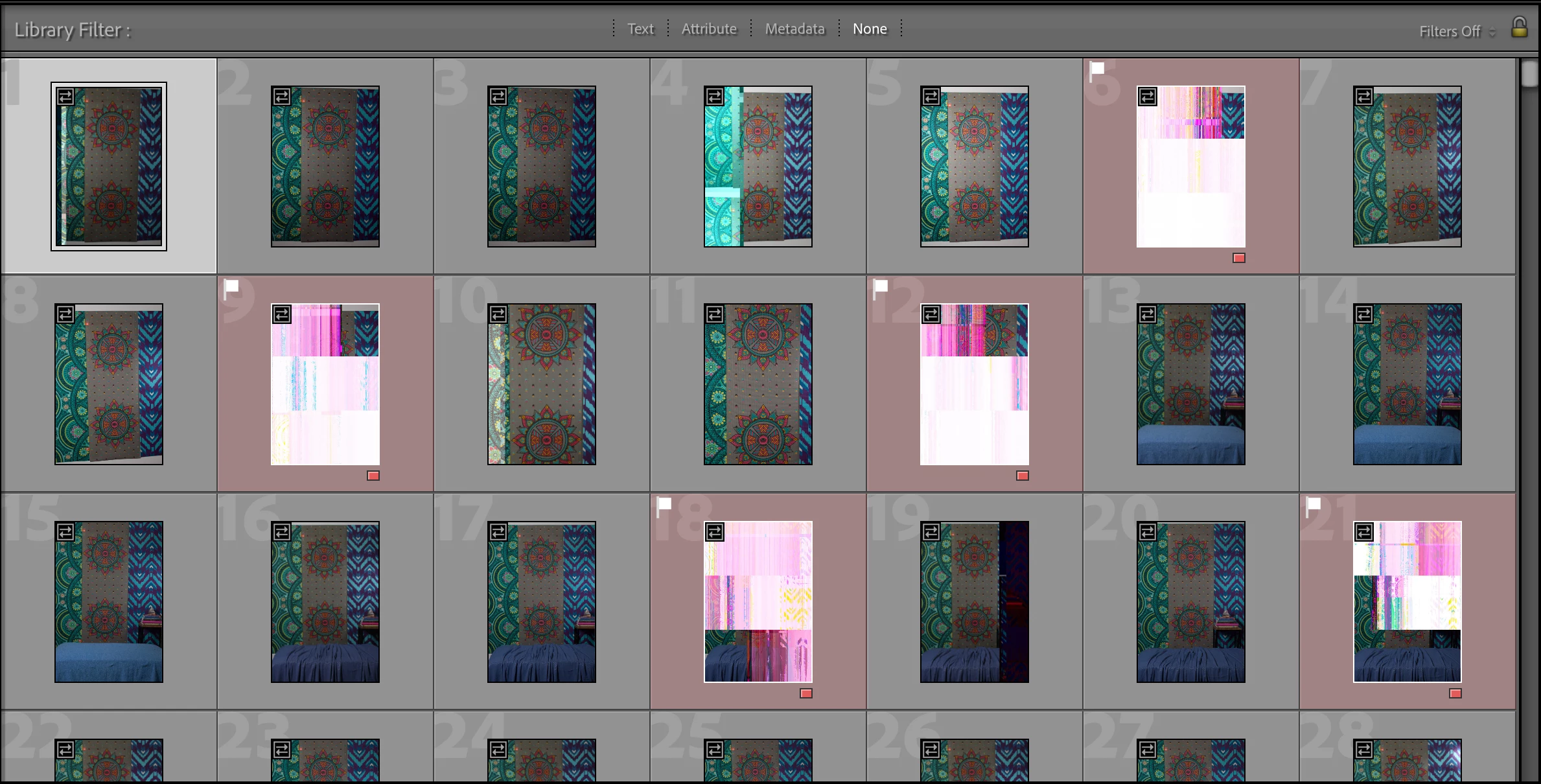
Hi everyone, I hope maybe someone can help me figure out this problem. I plugged in my hard drive to look for some specific photos, and as I was searching I had what looked to be newly corrupted files in some folders in Lightroom Classic. I flagged and red labeled these, and then closed the software and ejected the hard drive. I unplugged the hard drive and then plugged it back in, and then reopened Lightroom Classic. In the same file the corrupted images I had flagged before were still there, and newly corrupted images appared. I don't know what is causing this issue or if I can recover these images and I am heartbroken. From other posts I can only think it must be some hardware issue, and that there must be a problem with my hard drive, the cable from the hard drive to the external USB port, the external USB port, or the USB to USB-C (whatever Mac replaced USB ports with). Help?
This topic has been closed for replies.

3 replies

Participating Frequently
July 15, 2023

Hi, I don't know if anyone has any advice but this is on the new drive I had migrated everything to and it still looks like I'm losing images. Is the thought that somewhere along the say these images were courrupted and they're just decaying over time? These were shot on an older camera and and old card I no longer use so I hope that maybe my newer photos won't have the same issue but this really bites.

dj_paige
Legend
July 15, 2023

Is the thought that somewhere along the way these images were corrupted


YES


and they're just decaying over time


Probably not.


Do you have backup copies of these images?


Ian Lyons
Community Expert
Community Expert
November 27, 2022

As I indicated above, the thumbnails are based on the JPEG preview embedded in the original file by the camera when photos were captured. Unfortunately, this pretty much rules out a cable fault and instead points towards data degradation (bit rot) https://en.wikipedia.org/wiki/Data_degradation


No doubt more of the files are suspect. Nevertheless, if I was in your position I'd be moving the files from the suspect drive to a new disk asap!

Community Expert
November 27, 2022

Thinking about this a bit further, it is still possible the preview database is corrupt and that the originals might be OK. The description of the images coming up more and more corrupt every time Classic is open is suspect as the icon on all the corrupt previews is still that of embedded preview. These previews are based on jpegs that were initially on import copied from the raw files. If you don't actually take these into develop and back, the previews never get updated and the actual raw files are not read again from the external hard disk. So something for the OP to try out is the following. On one of those corrupt looking images, take it into develop. Does the corruption stay or disappear? When you go back in Library (move a few sliders back and forth in Develop), do you see the preview fix itself after a few seconds? This would indicate the previews Lightroom maintains are somehow being corrupted which does happen.


Again, I would also mainly suspect the external hard drive but there is a (small) chance that it is the previews on the internal disk that are problematic. 


Also, I would run Disk Utility First Aid asap on both your internal and external disk (just type disk utility in the looking glass right hand top of meny bar). Perhaps do this before anything else.


P.S. Thinking about this further: how is your external disk formatted? Hopefully hfs+(Mac OS extended) or APFS? If it is NTFS or a form of FAT that is not the best choice and I would move all the data to another disk that is formatted with an Apple format. Many exernal hard disks come formatted using windows compatible formats which are not well supported on Mac OS X (to be able to write to NTFS you even have to install a third-party utility that breaks almost every system update) and before use on a Mac you should reformat them. Don't do that now but only after you moved the data and know the data is safe and complete on another disk that was correctly formatted first. This is a secondary problem to check out after you have done some recovery. Also, I might be telling you nothing new and your external might be correctly formatted. It is just really common for people to never do this and just plug in a new external disk and start using it without first reformatting it. 

Participating Frequently
November 27, 2022

Jao, maybe external disk formatting had something to do with it, as I can't recall reformatting the questionable drive before beginning to use it (d'oh! Now I know). Fortunately, I had a spare unused drive on hand so I just reformatted it for Mac OS X, and am going to transfer all the files from the questionable drive over to the new one. Thank you for your advice, it is much appreciated.

Community Expert
November 27, 2022

Are the same files corrupted when you open them from finder by double clicking? They should open in preview which reads the actual raw files and renders them. Also, if you are connecting through some USB-hub like thing, try connecting directly to the drive. USB-c is an industry standard by the way. nothing to do with Apple but it is what all computers and portable devices are migraing to because it can maintain much higher speed connections. USB-c to USB-A converters can be bought for about $2.00 a piece at amazon that work great if you need old-style USB connectors to plug into a modern laptop.

Ian Lyons
Community Expert
Community Expert
November 27, 2022

@Jao vdL If you look at the top left corner of the thumbnails you'll see the badge that indicates that  it is based on the embedded JPEG preview rather than a preview created by LrC.  Therefore, it's almost certain to be the case that the files are indeed corrupt.


Community Expert
November 27, 2022

You are right. I hadn't actually zoomed into the image! Still possible that the corruption is happening in the transfer to the Mac though due to hardware issues and that the stored images are still OK. Not that likely but if these are only copies, would be good to figure out if they are salvageable.