
polinab
Participating Frequently
July 26, 2018
Answered

Corrupted catalog

  • July 26, 2018
  • 3 replies
  • 14388 views

Hi, guys!

I have a problem with a LR catalog.

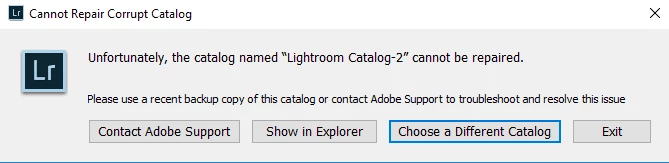
I am openening it, can see my last imported photos and then i have an error: LR encounted an error when reading a catalog file and need to quit. Then LR is shutting down and then trying to repair the catalog with no result.

Unfortunatly I have no backups. So how can i repair my catalog? It contains photoshoots for 2 years.

Thank you!
This topic has been closed for replies.
Correct answer cmgap


I can't say whether this will work for you of if you are willing to give it a try... comments indicate that others have been successful repairing a corrupt catalog using this method.

How To Fix A Corrupted Lightroom catalog file using SQLite - YouTube

3 replies

polinab
polinabAuthor
Participating Frequently
July 28, 2018

I'have found the solution: Corrupt Catalog Issues

- Download SQLite, put it in a folder, make a COPY of your lrcat file and put it in the folder.

- run sqlite3 "INSERT_CATALOG_NAME_HERE.lrcat" .dump > Temp.sql

- run sqlite3 -init Temp.sql NEW_CATALOG_NAME.lrcat

- This is where the existing online tutorials break down, if there are errors, it will not dump out the new database file!  You can't just tell sqlite to dump a corrupt catalog to corrupt sql and back to a corrupt catalog...you're not fixing anything.

- Note the errors that the last command generates.  It will give you line numbers for the errors.  For me, I was getting "UNIQUE constraint failed" errors and "no such table" errors for the table sqlite_stat4 on a couple hundred lines or so.

- Open the Temp.sql file in an editor.  Notepad will work but it's way easier to deal with line numbers in something like Notepad++.

- Remove the exact lines which are generating errors and only those lines.  As you are working in the file, you may need to be patient with your editor if the file is large.  Jumping around, deleting lines, saving, may all take some time to complete...just wait for notepad++ to do its thing and unfreeze as you're working.

- If you try to use the file at this point, it won't work!  it will generate a 0 byte catalog (At first I had this problem).  The reason for this is that SQLite writes "ROLLBACK;" as the last line in the file due to the errors it encountered during the dump process.  See here: sqlite - Sqlite3 recreates empty database from dump file - Stack Overflow .  What you need to do is change that last line to say "COMMIT;" to commit the changes instead of rolling back.

- Now save the file...let's use TempBadLinesRemoved.sql and exit notepad++ or your preferred editor.

- run sqlite3 -init TempBadLinesRemoved.sql NEW_CATALOG_NAME.lrcat

- for me, the command completed and left me at the sqlite> prompt.  Just type .quit to exit sqlite

- Open the catalog in lightroom and it should work.

I am so happy! thank you very much! :-)

Participant
December 21, 2019

I'm trying to follow your steps but I noticed that the UNIQUE constant failed errors lines in my case are in the range of milions (i.e. Error: near line 1121903: UNIQUE constraint failed: Adobe_imageDevelopSettings.id_local) instead when I open the .sql file are in the range of thousands.
Any suggestions?

Thanks in advance!

Participant
February 15, 2020

Despite the errors you should be able to open the newly created catalog and it should run without problems. Can you confirm?

KR Seals
Community Expert
Community Expert
July 27, 2018

Do you have backups for your catalog?  If you don't know, search all your drives using the term "backup"

The backup folders that Lightroom creates look like this:

If you find those, pick the most recent one and open the folder. The file inside will be a .lrcat.zip file you will have to unzip. The unzipped file will end with .lrcat. Open that unzipped file in LR.

Ken Seals - Nikon Z 9, Z 8, 14mm-800mm. Computer Win 11 Pro, I7-14700K, 64GB, RTX3070TI. Travel machine: 2021 MacBook Pro M1 MAX 64GB. All Adobe apps.
polinab
polinabAuthor
Participating Frequently
July 28, 2018

Unfortunatly, I haven't

dj_paige
Legend
July 26, 2018

The only advice I have seen is to open a new catalog and then try importing the corrupted catalog into it. I am quite skeptical that this ever works, but who knows. After that, I think you're out of luck.

Make regular and automated backups of your catalog file and photos from this point forward. No excuses.

polinab
polinabAuthor
Participating Frequently
July 26, 2018

Thank you for the piece of advice, but how can i open an older catalog in a newer one?

Thank you!

dj_paige
Legend
July 26, 2018

polinab  wrote

Thank you for the piece of advice, but how can i open an older catalog in a newer one?

Use the menu command File->Import from Another Catalog