Participant
September 9, 2023
Question

Corruption artifacts in Images
  • September 9, 2023
  • 2 replies
  • 567 views


Good day!

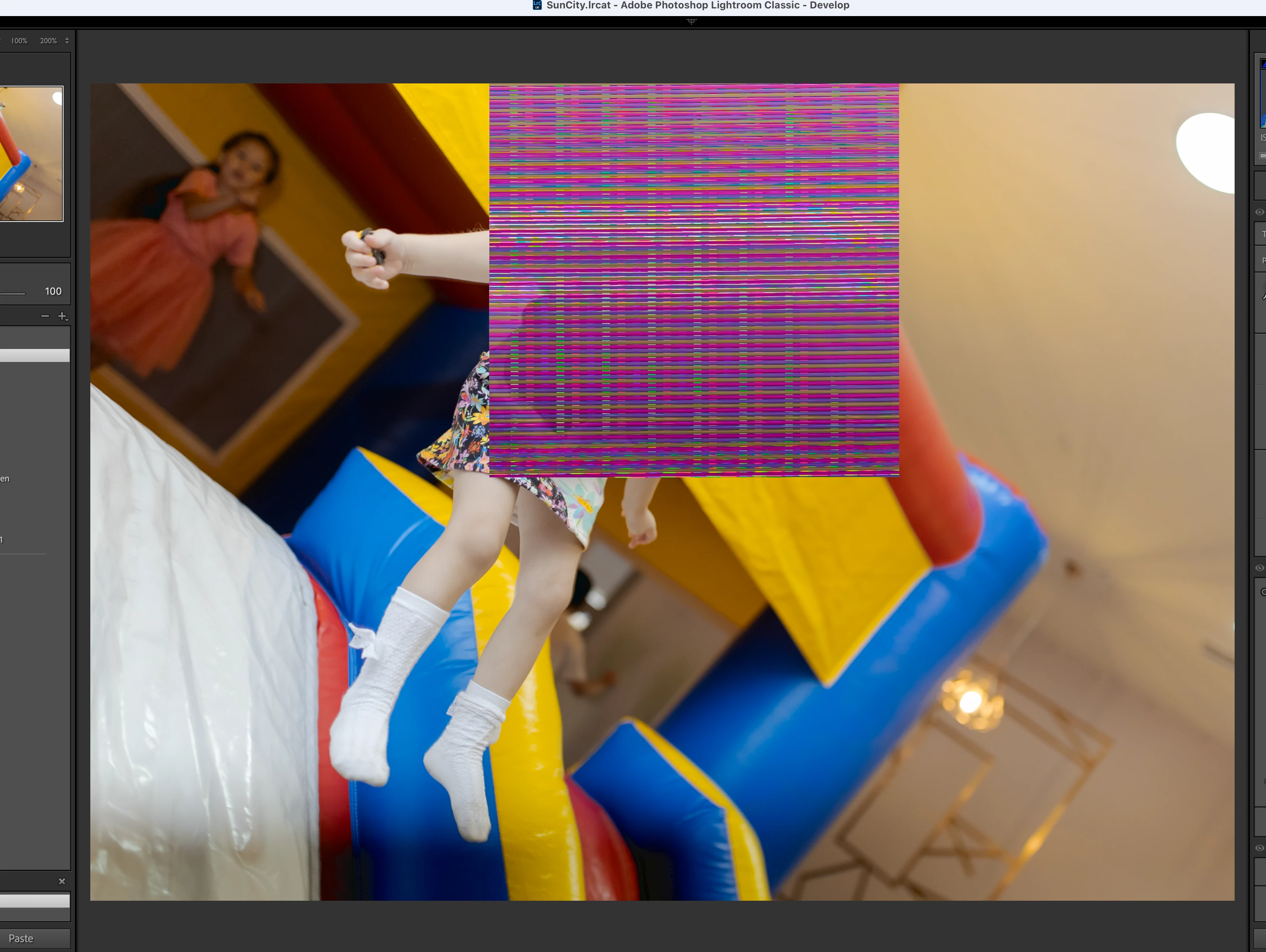
Can anyone please explain - why from one update to another - it keeps getting worse? Firstly there were artefacts on develope module page in pictures, now, since the latest update - I receive such errors. (screenshot attached).

Dear #adobe - I don't like the fact, that I keep sponsoring you to ruin my computer by these unpredictable updates, I can't afford purchasing new Imac, each time company consideres, that it's time to BITE more from my GPU's capaility... It's a pity.

Capture One is so affordabe.

...don't You agree, it's not fair for us, users, to leave adobe aside, each time we get significant unpleasant time-spending шт LRC ??? 


This topic has been closed for replies.

2 replies

Rikk Flohr_Photography
Community Manager
September 9, 2023

The top image is symptomatic of either:


  1.  A bad or out-of-date GPU Driver. How old is your Mac? What video card does it have?
  2.  Or a bad device in the data chain, as @KR Seals describes in his item 1. 


If turning off GPU in Lightroom Preferences makes the #1 Image whole, you need to update GPU software. If not, it is time to look at the hardware components in your data import chain. 

Neither image appears to show any defect in Lightroom itself. 

Rikk Flohr: Adobe Photography Org
Participant
September 9, 2023

I am on MAC - what type of graphic driver update that can be? 

JohanElzenga
Community Expert
Community Expert
September 9, 2023

Go to Preferences - Performance and turn off the use of the GPU. Does that solve the artefacts of screenshot 1? The second screenshot does indeed look like you have clipping warnings for black clipping turned on. Click at the left top of the histogram.


-- Johan W. Elzenga
KR Seals
Community Expert
Community Expert
September 9, 2023

1. File corruption is caused by hardware: The camera, the USB cable, the card reader or even the drive where the images are stored on your computer.

2. If you are talking about the little blue spots in the very darkest areas, it looks like you have the black clipping indicator turned on. You can turn that off in the histogram. Click on the little triangle at the top left side of the histogram to turn it off. Does that solve your issue?

I don't find Lightroom Classic getting worse. In fact every new version is much better for my needs.


Ken Seals - Nikon Z 9, Z 8, 14mm-800mm. Computer Win 11 Pro, I7-14700K, 64GB, RTX3070TI. Travel machine: 2021 MacBook Pro M1 MAX 64GB. All Adobe apps.
Participant
September 9, 2023

It is not solving. 
All indicators are off. Files are 100% fine, checked already on another computer, on mobile version as well.
I find it getting worse. Pushing me - to consider the hardware outdated. 

KR Seals
Community Expert
Community Expert
September 9, 2023

In checking the image files on another computer, if you were just using a file viewer, that will probably not show the image corruption. Image viewers are just looking at the .jpg image embedded in the file and not the raw data, where the corruption is.


Ken Seals - Nikon Z 9, Z 8, 14mm-800mm. Computer Win 11 Pro, I7-14700K, 64GB, RTX3070TI. Travel machine: 2021 MacBook Pro M1 MAX 64GB. All Adobe apps.