
Participant
May 18, 2017
Answered

CR2 files from Canon EOS 60D

  • May 18, 2017
  • 1 reply
  • 1562 views

Need clarification: trying to understand why I can't import my CR2 from memory cards, but can shoot tethered and CR2 works fine

In LR CC 2015.10 Camera Raw 9.10, shooting with 60D, tethered. In preferences, in the naming section, it indicates that the files will be .dng. I can't change that setting, just the naming of file...
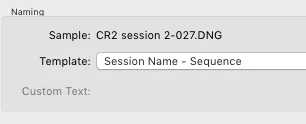
LR captures just fine and adds to a specified collection. File info indicates SHOT-001.CR2 and not SHOT-001.DNG. I can fully manipulate the image within LR without problems. Feels like RAW to me.

I then try to use the "Import" function for the same files I just shot with the tether (that LR was OK with using) by pointing to the destination used in tethering mode, but the images are grayed out and I cannot import them.

Using EOS Utility 2, I capture images via tether to a destination folder. I can point to that folder in LR, and import those images to LR without problems. They are the same CR2 format files as my memory card. I then use the Utility to download images to a folder XYZ. In LR, I can import all those images just fine... In Digital Photo Pro 4 (Canon app), I can import the images but can only convert to TIFF (not desired).

So what's the deal here...? is there some kind on DNG "invisible overlay" that allows LR to see CR2 files if they are ingested via some utility, but when I insert my memory card and try a direct route, LR cannot understand the file format...?  Is the format on the internal card somehow different? How do I do this? ... the USB direct from camera does work, but it is considerably slower (USB2 vs USB3) than using a card reader... ergo the headache

Appreciate the insight.

This topic has been closed for replies.
Correct answer dj_paige

Greyed out images in the Import dialog box indicate that you have previously imported the images. It has nothing to do with LR understanding the file format, yes it does understand the file format.

However, it sounds as if these are brand new images just shot, and obviously never imported before. Is that a correct statement?

Sometimes, Lightroom gets confused, especially if the photographer has set his camera to renumber the photo shoots to start at photo 0001 (or maybe 0000). Are you doing that?

1 reply

dj_paige
dj_paigeCorrect answer
Legend
May 18, 2017

Greyed out images in the Import dialog box indicate that you have previously imported the images. It has nothing to do with LR understanding the file format, yes it does understand the file format.

However, it sounds as if these are brand new images just shot, and obviously never imported before. Is that a correct statement?

Sometimes, Lightroom gets confused, especially if the photographer has set his camera to renumber the photo shoots to start at photo 0001 (or maybe 0000). Are you doing that?

Participant
May 18, 2017

"Greyed out images in the Import dialog box indicate that you have previously imported the images. It has nothing to do with LR understanding the file format, yes it does understand the file format."

I think the problem here is one of file management, and not file type (as thought).

I ran an exhaustive (and very informational) test, adding folders, importing, with multiple folders with files, some in collections at import, some not, etc... Then I started playing with adding/removing files (folders do not update as I thought they would), played with syncing, overlapping collections, etc. It's not the most intuitive way to manage things BUT at least now I kinda understand it a little better...

So in the end, user error

dj_paige
Legend
May 18, 2017

toms86840164  wrote

I ran an exhaustive (and very informational) test, adding folders, importing, with multiple folders with files, some in collections at import, some not, etc... Then I started playing with adding/removing files (folders do not update as I thought they would), played with syncing, overlapping collections, etc. It's not the most intuitive way to manage things BUT at least now I kinda understand it a little better..

Well, that's one way to learn. Might I suggest some tutorials on using Lightroom?

Lightroomqueen.com has an excellent introductory e-book which is totally FREE (a very good price!), and Adobe has some very good tutorials which are also FREE Getting Started with Adobe Photoshop Lightroom 5 | Adobe TV

I will also point out the official @dj_paige Keep It Simple workflow that I believe is helpful for non-experts:

  1. Import all photos from your camera card to the storage location on one of your hard disks, wherever you want the photos to be stored. Emphasis on the word ALL, import ALL photos from the camera card, don't import some photos now and some later because this can lead to confusion and mistakes.
  2. At import, the photos should be copied from the camera  card to their final resting place / folder location. Then, you NEVER NEVER EVER move the photos again (actually, there is one exception, you should move them if your need to use a new hard disk or new computer). Do not develop workflows that require moving photos or folders around.
  3. Folder names should be capture date. Organize by assigning keywords and other metadata to your photos. Search by searching for specific keywords or metadata. Do not rename your photos, do not use folder names or file names as search tools.

This is about as simple as it gets, and avoids a lot of problems that some Lightroom users seem to have.