Participating Frequently
May 13, 2019
Answered

Culling Photos. How to get rid of duplicate/embeded photos

  • May 13, 2019
  • 2 replies
  • 1503 views

So I'm culling a few thousand photos. I generally import, then go through, rate poor photos with a "1" and then delete all "1's" when I've finished. I use the Grid on one screen and Loupe on the other.

For some reason, I'm seeing a ton of my photos twice (which means I have to rate 2 photos in a row with a "1"). The repeated photo says "Embedded Preview."
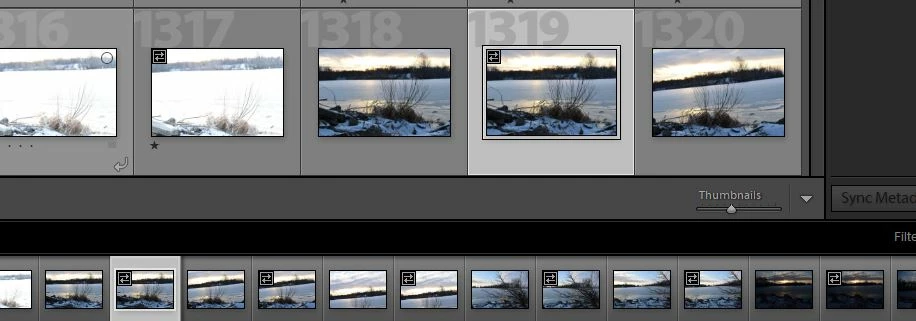
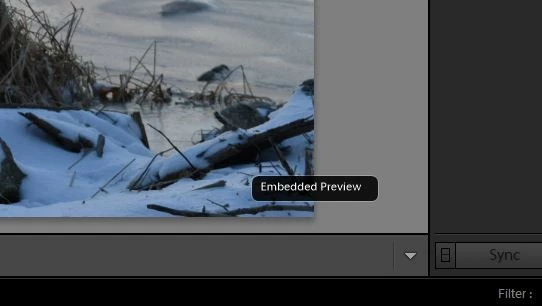
How do I make it to where I am NOT seeing each photo twice? I don't care about embedded previews. Just want to see the original RAW (NEF) photo once.

Thanks much.
    This topic has been closed for replies.
    Correct answer Sahil.Chawla

    Hi there,

    That does not sound like a typical experience, let's make it right.

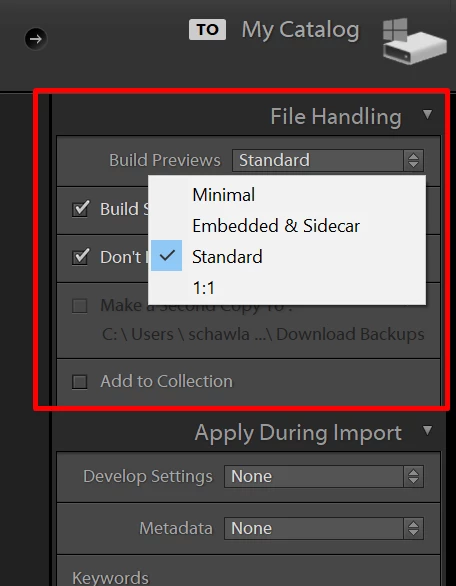
    As you're seeing Embedded Previews in the catalog, embedded & Sidecar was meant for quick culling so you get a lousy looking file at first as the previews build.

    My advise would be to not enable it at import.
    Also in Preferences >General you can select to replace Embedded Previews with Standard ones during idle time.

    Next if you choose 1:1 previews, you can choose how long to keep them. Catalog settings > File Handing. If you choose never, you use up a lot of disk storage.

    Please let us know if it helps.
    Regards,
    Sahil

    2 replies

    Community Expert
    May 13, 2019

    Suggestions:

    First, you can press X (mark as Reject) rather than rating an image "1". Lightroom automatically 'dims' rejected images or shows readymade buttons to hide or show those. Also Lightroom provides a convenient one-click function to delete all images that are currently marked as rejects, when you are ready to do that

    Second, you can "cull" right in the Import screen if is a matter of obviously unwanted shots. Avoiding importing those in the first place, streamlines multiple aspects: the quantity to be copied off the storage card, preview-building, the space consumed in the computer temporarily, your time organising, rating, reviewing and culling, then deleting these photos from Catalog and from disk, and finally OS cleanup.

    Third, if your camera is set to shoot Raw+JPG, and if your LR is set to "treat JPGs next to RAWs as separate", then you will see two separately treated images in LR, from each click of the shutter button.

    For the future:

    • Changing the camera to shoot Raw only (if available), means only a Raw will have been saved to the card in the first place.
    • Changing the LR setting so JPGs next to Raw files (i.e., in the same folder and with equivalent names) are no longer treated as separate, means that if a Raw+JPG pair has been saved to the camera card, LR imports hereafter will treat the two as a single entity. As if it was just a Raw file, in effect. LR will continue to import and show JPG files as usual, where those are not accompanied by an equivalent Raw coming from the same shutter click.

    Fourth: while LR generally speaking resists importing two instances of the same photo, it is possible to persuade it to do so. These two instances may reflect some unintended change of location etc, whereby images that had already been imported living at disk location 1, were subsequently believed to have gone astray, and then re-imported as additional library entries, living at disk location 2. Such re-importing takes quite a bit of sorting out: the way to know whether this has happened is to take two adjacent instances, and investigate where each one is physically stored using "Show in Finder" / "Show in Explorer". Sometimes such instances happen because Location 1 has become inaccessible. The correct fix for that, if that happens, is not to reimport at location 2: it is, simply, to "tell" LR that whatever was previously to be found at Location 1, is now to be found at Location 2 instead. That redirection becomes more difficult to do, once you have got pictures imported from both Location 1 and Location 2.

    Sahil.Chawla
    Adobe Employee
    Sahil.ChawlaCorrect answer
    Adobe Employee
    May 13, 2019

    Hi there,

    That does not sound like a typical experience, let's make it right.

    As you're seeing Embedded Previews in the catalog, embedded & Sidecar was meant for quick culling so you get a lousy looking file at first as the previews build.

    My advise would be to not enable it at import.
    Also in Preferences >General you can select to replace Embedded Previews with Standard ones during idle time.

    Next if you choose 1:1 previews, you can choose how long to keep them. Catalog settings > File Handing. If you choose never, you use up a lot of disk storage.

    Please let us know if it helps.
    Regards,
    Sahil

    bluerog2Author
    Participating Frequently
    May 13, 2019

    I agree, it's a function of how I imported 3,000+ photos back into Lightroom. (I just reinstalled my operating system and reinstalled Lightroom). I've reimported photos into Lightroom before. This was a first for me with the duplicates. As I don't have the time (or patience) to import again, I'll simply deal with it.

    Thanks for the response. Maybe make that option to adjust file handling easier to find or default to not pull in the embedded photos? I dunno.