Known Participant
March 13, 2017
Answered

Deformation of PNG file in Lightroom CC

  • March 13, 2017
  • 1 reply
  • 1241 views

From the Lightroom CC library I choose "Edit in Photoshop CC" and I edit a CR2-file. In Photoshop I save it as PNG-file, in order to keep the transparacy of a part of the picture in other applications.

Bur when I import the PNG-file back in Lightroom, only a part (1/4) of the picture is visible. The rest of it disappeared. When I export that PNG picture to a JPG-file, only the visible part of the picture remained.

When I look up the PNG file outside Lightroom (for example with Finder or Paintshop), I see the complete picture.

What can I do to get the complete PNG file in Lightroom??
    This topic has been closed for replies.
    Correct answer Todd Shaner

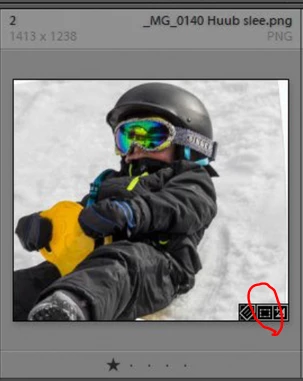
    You are applying a Crop (red circle) to the LR imported PNG file. Open the Develop module Crop tool and Reset.

    Rob_Stolk  wrote

    The layout of te sedcond picture (PNG) should be like the last one, but the white should be transparant.

    As in the separately added picture below.

    Lightroom does not support Alpha channels and renders transparent areas in White. Export files will appear the same. A workaround is to create the PNG file format copy in PS after all LR and PS editing have been completed.


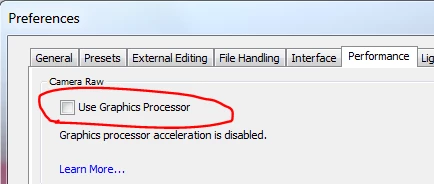
    Sorry, it appears there is an issue with the way transparent areas are being rendered in the Develop module with 'Use Graphics Processor' enabled. Try setting your LR preferences as below and see if that corrects the transparency rendering. The Library module preview doesn't exhibit this issue because the GPU is only used in the Develop module.

    1 reply

    Just Shoot Me
    Legend
    March 13, 2017

    Please post a screen shot of the LR Library module showing that image.

    Rob_StolkAuthor
    Known Participant
    March 14, 2017

    First (left) original picture, second the (in PS) saved as PNG file and imported in LR (distorted), third the (as a jpg) exported PNG file, last (right) the PNG, in PS saved as jpg; transparacy became white.

    The layout of te sedcond picture (PNG) should be like the last one, but the white should be transparant.

    As in the separately added picture below.

    Do you have any idea?

    Todd Shaner
    Legend
    March 14, 2017

    Thank you, trshaner, problem solved!!


    I've filed a bug report here: alpha channel png | Photoshop Family Customer Community