
Participant
April 27, 2022
Answered

Different colors after export - Lightroom classic / macbook

  • April 27, 2022
  • 5 replies
  • 2555 views

Hi, I have not encountered this problem before (at least i believe so) - colours nad exposure&contrast are different after exporting from lightroom to jpg (srgb). 
I use adobe color, i export to srgb, i reinstalled lightroom, i turned off/on graphic accelerator. 
I use macbook air 13 end external eizo mointor color calibrated. I have not have this problem before.

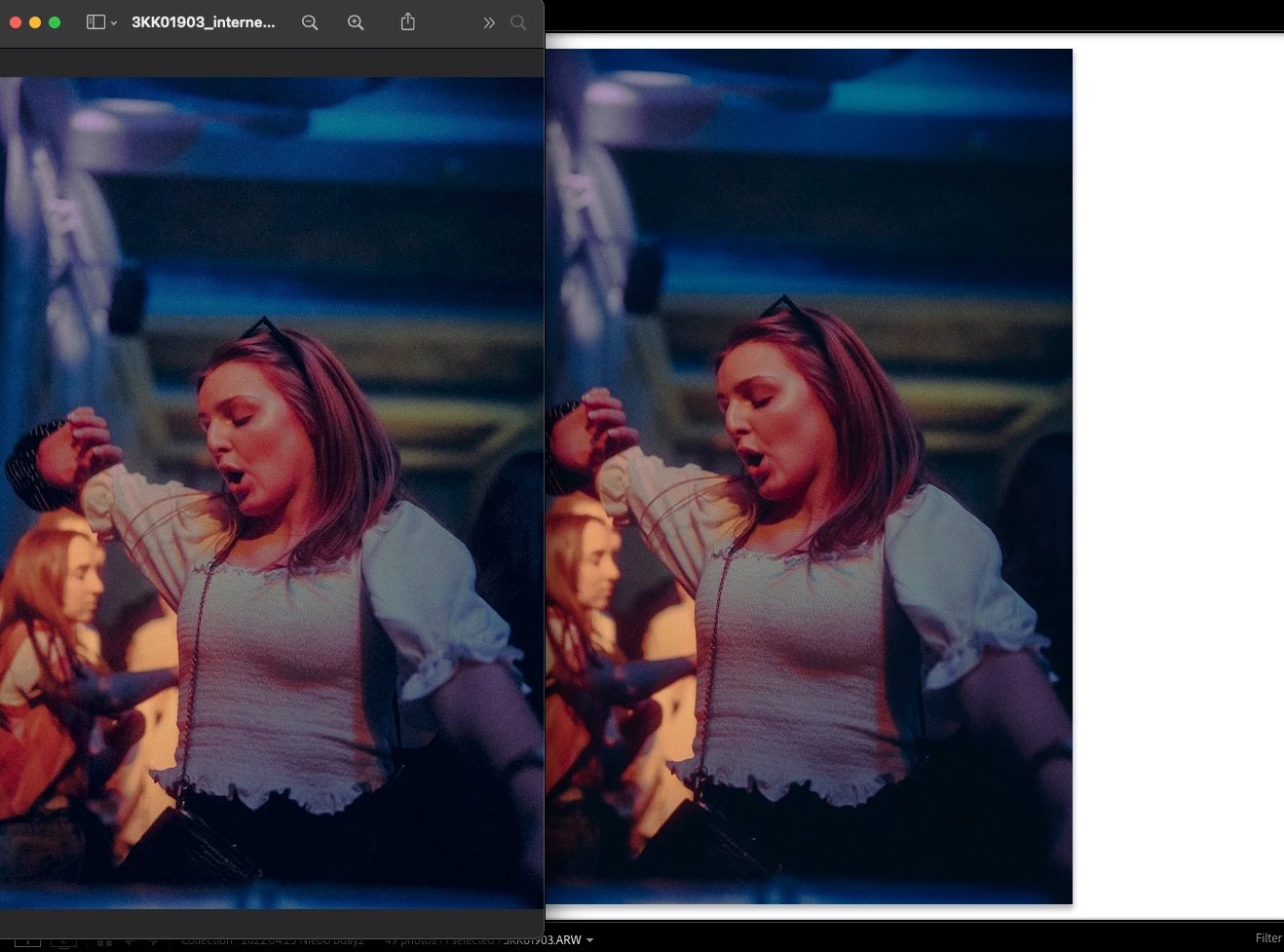
Left pic is preview of the jpg - its more saturated and more exposed 😞 (right one is lightroom)

HELP
Correct answer D Fosse

Even though the OP never came back to confirm, the "problem" above was almost certainly different screen resampling algorithms on a very noisy image.


So the solution is to always make critical comparisons at 100% view, which represents one image pixel by exactly one physical screen pixel - and especially so if the image is a very noisy one. In this context, noise includes things like starry night skies and so on.


Gamut limits of color spaces was mentioned as a possible explanation above, but that is out of the question since it was the sRGB export that was perceived as the most saturated.

5 replies

Participating Frequently
April 6, 2023

Did you find a solution? I have a similar issue with my exports and did not find any solution unfortunately.

D Fosse
Community Expert
D FosseCommunity ExpertCorrect answer
Community Expert
April 6, 2023

Even though the OP never came back to confirm, the "problem" above was almost certainly different screen resampling algorithms on a very noisy image.


So the solution is to always make critical comparisons at 100% view, which represents one image pixel by exactly one physical screen pixel - and especially so if the image is a very noisy one. In this context, noise includes things like starry night skies and so on.


Gamut limits of color spaces was mentioned as a possible explanation above, but that is out of the question since it was the sRGB export that was perceived as the most saturated.

Community Expert
April 28, 2022

If the original image is noisy, this is probably due to the scaling algorithms used in preview vs Lightroom. Preview does this very differently than Lightroom in the develop module, however, the display in Library should be more similar to what you see in preview- not erfect as that is impossible except if the scaling algorithms are identical. This affects images with a lot of noise particularly where you dial in strong noise reduction settings. Those will only look identical if you zoom to 1:1 in Develop. 

Earth Oliver
Legend
April 29, 2022

i think you're replying to the wrong thread.

D Fosse
Community Expert
Community Expert
April 29, 2022

Not necessarily, it's a valid point here. Very noisy images can easily shift in apparent brightness with different resampling algorithms.


To rule that out, always check at 100% first.

DotCreative
Participant
April 28, 2022

Nice article thank you so much. follow the Dotcreative

Earth Oliver
Legend
April 28, 2022

you've converted a wide-gamut image to sRGB, so there's always going to be a difference after export... especially if you're trying to view sRGB on a wide-gamut display. This is 100% to be expected. 

TheDigitalDog
Inspiring
April 28, 2022

You're viewing the 'other' image (outside of LR) where?

FWIW, the screen captures above look the same on this end. 

Author “Color Management for Photographers" & "Photoshop CC Color Management/pluralsight"
Participant
April 28, 2022

I view in Preview or in Chrome, no difference. I also tried to open jpg in Lightroom and its the same situation.

Please look agaian. it's obviously brighter and less contrasty.

TheDigitalDog
Inspiring
April 28, 2022

Again, the two appear virtually identical, here's a screen capture from Safari:

Preview on Mac IS color managed and should match Lightroom Classic. However, you must view in LR in Develop module, it uses a unique preview architecture. Soft proof to sRGB if that's your export color space.

You need the zoom ratio for both applications to be 1:1 (100%). If you are doing so and you see a mismatch, there are a few things to try:

First, try disabling GPU in the Lightroom Preferences (Performance tab). Any better?

If not, recalibrate and build a new ICC display profile, the old one might be corrupted.

If you are using software/hardware for this task, be sure the software is set to build a matrix not LUT profile, Version 2 not Version 4 profile.


Author “Color Management for Photographers" & "Photoshop CC Color Management/pluralsight"