You aren’t doing anything wrong, all you need is a better understanding of how file sizes work. You can do all this in Lightroom Classic (I do), but I am showing examples from Photoshop below because it gives you more feedback about what is going on.
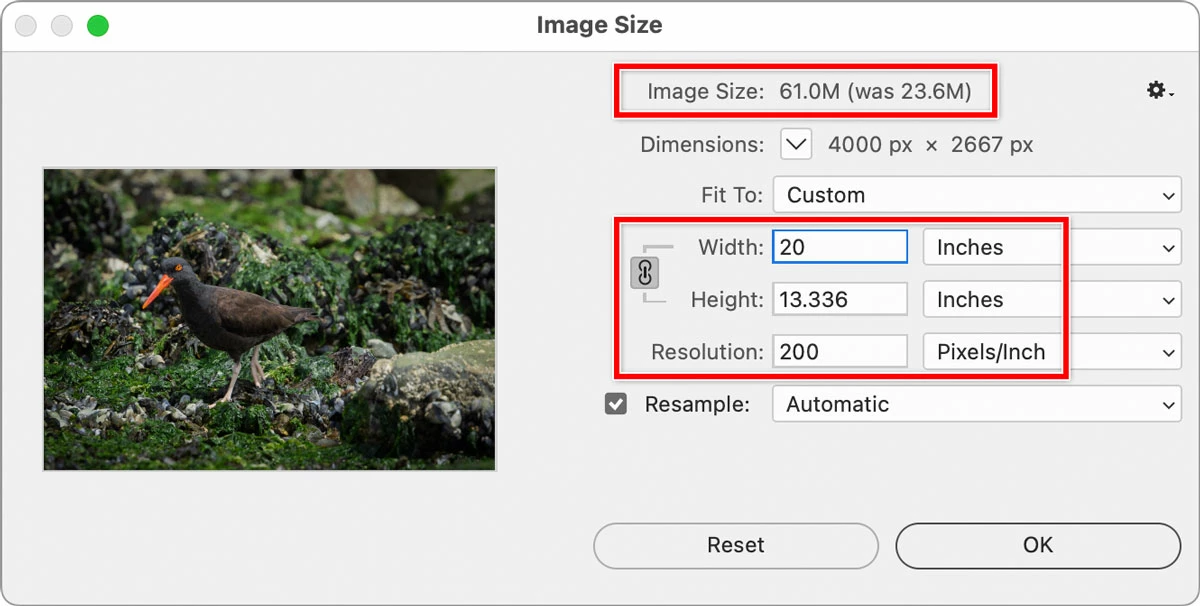
First, you said the maximum size they’ll take is 20 inches at 200 ppi. I have a bird photo that starts out from my 24 megapixel camera (6000 x 4000 pixels). In Photoshop I use the command Image > Image Size to resample that down to 20 inches at 200 ppi. 20 inches times 200 ppi is 4000 pixels, and that’s what Image Size shows. The image is now down to 4000 x 2667 pixels (10 megapixels).
Notice that the file size at the top is 61MB. But the raw file is 47MB. We’ll come back to this later.
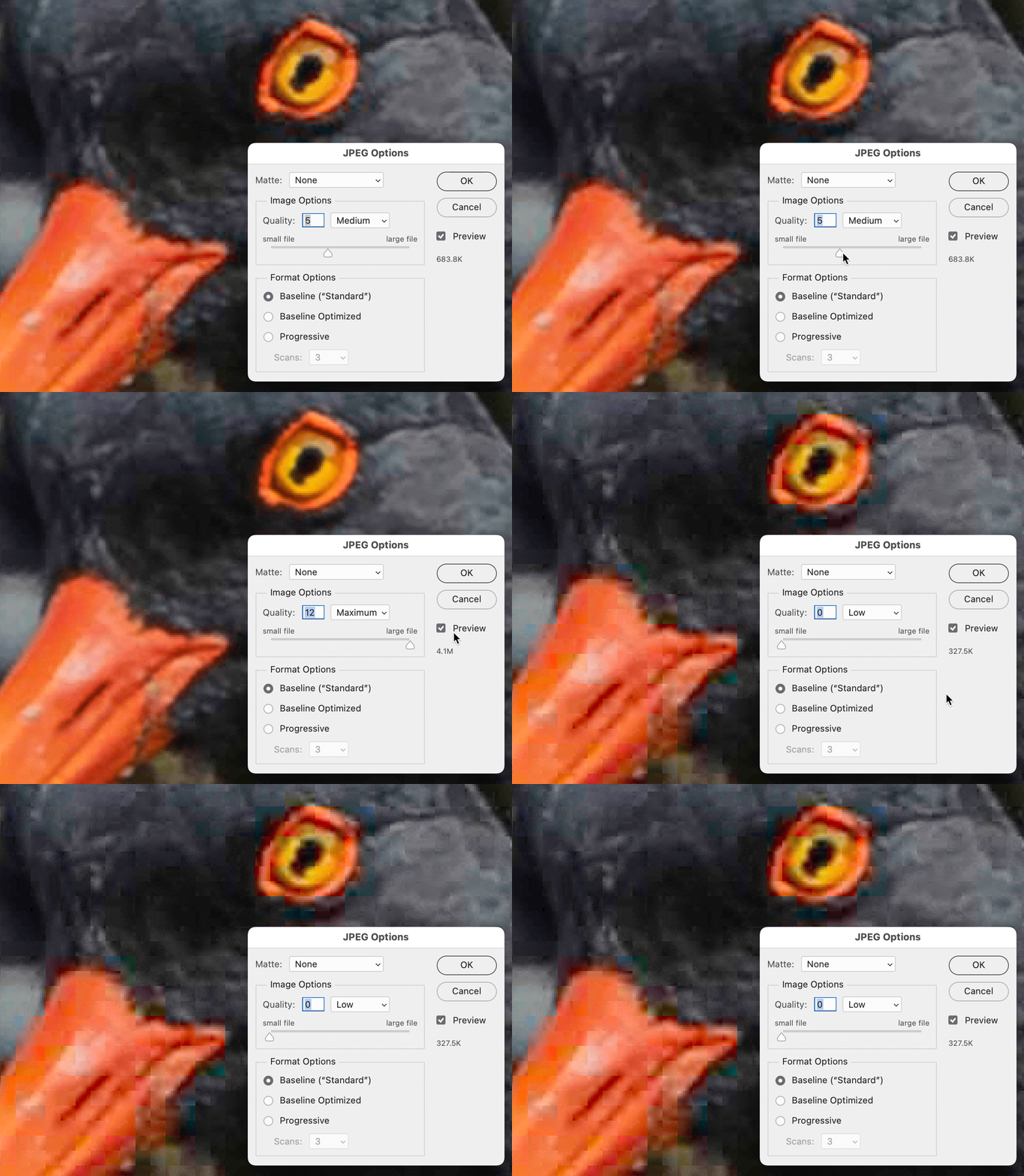
Next, save a copy as JPEG. In Photoshop I used the command File > Save a Copy which is appropriate for a print because it saves color space and resolution information. (The Export command in Lightroom Classic is also appropriate for a print, for the same reasons.)
Notice two very important things: The file size readout under the Preview option, and what the image looks like in the preview behind the dialog box. Watch how they change together as I adjust the Quality slider: It starts at Medium Quality with a file size of about 684KB. At Maximum Quality, the file size is 4.1MB and the image looks good, and at Minimum Quality the file is only 327.5KB but the image looks terrible. It’s because JPEG uses “lossy” compression (very small file sizes achieved by throwing out quality). This shows you that there is no single file size for JPEG: It depends on where you set your balance point between image quality and file size. Small file size is only important for web/social media. For print, file size is not a major concern so you can just leave it at Maximum if you want.
You said Lightroom Classic gives you an export file size of 3MB. If the export dimensions are set correctly (20 inches at 200 ppi), then I will guess that you set Quality somewhere between High and Maximum. Because you could see that my photo got 4MB at maximum quality. The specific content in the image can affect the file size up or down a little.
I said I’d come back to the earlier file sizes. It’s very important to understand that all of the file sizes below are correct and valid for the same photo file!
47MB. My camera’s original raw file size for one channel of sensor data, at 14 bits.
61MB. Converted out of raw into three channels (RGB). This is in Photoshop; Lightroom Classic skips this step (and saves storage space) because it edits in raw and exports straight to JPEG. Part of the reason it’s 61MB is I had it convert at 16 bits per channel; if it was 8 bits/channel it would be half that file size. No data compression is used at this point.
32MB. Same image but saved as TIFF, 8 bits/channel, uncompressed.
And then, after downsampling to 4000 pixels wide…
11MB. TIFF, 8 bits/channel using the ZIP compression option (lossless compression, so no quality loss).
4.1MB. JPEG, 8 bits/channel, maximum Quality (minimum data compression, minimum quality loss). Suitable for printing.
684KB. JPEG, 8 bits/channel, medium Quality (medium data compression).
327KB. JPEG, 8 bits/channel, minimum Quality (maximum data compression, maximum quality loss).
Hope that explains how this works: Given the print size, resolution, and file format requirements, your 3MB JPEG file is totally plausible. Lightroom Classic is doing exactly what would be expected: It is crunching down an uncompressed original into JPEG format with JPEG lossy compression. File size differences you see are because of how file formats and compression work, so it would work the same way in any photo editor you might use from any company.

 AdChoices