
Inspiring
January 31, 2024
Question

DNG thumbnails not showing in W10 folders

  • January 31, 2024
  • 1 reply
  • 5157 views
Not specifically LR, but as my DNG photo are all for LR, there may be someone here who knows how to resolve the problem.
Windows 10 and LR Lightroom version: 6.14 [ 1149743 ] 

If I go to a Windows 10 folder - all of the jpeg files with have a thumbnail  (as do png, tiff etc)
Very few DNG files will have a thumbnail (usually none)

I have installed Microsoft raw image Extension .... v3 no difference
Have followed the steps to kill thumbnail cache, delete it, and restart explorer ... all jpeg thumbnails rebuild (slowly) but not DNG.
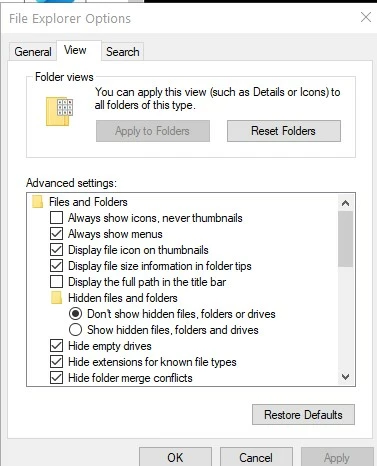
Have also followed the tip to uncheck 'always shows icons, never thumbnails'The advice is to click on teh top button 'apply to folders'  but I can't do that as that is greyed out.  (pic attached)


This topic has been closed for replies.

1 reply

johnrellis
Legend
January 31, 2024

Which app or exact camera model produced the DNGs?  If LR created the DNGs, which command (Convert Photo To DNG, Enhance, Photo Merge)?

TaffladAuthor
Inspiring
February 1, 2024

My phone creates DNG files directly  ..  my camera has to have the raw files converted and I use ADOBE DNG converter to do that.

Just did a test and showed something I had not realised before.

File saved to Desktop ..... and it has the correct thumbnail.

When I move file to a sub-folder  of My_Pictures  is arrives there without a thumbnail.


LR identifies the RAW file whether on desktop or in a my_pictures folder

Noticed another anomaly .... on my phone the selection is simply to output 'RAW' files.

They arrive on PC as filename.DNG

I just opened file with Mediainfo and it reports it as an invalid tiff ?  (see attached)


TaffladAuthor
Inspiring
February 7, 2024

"as a further test reconverted the DNG files with Adobe DNG converter  (16.1)    the files on the desktop have the correct Thumbnail. When moved to 'Pictures' folder, thumbnail is stipped off."


Do these steps to narrow down whether the issue is with the particulare Pictures folder or some more general:


1. Make a test folder on the same disk as Pictures.


2. In File Explorer, double-check that the test folder's folder property Always Show Icons Never Thumbnails is unchecked.


3. Convert some new files to DNG with DNG Converter 16.1. 


4. Move those new DNGs to the test folder. Do you see the thumbnails in the test folder?


If you see the thumbnails, then there's something screwy going on with your Pictures folder in particular. If you don't see the thumbnails, then it's a more general issue than  that.


#1  done

#2  this is at the Explorer level, not on the individual folder ... it is set this way at Explorer level.  On new folder set folder type in properties as 'pictures'

#3 Create new files ..... Here is pic of them in a folder on desk top 

#4 Moved them to a new folder same drive as other 'picture' folder.    

The files no longer have Thumbnails   - see pic


I moved files to DropBox as a test ... icons stay as Thumbnails


The 'Picture' folder is stored on my E: Drive  (as are Music & Video folders)  The OS is on C: Drive.

It has been this way since W98  (to avoid eating up space on System drive)