Participating Frequently
July 16, 2025
Answered

Duplicated Menu

  • July 16, 2025
  • 2 replies
  • 185 views

Good afternoon, fellow Lightroom users!


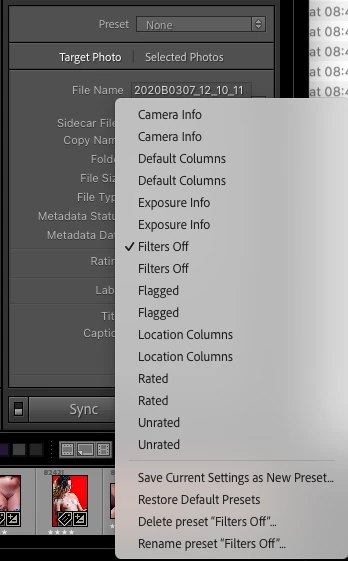
Would anyone know how to remove the duplicate menu items shown in the image below?

Is this a known issue or is it new?


I'm using the latest Lightroom version in a Mac Mini with Sequoia 15.5, but this problem exists since the original Lightroom and Mac Os installation , a few versions ago.


Thanks for your continued help!!!


Correct answer Conrad_C

If it would take a while to get the general preferences back the way you want, don’t rush to reset preferences to try to resolve this because corrupted preferences are not likely to be the cause. You could reset preferences as a last resort, but before doing that, try this first…


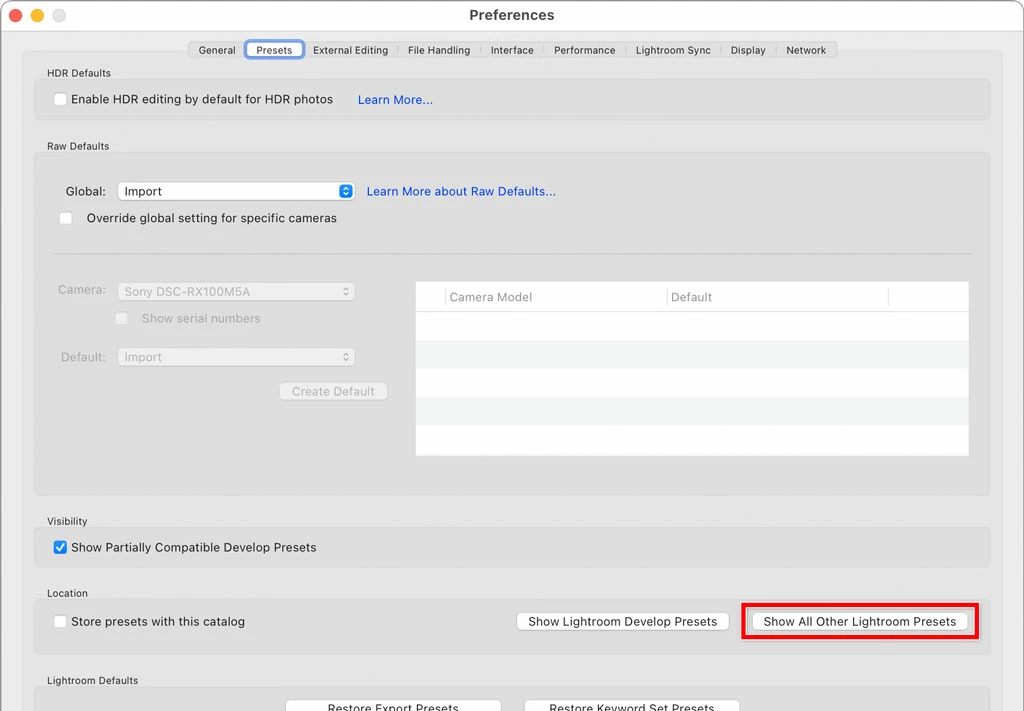
Go into Lightroom Classic preferences, click the Presets tab, and click the Show All Other Lightroom Presets button, shown in the picture below. What these buttons do is show you where the presets are on your computer. That’s important because in Lightroom Classic, all lists of presets are represented by individual preset files out in normal folders in the file system. This gives you a way to troubleshoot them.


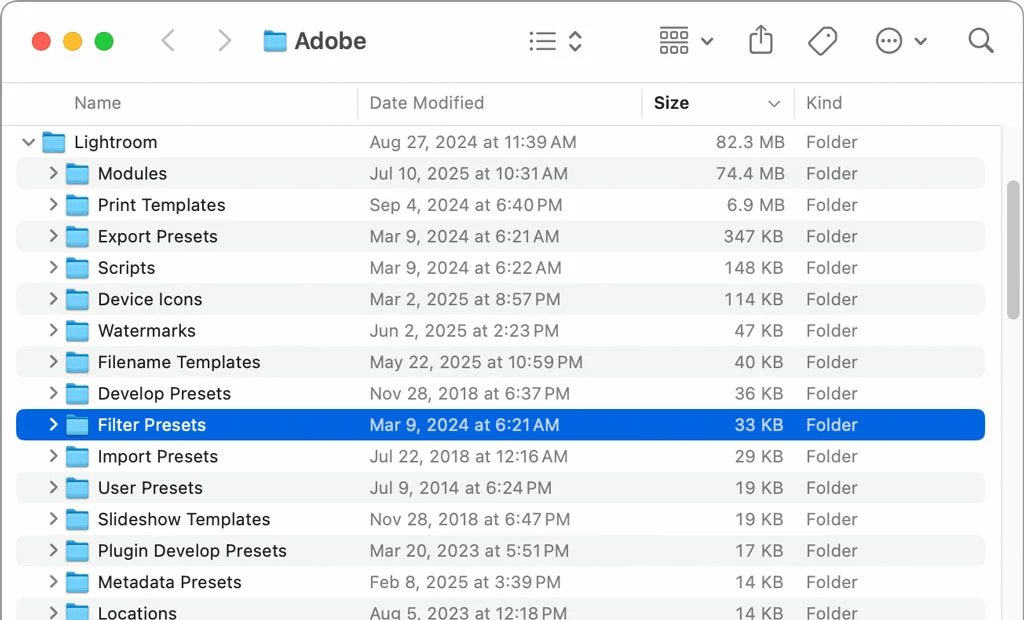
After you click that button, the Mac switches to the Finder desktop and opens the folder containing the preset categories throughout Lightroom Classic, as shown in the picture below. Open the folder named Filter Presets, because your question is about the presets in the Filter bar in the Library module.


You’re seeing duplicate filters in the filter presets menu, so after opening the Filter Presets folder, look for these two things first:


Are there any filter files with nearly identical names? For example, if you see a pair like this…

Camera Info.lrtemplate

Camera Info copy.lrtemplate

…the second one is probably a duplicate that can be deleted.


(If you’re not sure whether a preset file is really a duplicate, you can open it in a text editor and look through it. Or, open both preset files in a text editor that has a file comparison feature, so you can quickly see if they’re identical.)


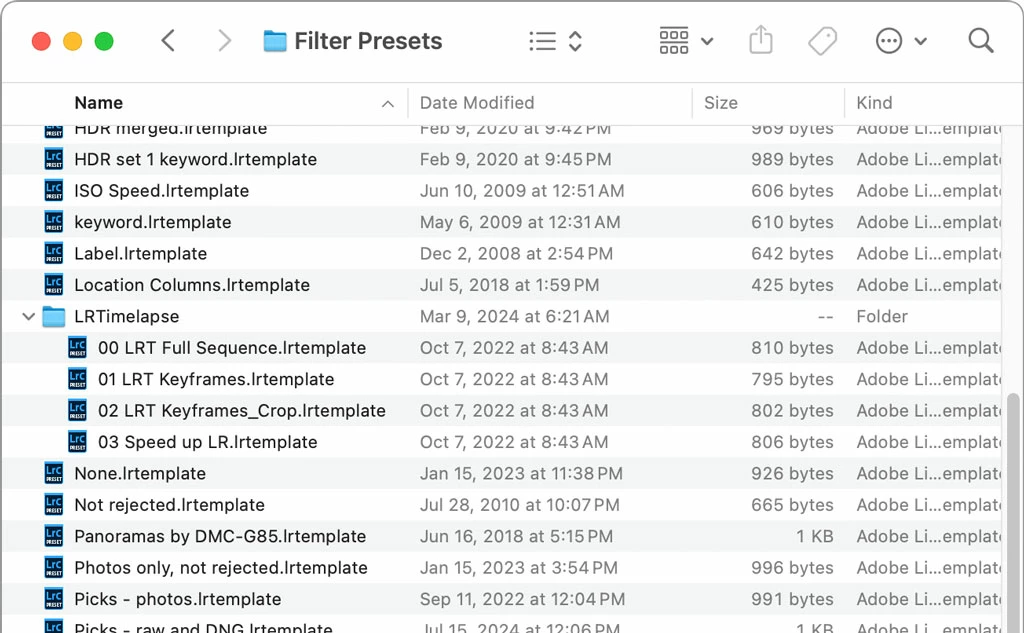
Are there any subfolders in the Filter Presets folder, similar to the LRTimelapse subfolder in the picture below? The filter presets menu in the Library module does list preset files in subfolders too, so that’s another way that you can end up seeing two of the same filter name in that menu: Check all subfolders to see if any of them contain filter files with the same filenames as those in any other subfolders or at the top level of the Filter Presets folder. 
 

2 replies

Conrad_C
Community Expert
Conrad_CCommunity ExpertCorrect answer
Community Expert
July 16, 2025

If it would take a while to get the general preferences back the way you want, don’t rush to reset preferences to try to resolve this because corrupted preferences are not likely to be the cause. You could reset preferences as a last resort, but before doing that, try this first…


Go into Lightroom Classic preferences, click the Presets tab, and click the Show All Other Lightroom Presets button, shown in the picture below. What these buttons do is show you where the presets are on your computer. That’s important because in Lightroom Classic, all lists of presets are represented by individual preset files out in normal folders in the file system. This gives you a way to troubleshoot them.


After you click that button, the Mac switches to the Finder desktop and opens the folder containing the preset categories throughout Lightroom Classic, as shown in the picture below. Open the folder named Filter Presets, because your question is about the presets in the Filter bar in the Library module.


You’re seeing duplicate filters in the filter presets menu, so after opening the Filter Presets folder, look for these two things first:


Are there any filter files with nearly identical names? For example, if you see a pair like this…

Camera Info.lrtemplate

Camera Info copy.lrtemplate

…the second one is probably a duplicate that can be deleted.


(If you’re not sure whether a preset file is really a duplicate, you can open it in a text editor and look through it. Or, open both preset files in a text editor that has a file comparison feature, so you can quickly see if they’re identical.)


Are there any subfolders in the Filter Presets folder, similar to the LRTimelapse subfolder in the picture below? The filter presets menu in the Library module does list preset files in subfolders too, so that’s another way that you can end up seeing two of the same filter name in that menu: Check all subfolders to see if any of them contain filter files with the same filenames as those in any other subfolders or at the top level of the Filter Presets folder. 

 

Participating Frequently
July 16, 2025

Dear Conrad_C,


Thanks for your answer and explanation !
It was perfect !

Duplicated entries in the folder Filter Presets !

Thank you very much !


André.

dj_paige
Legend
July 16, 2025