
Inspiring
August 4, 2025
Answered

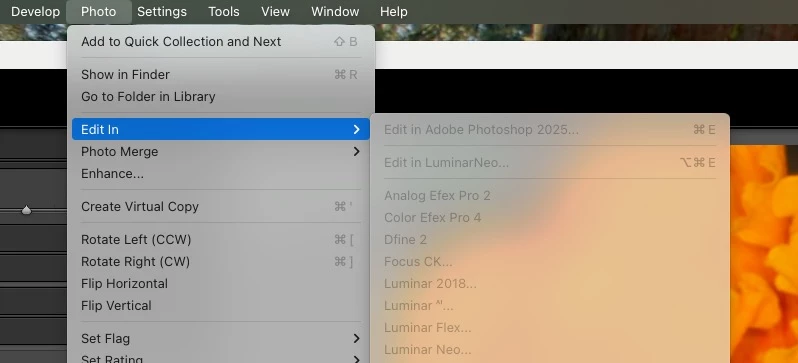
Edit In menu suddenly greyed out in Develop module - LRC

  • August 4, 2025
  • 3 replies
  • 413 views

I imported 45 raw files this morning, went through a dozen or so the sme as I have with thousands before in the past 10 years - now, for no apparent reason the Edit In menu under Photo is entirely greyed out...I see this was asked in 2016 and the answer had to do with smart previews, but again, this same batch of files (which were converted to dngs by DxO PureRAW, also part of my normal workflow) was working fine until an hour ago. I have restarted the MacBook as well as quit and restarted LRC, to no avail.


MacBook Pro M3 on Sequoia 15.5

LRC v 14.4


Thanks for any insights
 

Correct answer f8lee

Whoops! Just after writing the above response, I closed the System Info pop up window and the film strip at the bottom just reappeared. I mean, in case that points to anything.


Perhaps I should wave a chicken bone to the east or somthing?

3 replies

GoldingD
Legend
August 5, 2025

Click on Help, then System Info. Interested in the following line:


License: Creative Cloud


f8leeAuthor
Inspiring
August 5, 2025

Here is the system info:


Lightroom Classic version: 14.4 [ 202506051112-5918896a ]
License: Creative Cloud
Language setting: en-US
Operating system: Mac OS 15
Version: 15.5.0 [24F74]
Application architecture: arm64
Logical processor count: 12
Processor speed: NA
SqLite Version: 3.36.0
Power Source: Plugged In, 100%
Built-in memory: 18,432.0 MB
Dedicated GPU memory used by Lightroom: 232.1MB / 12,288.0MB (1%)
Real memory available to Lightroom: 18,432.0 MB
Real memory used by Lightroom: 1,544.9 MB (8.3%)
Virtual memory used by Lightroom: 412,751.9 MB
Memory cache size: 606.6MB
Internal Camera Raw version: 17.4 [ 2272 ]
Maximum thread count used by Camera Raw: 5
Camera Raw SIMD optimization: SSE2
Camera Raw virtual memory: 92MB / 9215MB (1%)
Camera Raw real memory: 97MB / 18432MB (0%)

Cache1:
NT- RAM:0.0MB, VRAM:0.0MB, Combined:0.0MB

Cache2:
m:606.6MB, n:0.0MB

U-main: 116.0MB

Standard Preview Size: 3840 pixels
Displays: 1) 3600x2338, 2) 3840x2160, 3) 3840x2160

Graphics Processor Info:
Metal: Apple M3 Pro
Init State: GPU for Export supported by default
User Preference: Auto
Enable HDR in Library: ON

Application folder: /Applications/Adobe Lightroom Classic
Library Path: /Users/RobertFately/Pictures/LightroomAperture/LightroomAperture-v13-3.lrcat
Settings Folder: /Users/RobertFately/Library/Application Support/Adobe/Lightroom

Installed Plugins:
1) $$$/PerfectBW/Title=Perfect B&&W 9
2) $$$/PerfectEffects/Title=Perfect Effects 9
3) $$$/PerfectEnhance/Title=Perfect Enhance 9
4) $$$/PerfectLayers/Title=Perfect Photo Suite 9
5) $$$/PerfectPortrait/Title=Perfect Portrait 9
6) $$$/PerfectResize/Title=Perfect Resize 9
7) AdobeStock
😎 Aperture/iPhoto Importer Plug-in
9) DxO PureRAW 2
10) DxO PureRAW 2 Importer
11) DxO PureRAW 3
12) DxO PureRAW 3 Importer
13) DxO PureRAW 4
14) DxO PureRAW 4 Importer
15) Excire Search
16) Export to Photomatix Pro
17) Flickr
18) Focus CK
19) HDR Efex Pro 2
20) JPEGmini
21) Loupedeck
22) Loupedeck2
23) Loupedeck2 (LR6)
24) Luminar
25) Luminar 2018
26) Luminar Flex
27) Luminar Neo
28) Macphun Creative Kit
29) Merge and Edit in HDR Express
30) ON1 Effects 2023
31) ON1 Resize 10
32) ON1 Resize Standalone 2018
33) Perfectly Clear Complete
34) Perfectly Clear Complete v3
35) Photomatix Batch

Config.lua flags:


But in a weird twist - when I opened LRC an hour ago - the menu was working! I even worked on a few images with the NEO plugin (after having set it up in preferences of course)...have no idea why it fixed itself.


New wrinkle, though - after quititng LRC and seeing your request for the System Info I relaunched it, and now the film stirp no longer appears at the bottom of the Library screen. This thing seems to have a mind of its own.

f8leeAuthorCorrect answer
Inspiring
August 5, 2025

Whoops! Just after writing the above response, I closed the System Info pop up window and the film strip at the bottom just reappeared. I mean, in case that points to anything.


Perhaps I should wave a chicken bone to the east or somthing?

johnrellis
Legend
August 5, 2025

"now, for no apparent reason the Edit In menu under Photo is entirely greyed out...I"


Do the menu command Library > Find All Missing Photos. Are those photos marked as missing?

f8leeAuthor
Inspiring
August 5, 2025

They are not - they still appear as they always have - and the Find Missing Photos did not help (nice idea, though)


But Okay - an update...
On a whim, I opened LRC one more time and saw the Edit In menu was live, but there was nothing set up for option 2 - in settings I selected Neo (which is what it was all this time before) and when I returned to LRC once again the menu was greyed out. So is it possible that for some reason PRC decided it cannot use a second option for photo editing, in the middle of a work session at that?

johnrellis
Legend
August 5, 2025

"So is it possible that for some reason PRC decided it cannot use a second option for photo editing, in the middle of a work session at that?"


It's possible.  LR's preferences architecture is flawed and it sometimes soils it's preferences file, causing LR to act wonky in unpredictable ways. If the problem persists, try resetting LR's preferences:
https://www.lightroomqueen.com/articles-page/how-do-i-reset-lightrooms-preferences/

KR Seals
Community Expert
Community Expert
August 4, 2025

The first thing that comes to mind is try resetting your Lightroom Classic Preferences.


Ken Seals - Nikon Z 9, Z 8, 14mm-800mm. Computer Win 11 Pro, I7-14700K, 64GB, RTX3070TI. Travel machine: 2021 MacBook Pro M1 MAX 64GB. All Adobe apps.
f8leeAuthor
Inspiring
August 4, 2025

Well, I thnank you for your thought - but alas, it did not work.


What is particularly weird is that the problem started while I was in the midst of doing the edits in Luminar Neo - I had done about a dozen images and then the next one did not allow me to invoke Neo at all - then I discovered the greyed out menu.