Hi again,
The whole idea of using the embedded previews is to view them quickly, then either mark the file with P, X, (or U). If X, I can control-backspace to delete the rejects.
In v7.01, once downloaded, the preview image shows "Embedded Preview" in the lower corner, and also with an indicator icon on the image that shows me I am looking at the embedded preview. New files with the embedded previews can be toggled through very quickly and marked with an X for culling. If I knock down 50-80% of the images using this technique, I can save a lot of time before I try to edit any of them. Once develop setting is applied, the "Embedded Preview" goes away. This is exactly what we've been asking for for years.
I want to let LR revert my slow loading 1:1 images to Embedded Previews so I can go through them as quickly as I can the new images now. I have around 100,000 of them to go through at the moment.
I tried moving a group of images to a temporary folder, then "remove" them from the catalog, and finally reimporting from the same folder. On at least one initial try, it didn't embed the preview. That would have been a workable option for me.
My cameras: Nikon D5, Nikon D500, and Nikon D850.
mrjackson wrote I want to let LR revert my slow loading 1:1 images to Embedded Previews so I can go through them as quickly as I can the new images now. I have around 100,000 of them to go through at the moment. |
So you saying you do need to use 1:1 Zoom View for culling and 1:1 Previews have not been created for these 100,000 image files, correct? If you haven't edited these images, added keywords, ratings, or placed them in collections, etc then you can 'Remove' (NOT Delete) them from LR and then reimport them from the same folder location. No need to move them!
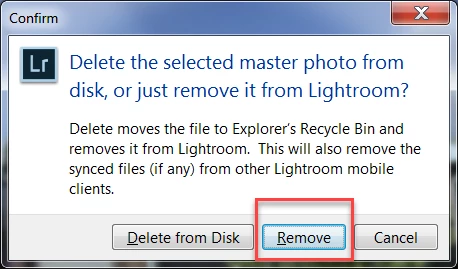
1) Select the images in the LR Library module Grid view and hit the Delete key. Next select 'Remove.' To also select the image files in subfolders below the top-level folder go to menu Library and check 'Show photos in subfolders' and then Select All (CTRL +A).
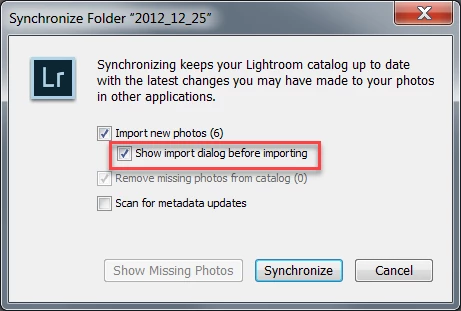
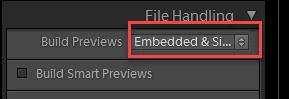
2) Right-click on the folder, select 'Synchronize Folder' and then check 'Show import dialog before importing. In the import module make sure 'Embedded & Sidecar' is checked as shown below. The files should import and display quickly with the embedded preview.

 AdChoices